Vendors
Open your vendor list, review a vendor's info and documents, and add a vendor with a trade.
Updated November 23, 2026
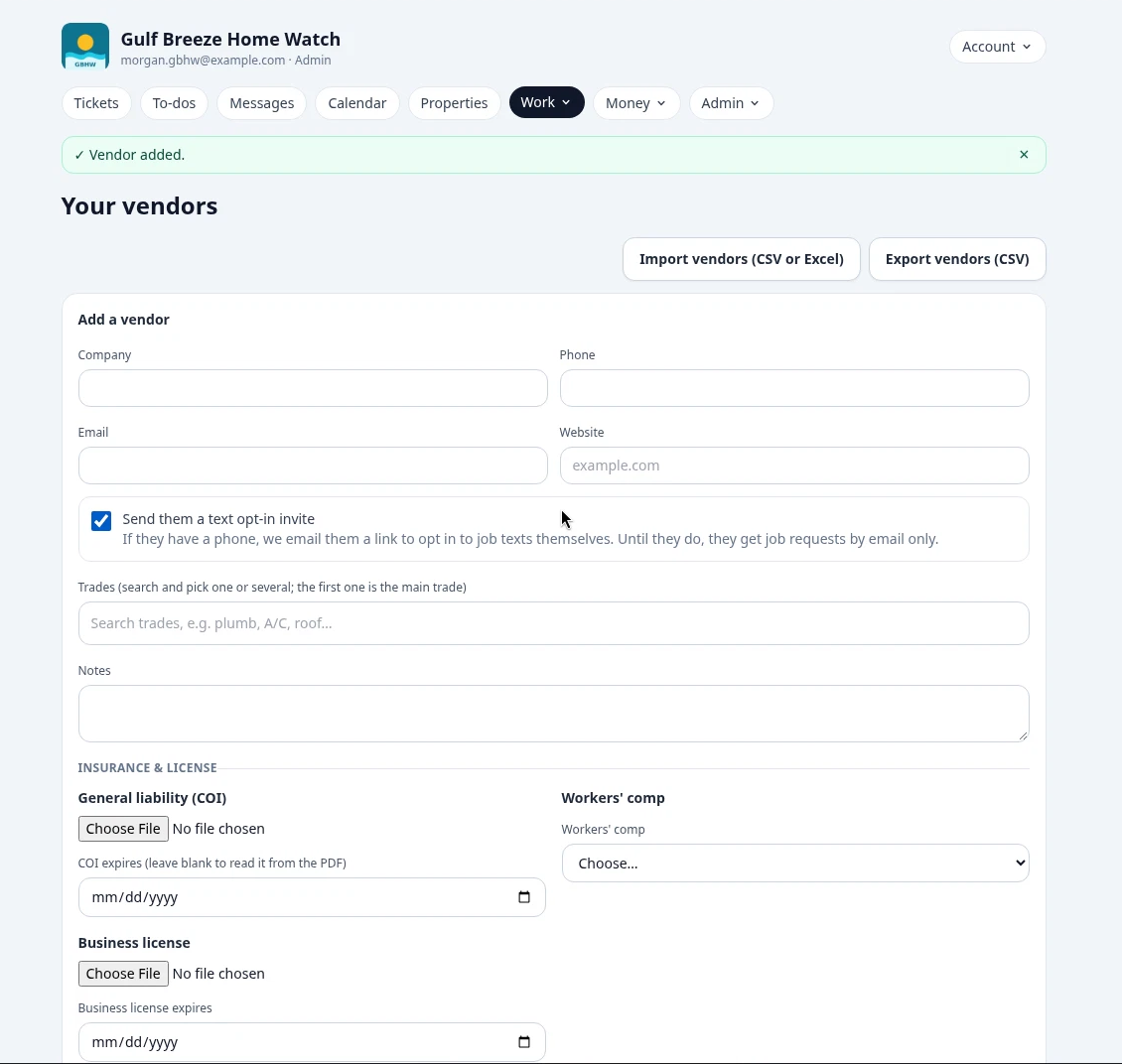
Vendors are the companies you send work to — pool service, HVAC, and the rest of the trades you use. Open them from Work in Property Keeper by TML.
Open Your vendors
- Choose Work, then Vendors. The heading is Your vendors.
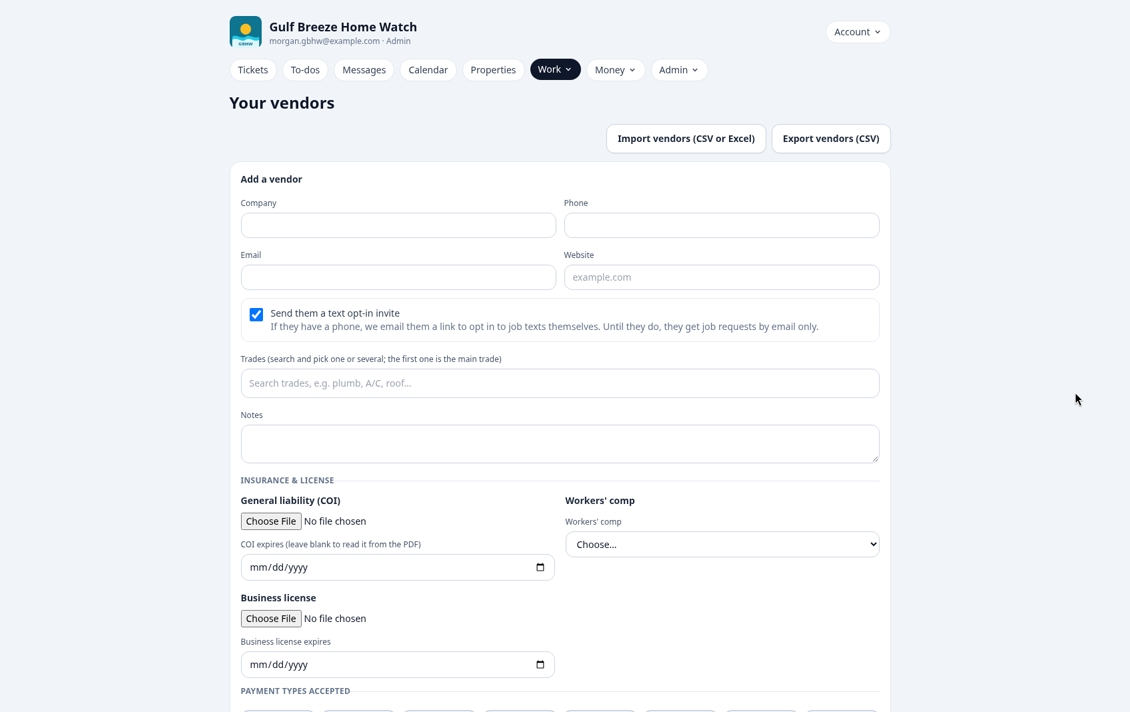
Add a vendor includes:
- Company, Phone, Email, and Website
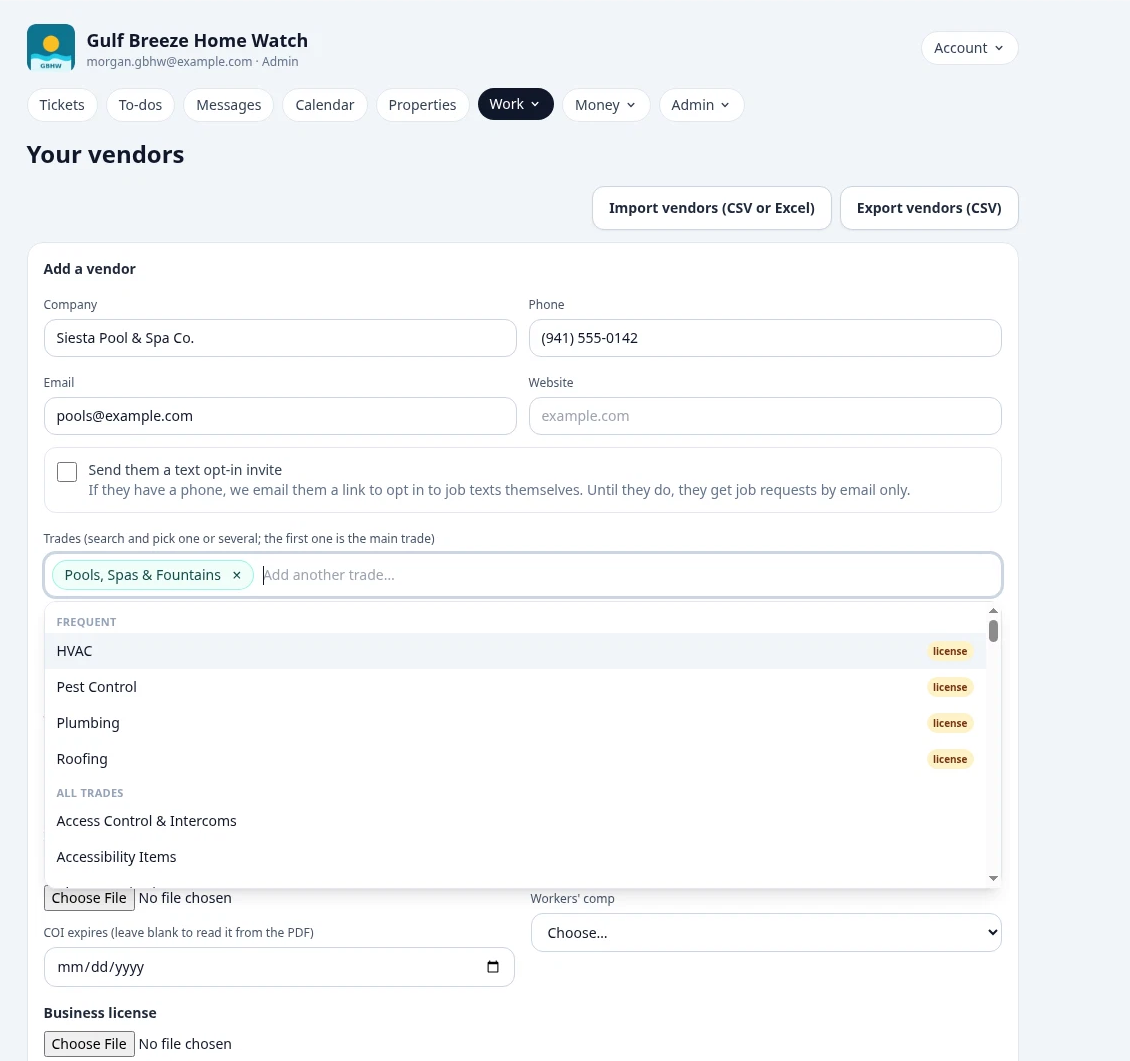
- Send them a text opt-in invite, which is checked by default. If they have a phone, they are emailed a link to opt in to job texts themselves. Until they do, they get job requests by email only.
- Trades (search and pick one or several; the first one is the main trade)
- Notes
- INSURANCE & LICENSE, with General liability (COI), COI expires (leave blank to read it from the PDF), Workers' comp, and Business license
- Scroll to finish the form and see the vendor list.
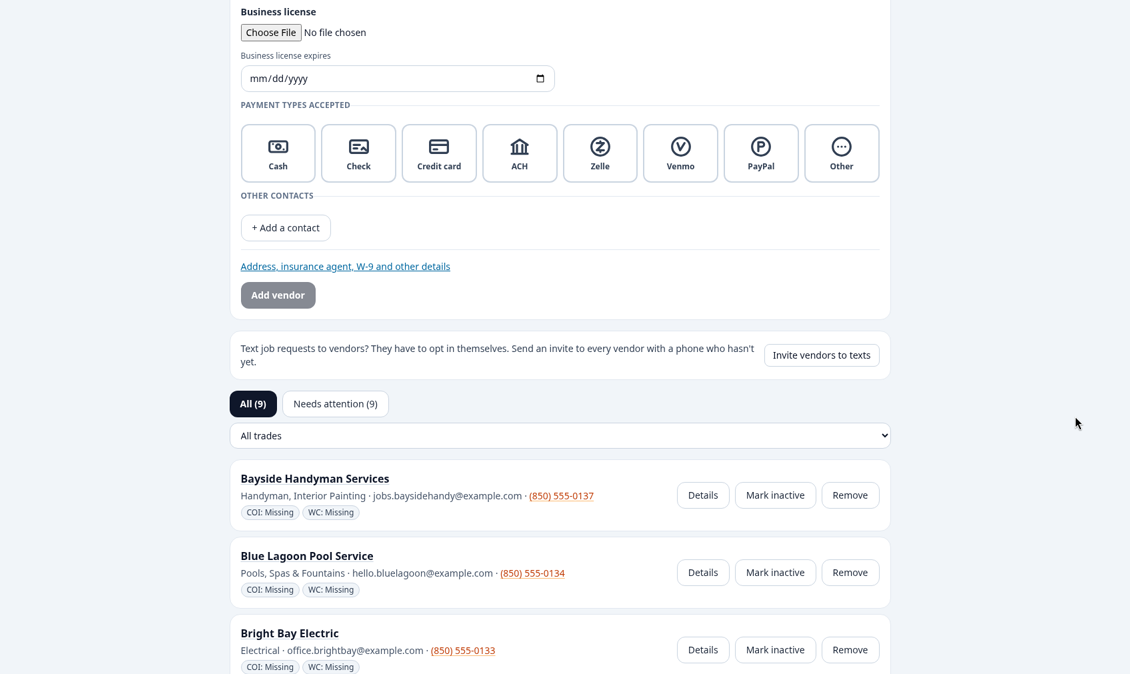
The form also has PAYMENT TYPES ACCEPTED (Cash, Check, Credit card, ACH, Zelle, Venmo, PayPal, Other), OTHER CONTACTS with + Add a contact, a link Address, insurance agent, W-9 and other details, and Add vendor (disabled until the form has what it needs).
A banner on the list asks Text job requests to vendors? They have to opt in themselves. and includes Invite vendors to texts. Filters are All and Needs attention, each with a count, plus an All trades dropdown.
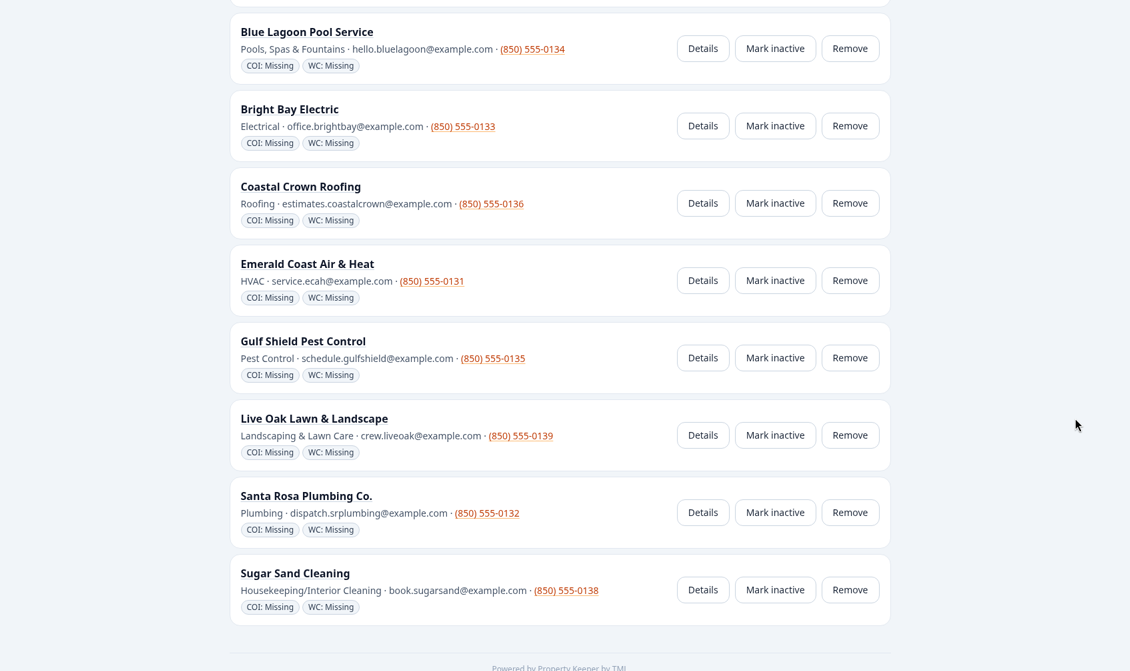
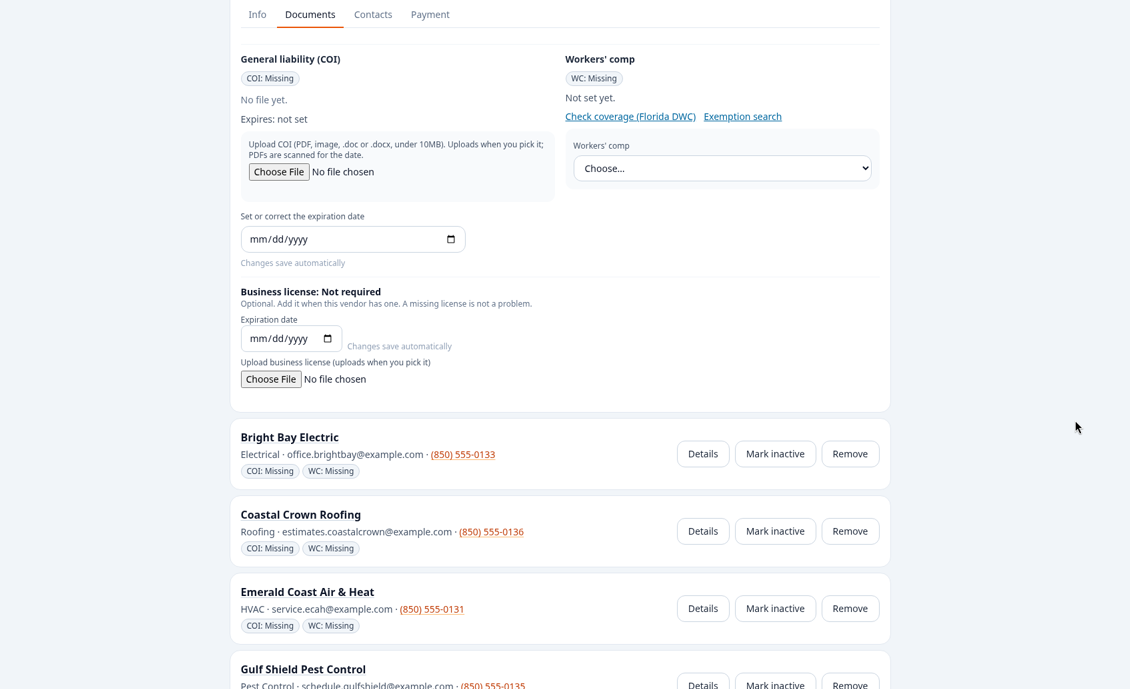
Each vendor row shows the company, trade, email, and phone, with COI: Missing and WC: Missing when those documents are not on file, plus Details, Mark inactive, and Remove.
Open a vendor
- Choose Details on a vendor row. The button becomes Hide details, and the vendor's record opens with tabs Info, Documents, Contacts, and Payment.
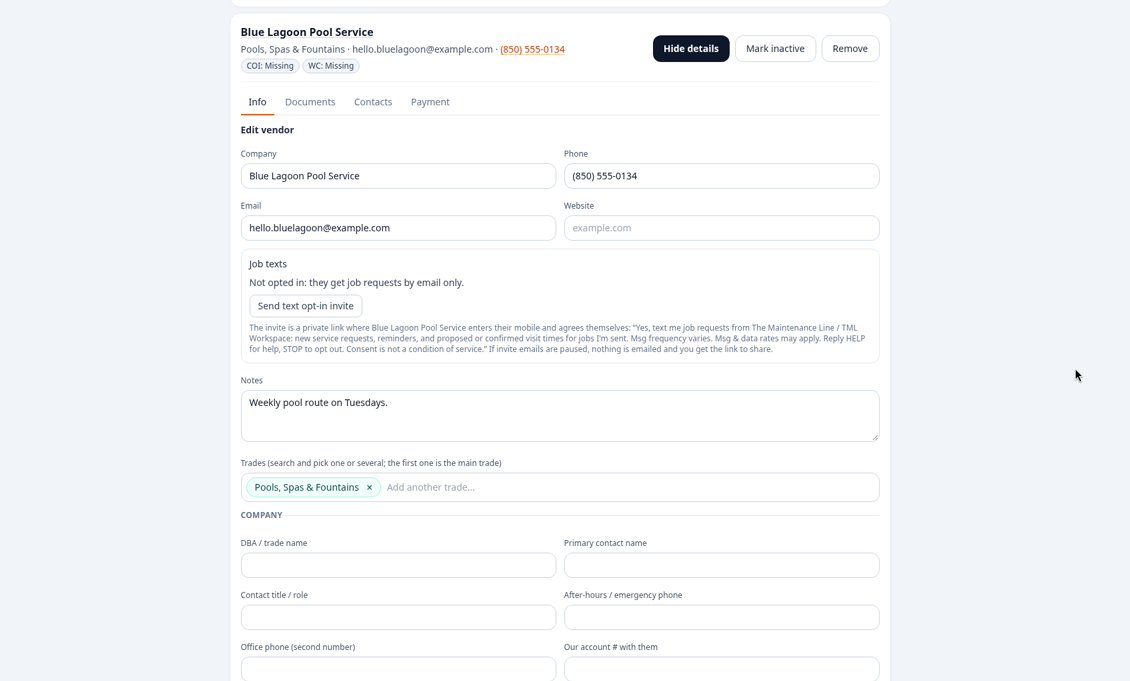
On Info, you can edit Company, Phone, Email, and Website. A Job texts box shows whether they have opted in. In this example it says Not opted in: they get job requests by email only. and includes Send text opt-in invite. The invite text names the product as The Maintenance Line / TML Workspace. If invite emails are paused, nothing is emailed and you get the link to share.
Notes in this example are Weekly pool route on Tuesdays. The trade chip is Pools, Spas & Fountains. A COMPANY section includes fields such as DBA / trade name and primary contact.
- Scroll for address, rates, insurance, and licenses. Changes save automatically.
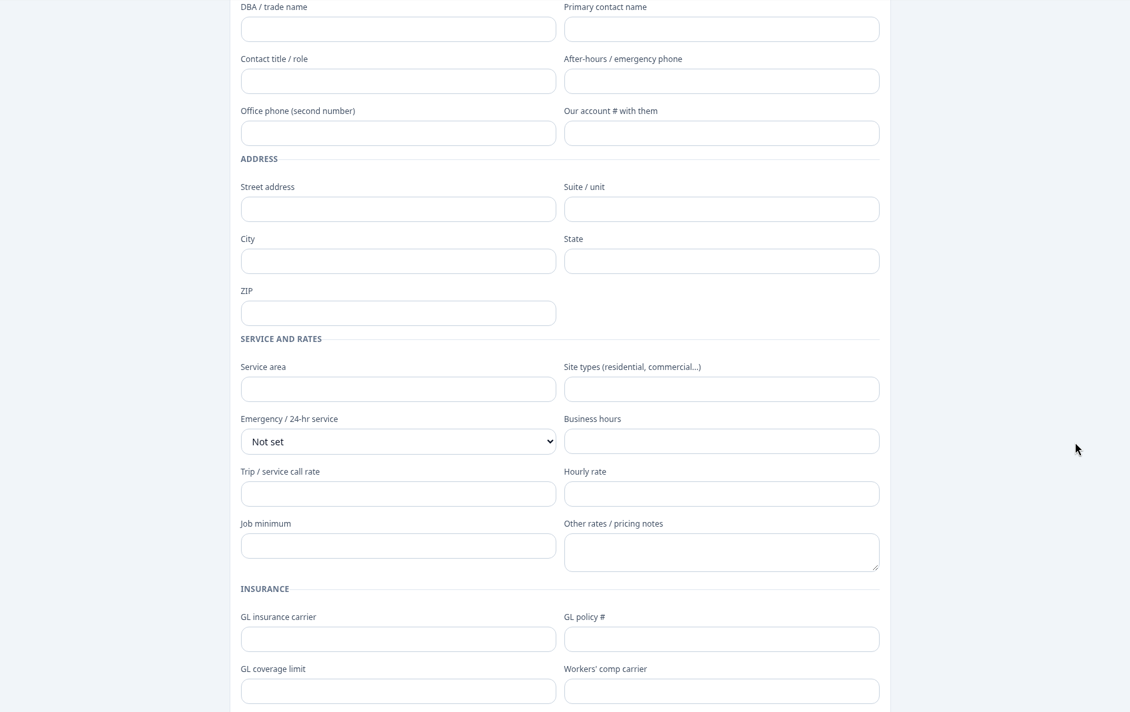
ADDRESS includes street, suite, city, state, and ZIP. SERVICE AND RATES includes service area, site types, emergency / 24-hr service, business hours, and rate fields. INSURANCE includes carriers, policy numbers, and coverage limits.
- Keep scrolling for licenses, W-9, and the trade card.
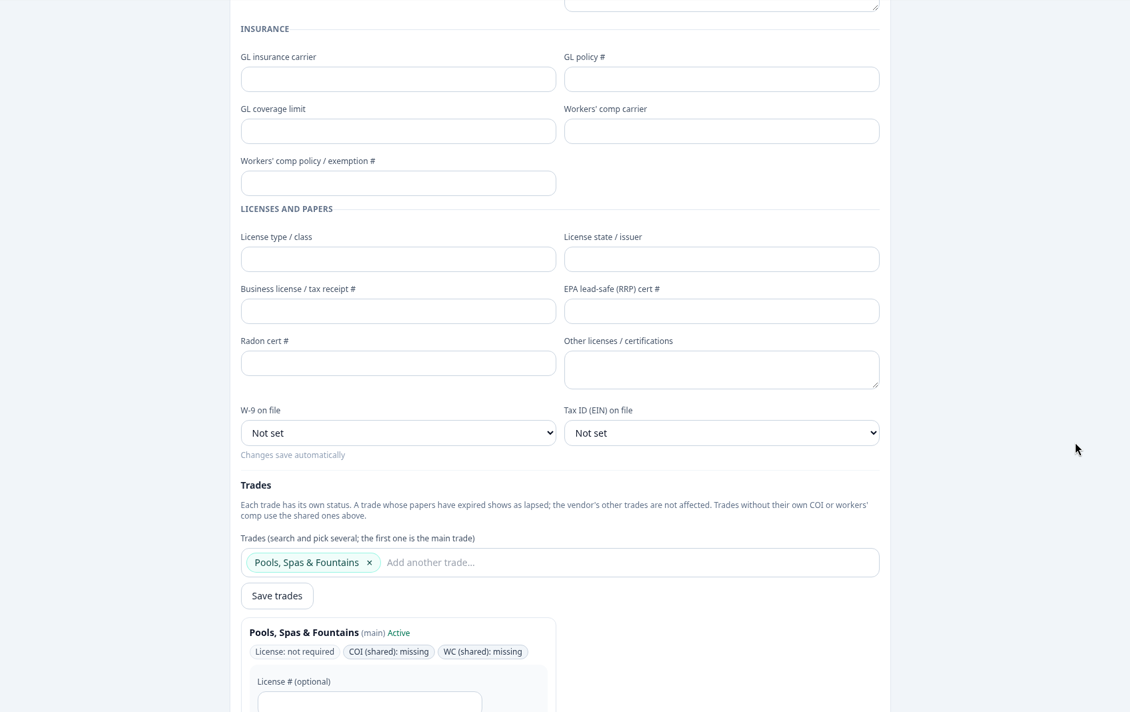
A Trades note says each trade has its own status. A trade whose papers have expired shows as lapsed; the vendor's other trades are not affected. Trades without their own COI or workers' comp use the shared ones above.
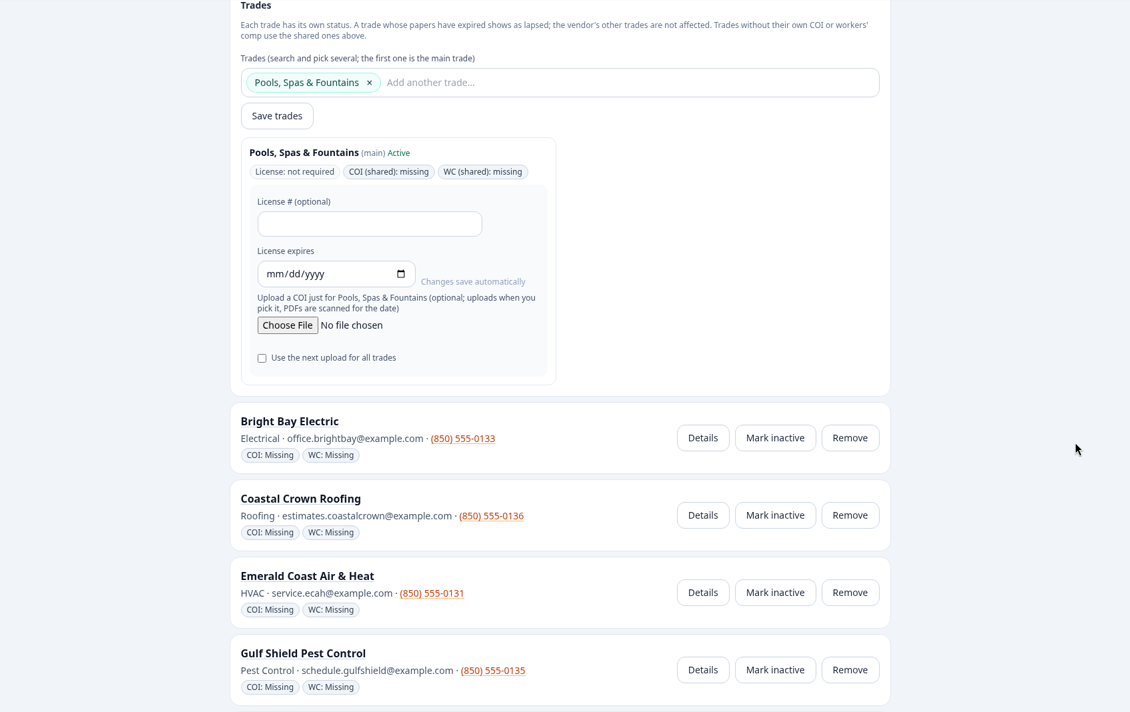
The trade card in this example is Pools, Spas & Fountains (main) Active, with License: not required, COI (shared): missing, and WC (shared): missing.
- The trade card also has a license expiration field and an optional upload for a COI just for that trade.
Review documents, contacts, and payment
- Choose Documents. General liability (COI) and Workers' comp show their status. You can upload a COI (PDF, image, .doc or .docx, under 10MB). Uploads when you pick it; PDFs are scanned for the date. You can set or correct the expiration date. Workers' comp includes Check coverage (Florida DWC) and Exemption search.
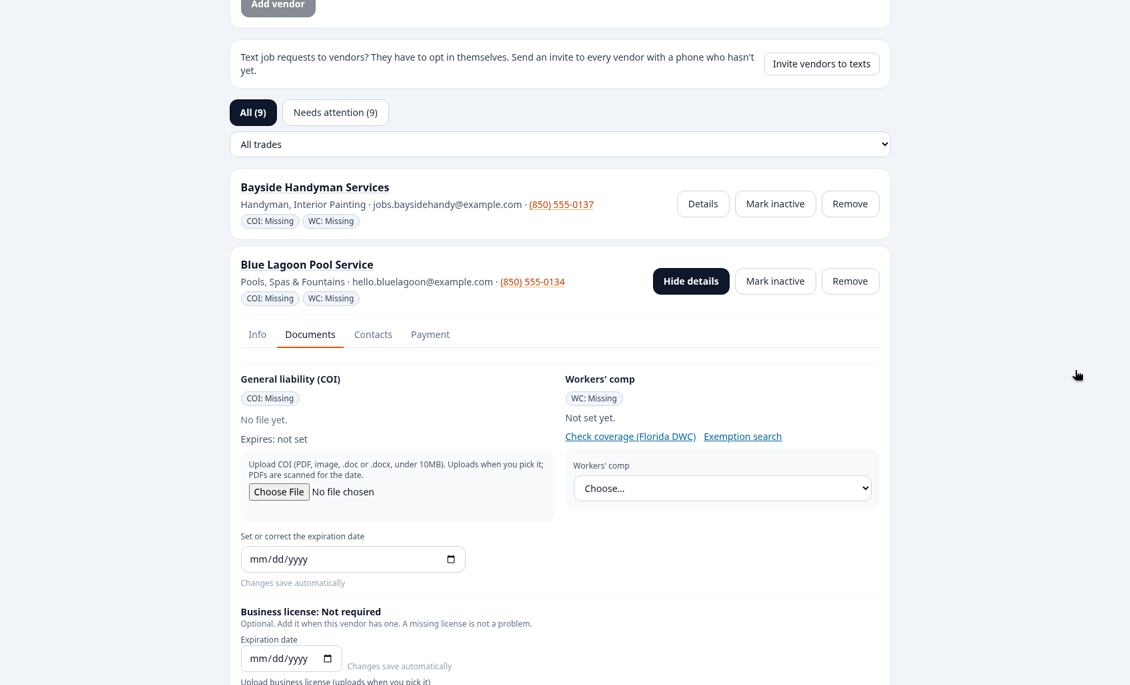
- Scroll to Business license. In this example it is Business license: Not required, with the note that a missing license is not a problem, plus an expiration date and an upload.
- Choose Contacts. Other contacts is optional — a dispatcher, office manager, or after-hours line. Choose + Add a contact to add one. Changes save automatically.

- Choose Payment. Payment method says Tap every type this vendor accepts. The tiles are Cash, Check, Credit card, ACH, Zelle, Venmo, PayPal, and Other. Changes save automatically.

Add a vendor
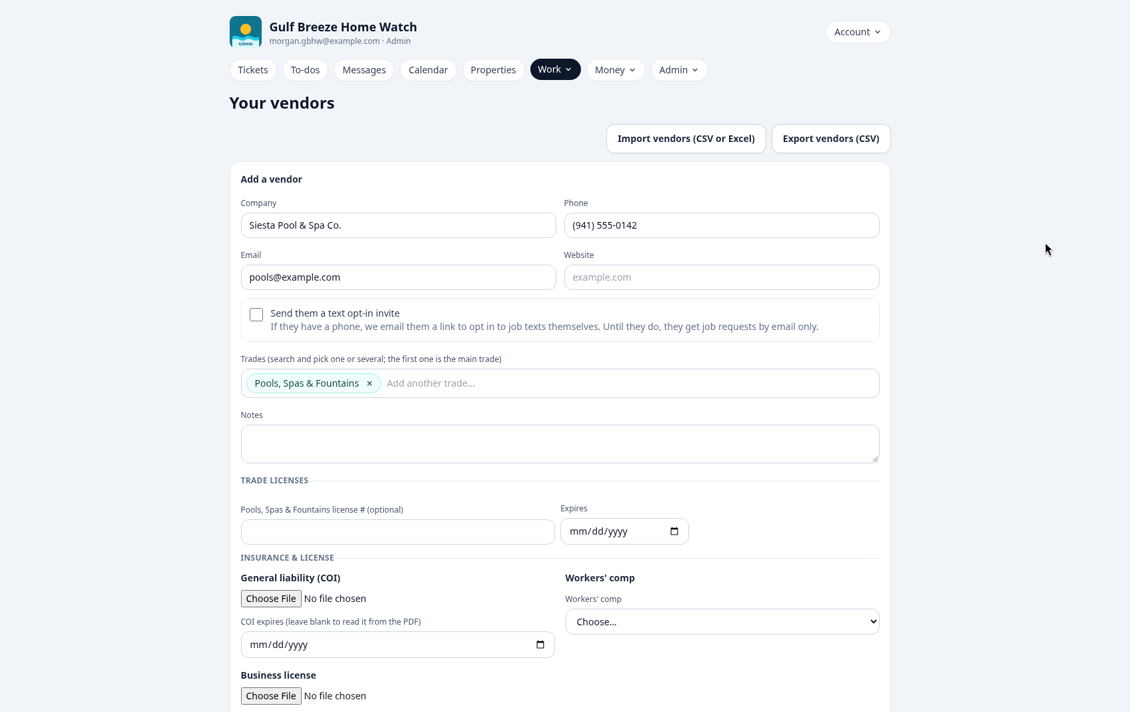
- In Add a vendor, enter the company, phone, and email, pick a trade, and uncheck Send them a text opt-in invite if you do not want to send an invite. In this example:
- Company: Siesta Pool & Spa Co.
- Phone: (941) 555-0142
- Email: pools@example.com
- Text opt-in invite: unchecked
- Trade: Pools, Spas & Fountains
To pick the trade, type in the trades search (for example Pool) and choose Pools, Spas & Fountains. The picker groups FREQUENT trades and ALL TRADES. There is no trade named only Pool.
- After you pick a trade, a TRADE LICENSES section appears, with a license number (optional) and expiration date for that trade.
- Choose Add vendor. The vendor is added, and a Vendor added. banner appears. It stays about 6 seconds, or until you choose ×. In this example the banner is at the top of the Add a vendor form, which is cleared for another entry.