The calendar
Switch calendar views, open an event, email the on-screen calendar to a property, and get your private calendar link from Settings.
Updated November 23, 2026
The calendar in Property Keeper by TML shows requests, visits, scheduled work, and other dates for the properties you service. Open it from Calendar in the top navigation.
Open the calendar
- Choose Calendar. The heading is Calendar. The default view is Month.
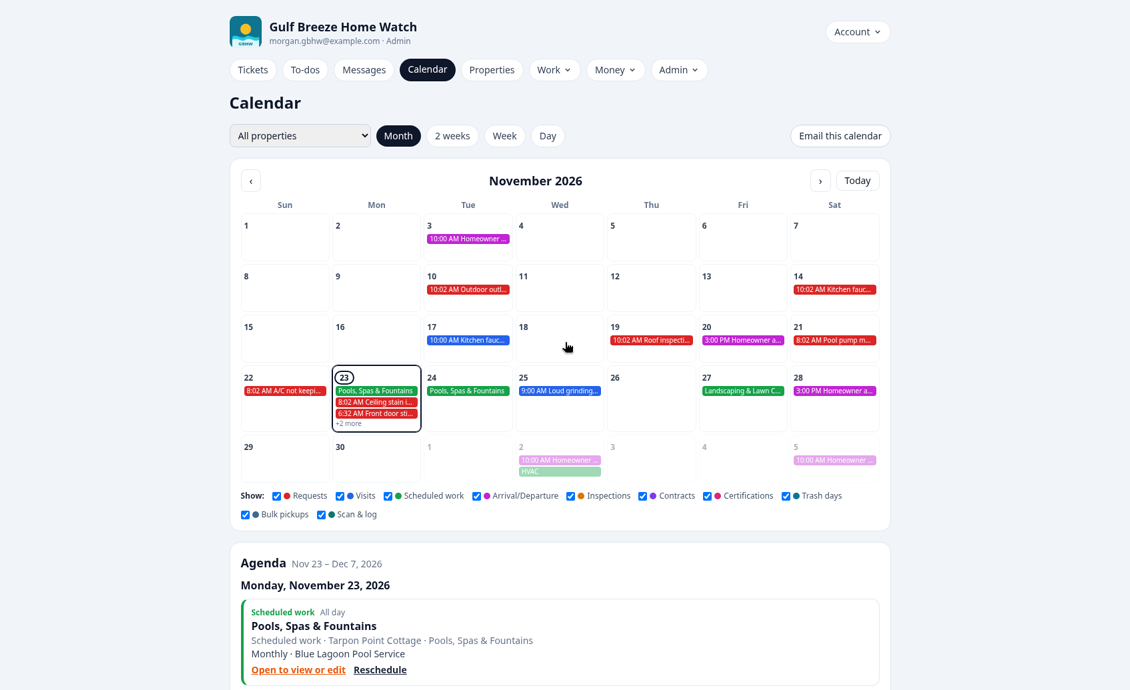
At the top are a property dropdown (here All properties), view buttons Month, 2 weeks, Week, and Day, and Email this calendar. Arrow buttons and Today move the date range. The title in this example is November 2026.
Show: filters (all on in this example) are Requests, Visits, Scheduled work, Arrival/Departure, Inspections, Contracts, Certifications, Trash days, Bulk pickups, and Scan & log.
Below the grid, Agenda lists events for the range (here Nov 23 – Dec 7, 2026). Each item can have Open to view or edit and, for scheduled work, Reschedule.
Switch views
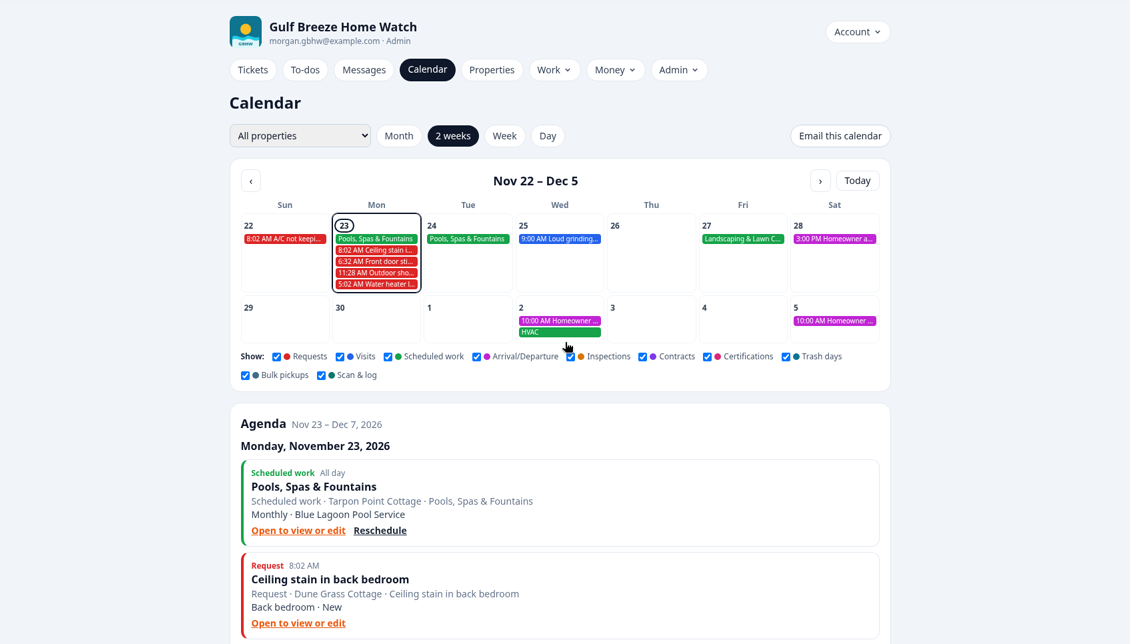
- Choose 2 weeks. The title becomes a two-week range (here Nov 22 – Dec 5), and the grid shows those two weeks, with the agenda still below.
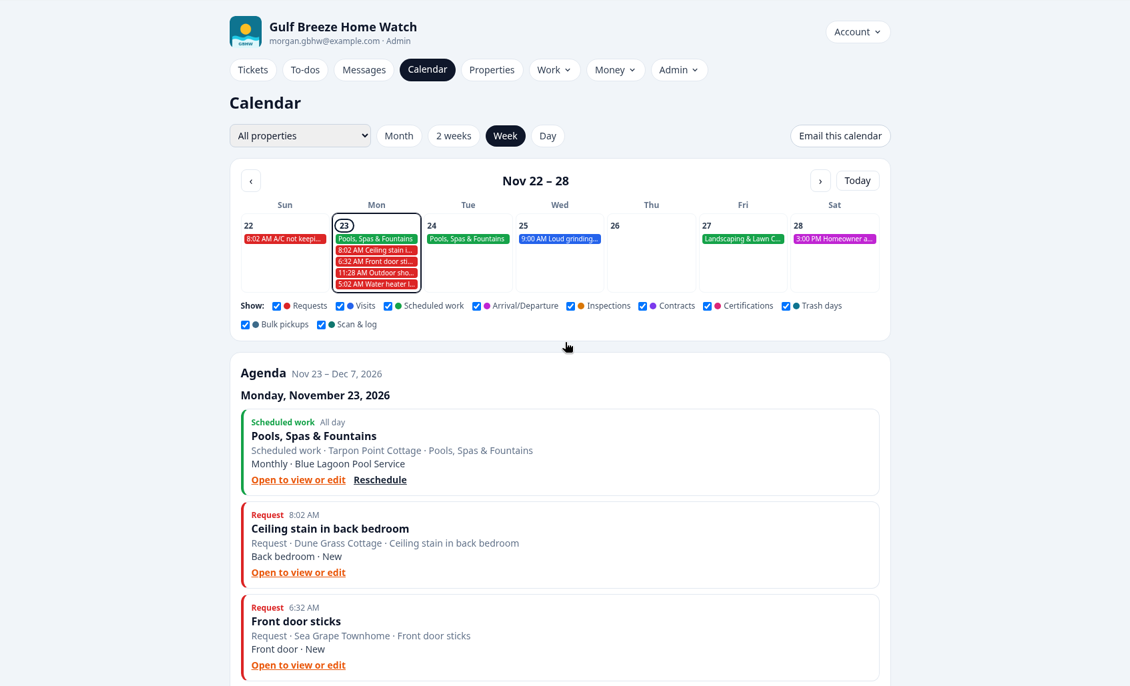
- Choose Week. The title becomes a one-week range (here Nov 22 – 28).
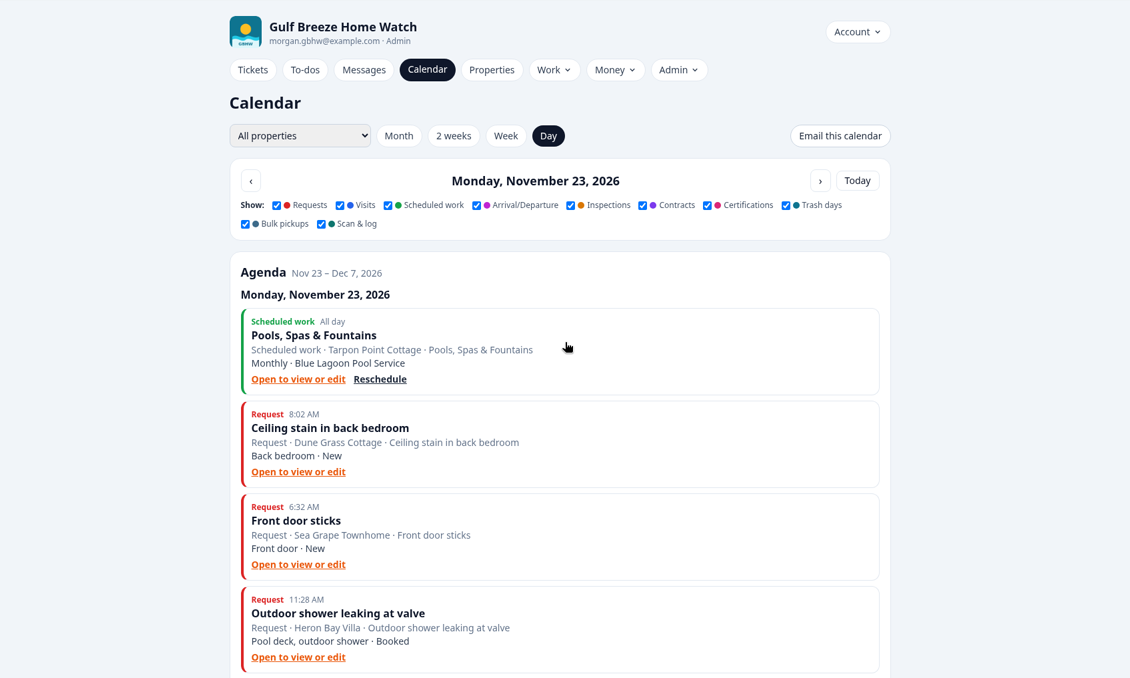
- Choose Day. The title becomes the selected day (here Monday, November 23, 2026). There is no day grid; the Show: filters sit under the title, and the agenda is below.
Open an event
- In Week view, choose an event on the grid, such as the red 8:02 AM Ceiling stain in back bedroom. A detail card opens.
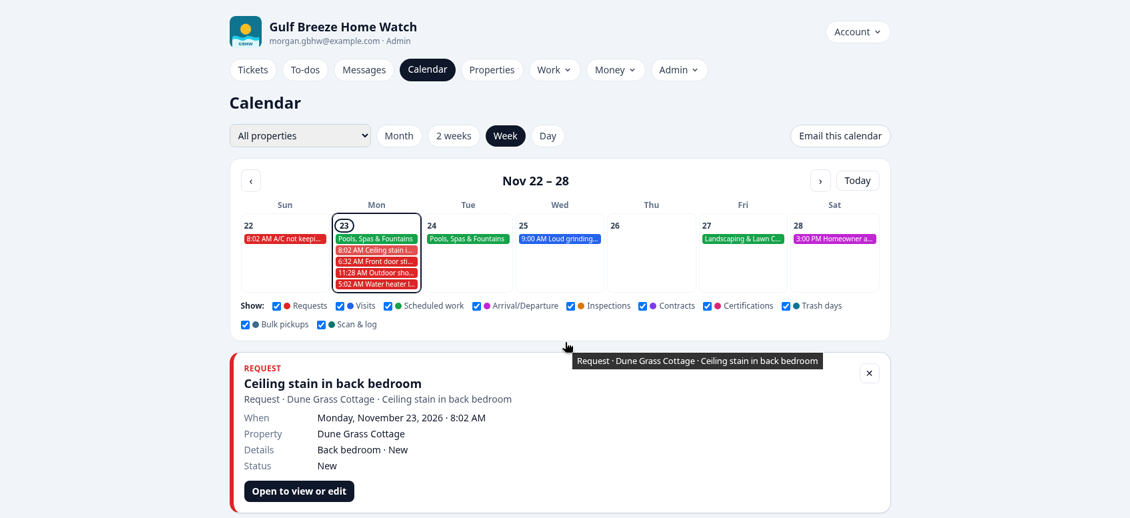
The card is labeled REQUEST, with the title Ceiling stain in back bedroom. In this example it shows Request · Dune Grass Cottage · Ceiling stain in back bedroom, When Monday, November 23, 2026 · 8:02 AM, Property Dune Grass Cottage, Details Back bedroom · New, Status New, a close button, and Open to view or edit.
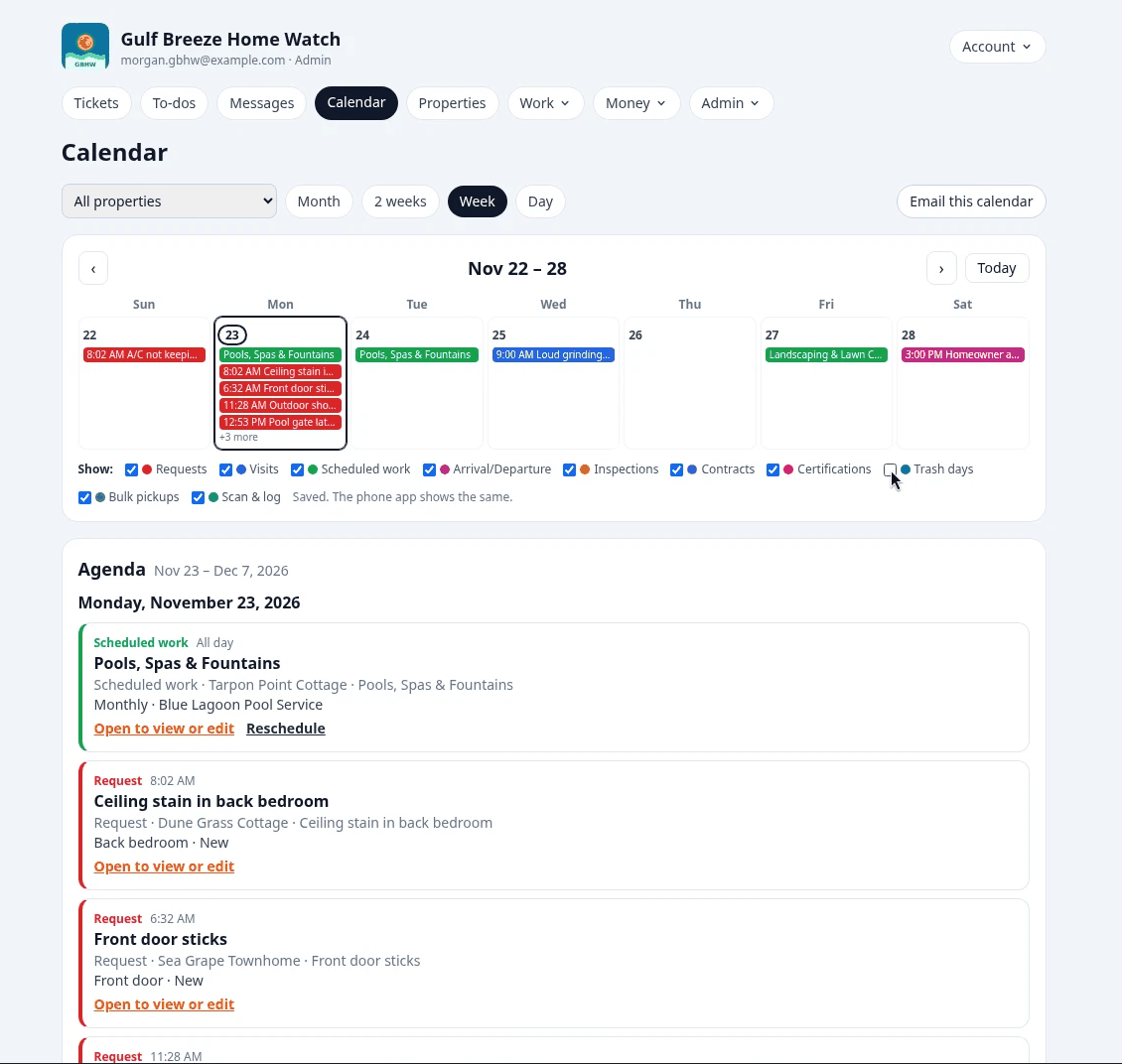
If you change a Show kind or the property filter, the card closes. In this example the Trash days checkbox is being changed, the detail card is gone, and the agenda for the week is visible below the grid. Changing the date with the arrows or Today leaves the card open.
Email this calendar
- Choose Email this calendar. A panel titled Email this calendar opens.
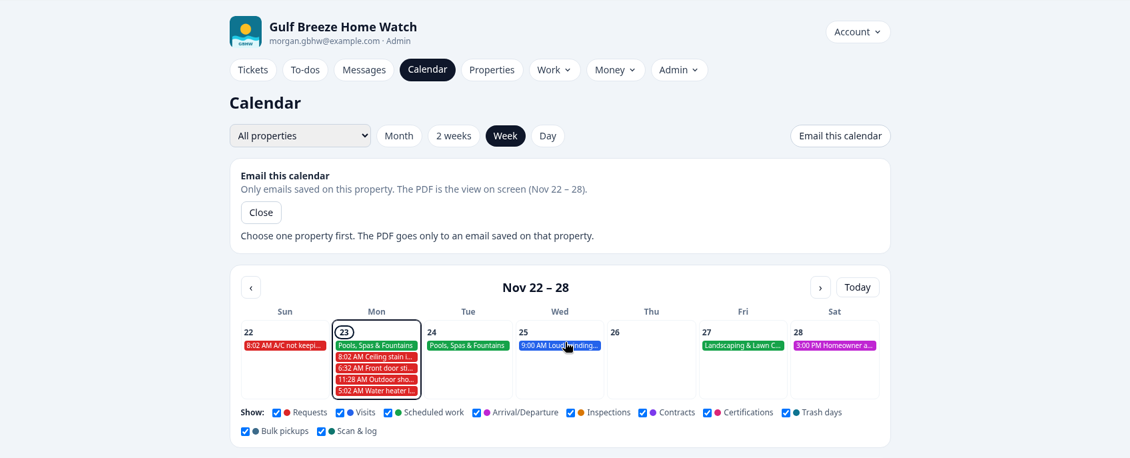
The panel says the PDF is the view on screen (here Nov 22 – 28) and that it only emails an address saved on the property. If no property is selected, it says Choose one property first. The PDF goes only to an email saved on that property. Choose Close to dismiss the panel.
- To email a specific property, choose that property in the dropdown first, then choose Email this calendar again. If that property has no email on file, the panel says This property has no email yet. Add one on the property first.
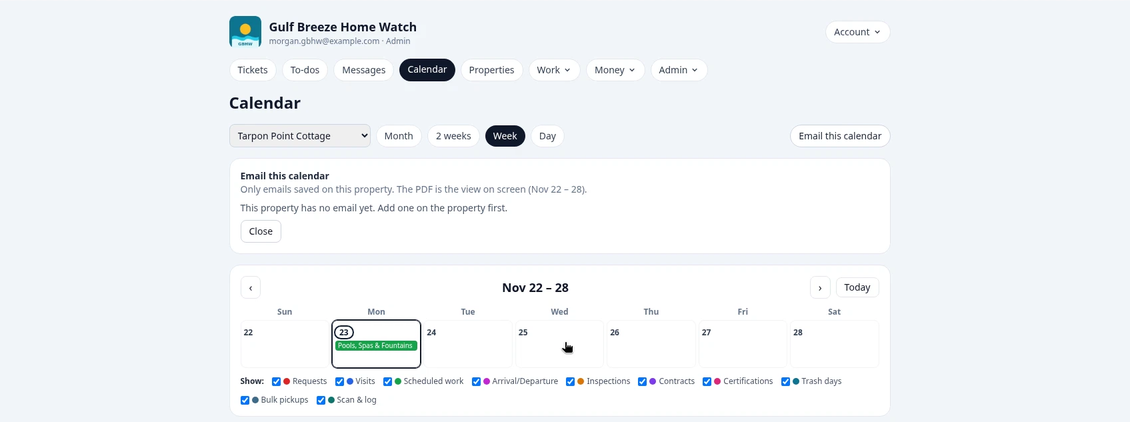
In this example the property filter is Tarpon Point Cottage, and the week grid shows only that property's events (here the Pools, Spas & Fountains scheduled work on the 23rd). Nothing is sent until the property has an email and you send the PDF.
Your private calendar link
Your private calendar link is not on the Calendar page. It is in Admin > Settings, in the Your private calendar link section.
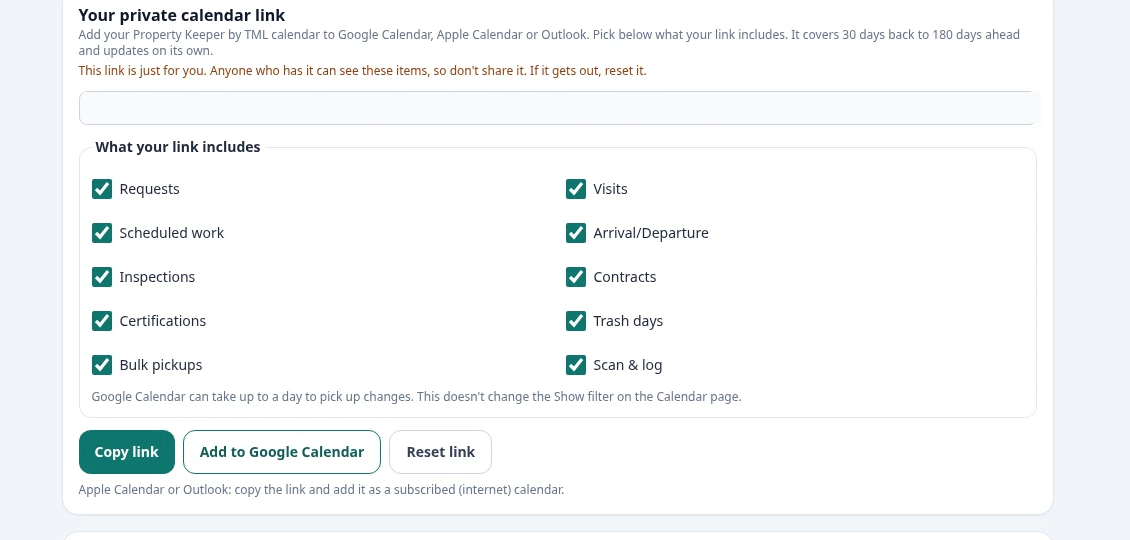
The section explains that you can add your Property Keeper by TML calendar to Google Calendar, Apple Calendar, or Outlook, and that the link covers 30 days back to 180 days ahead and updates on its own. Red text warns that the link is just for you, that anyone who has it can see these items, and that you should reset it if it gets out.
What your link includes has checkboxes (all on in this example) for Requests, Visits, Scheduled work, Arrival/Departure, Inspections, Contracts, Certifications, Trash days, Bulk pickups, and Scan & log. A note says Google Calendar can take up to a day to pick up changes, and that this does not change the Show filter on the Calendar page.
Buttons are Copy link, Add to Google Calendar, and Reset link. Under them, the page says that for Apple Calendar or Outlook, you copy the link and add it as a subscribed (internet) calendar.