Request a feature
Open the Account menu and send a feature request from the request form.
Updated November 23, 2026
Request a feature is how you tell Property Keeper by TML what you need. Open it from Account in the top right.
Open the Account menu
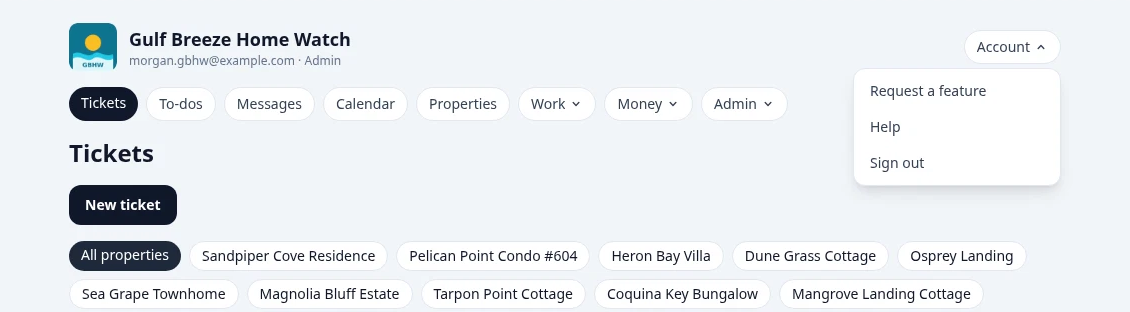
- Choose Account in the top right. The menu has Request a feature, Help, and Sign out.
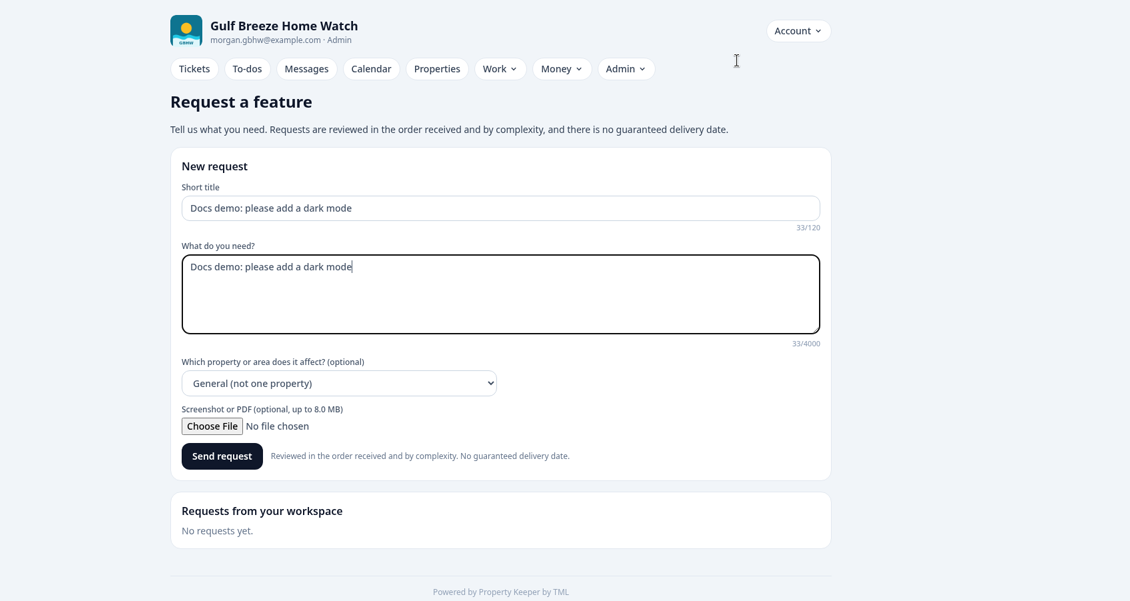
- Choose Request a feature. The heading is Request a feature. The intro says: Tell us what you need. Requests are reviewed in the order received and by complexity, and there is no guaranteed delivery date.
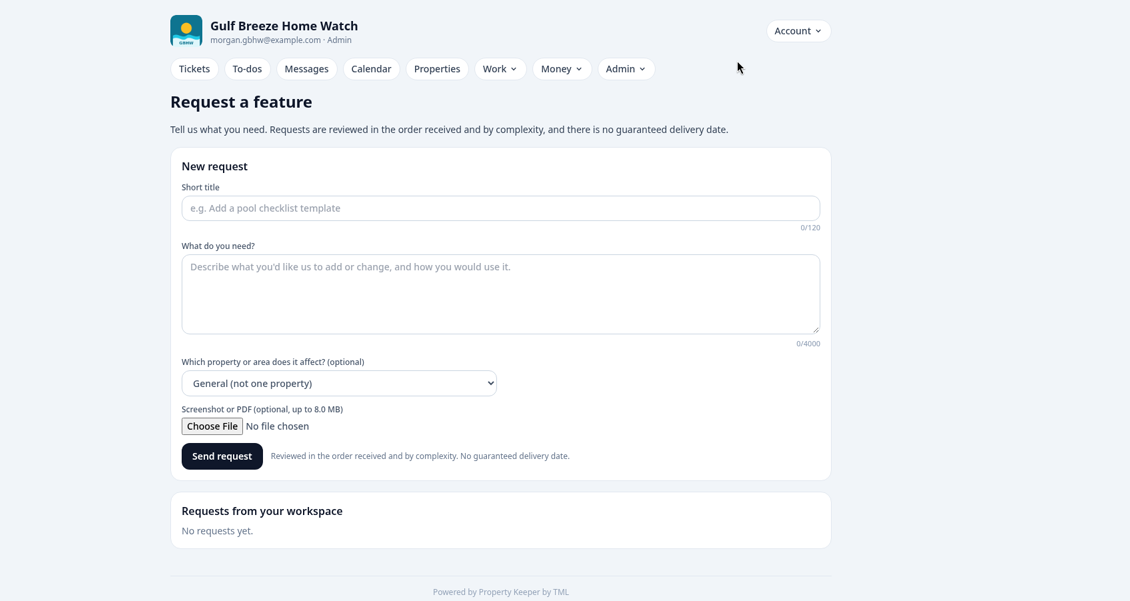
New request includes:
- Short title, with the placeholder e.g. Add a pool checklist template and a 0/120 counter
- What do you need?, with the placeholder Describe what you'd like us to add or change, and how you would use it. and a 0/4000 counter
- Which property or area does it affect? (optional), which defaults to General (not one property)
- Screenshot or PDF (optional, up to 8.0 MB) with Choose File
- Send request, with the line Reviewed in the order received and by complexity. No guaranteed delivery date.
Requests from your workspace says No requests yet. when none have been sent.
Send a request
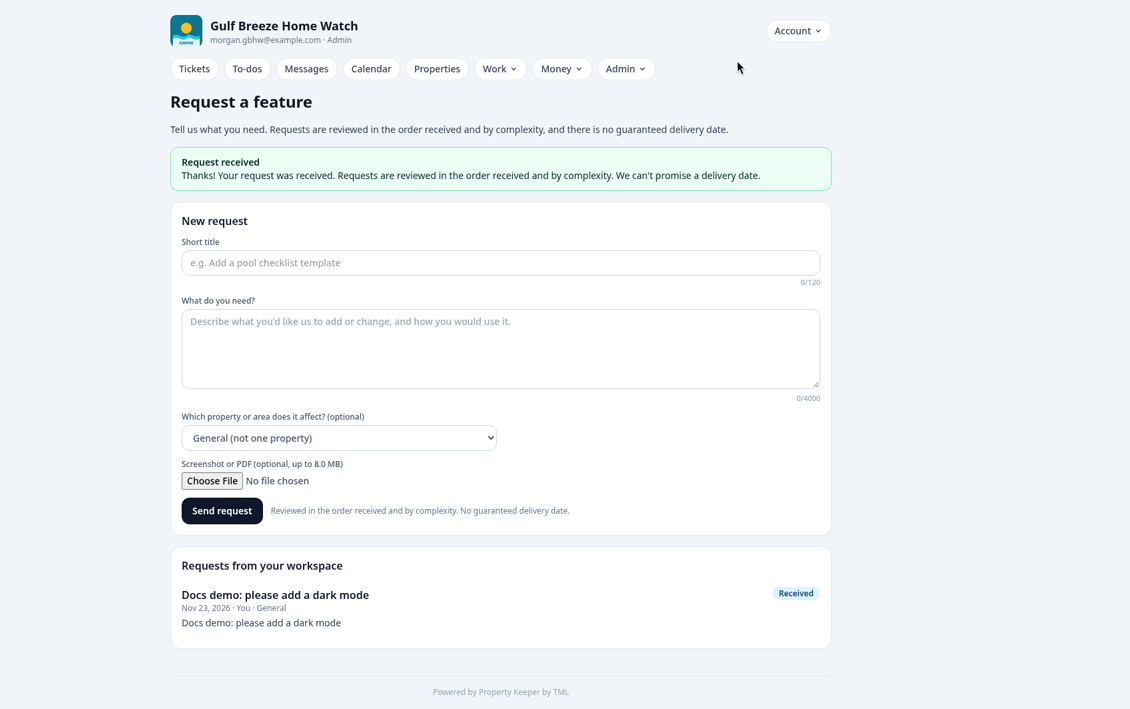
- Fill in a title and description. In this example both are Docs demo: please add a dark mode (33/120 and 33/4000). Which property or area does it affect? (optional) stays General (not one property). No screenshot or PDF is attached.
- Choose Send request. A green banner says Request received, then Thanks! Your request was received. Requests are reviewed in the order received and by complexity. We can't promise a delivery date. The form is cleared. Under Requests from your workspace, the new item appears as Docs demo: please add a dark mode, with a Received badge, Nov 23, 2026 · You · General, and the same description text.