
Scheduled services
Open the Work menu, review recurring services, edit one, and add a scheduled service for a property.
Updated November 23, 2026
Scheduled services are the recurring vendor work you plan for the homes you service — for example, a monthly pool visit. Open them from the Work menu in Property Keeper by TML.
Open Scheduled services
- In the top navigation, choose Work. The menu lists Scheduled, Homeowner visits, Checklists, and Vendors.
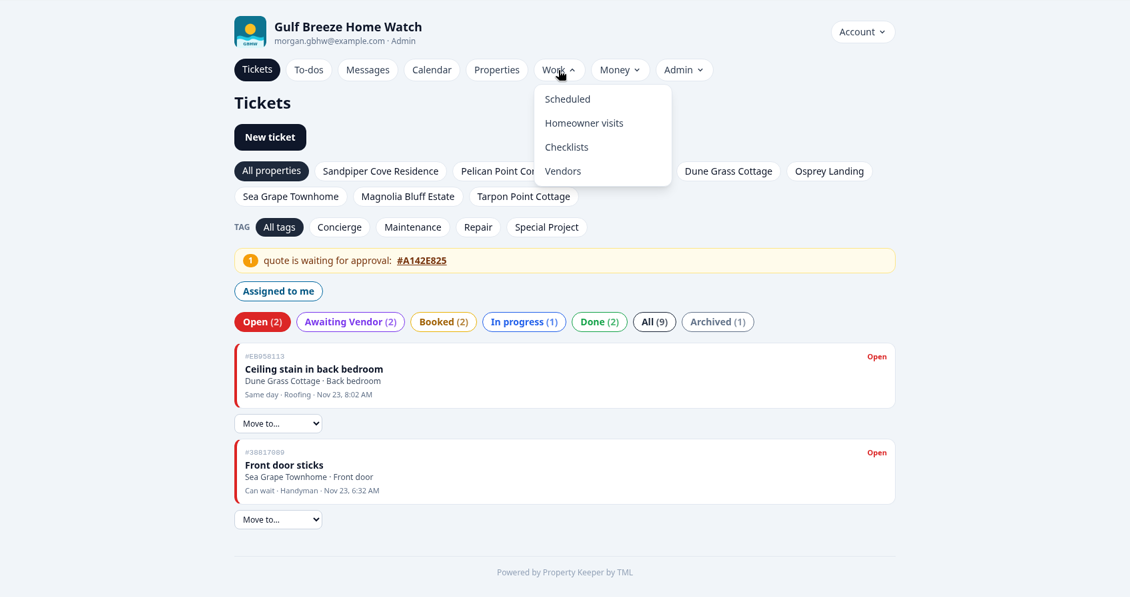
- Choose Scheduled. The heading is Scheduled services. Each row shows the trade, how often the service runs, the next date, the property, and the vendor.
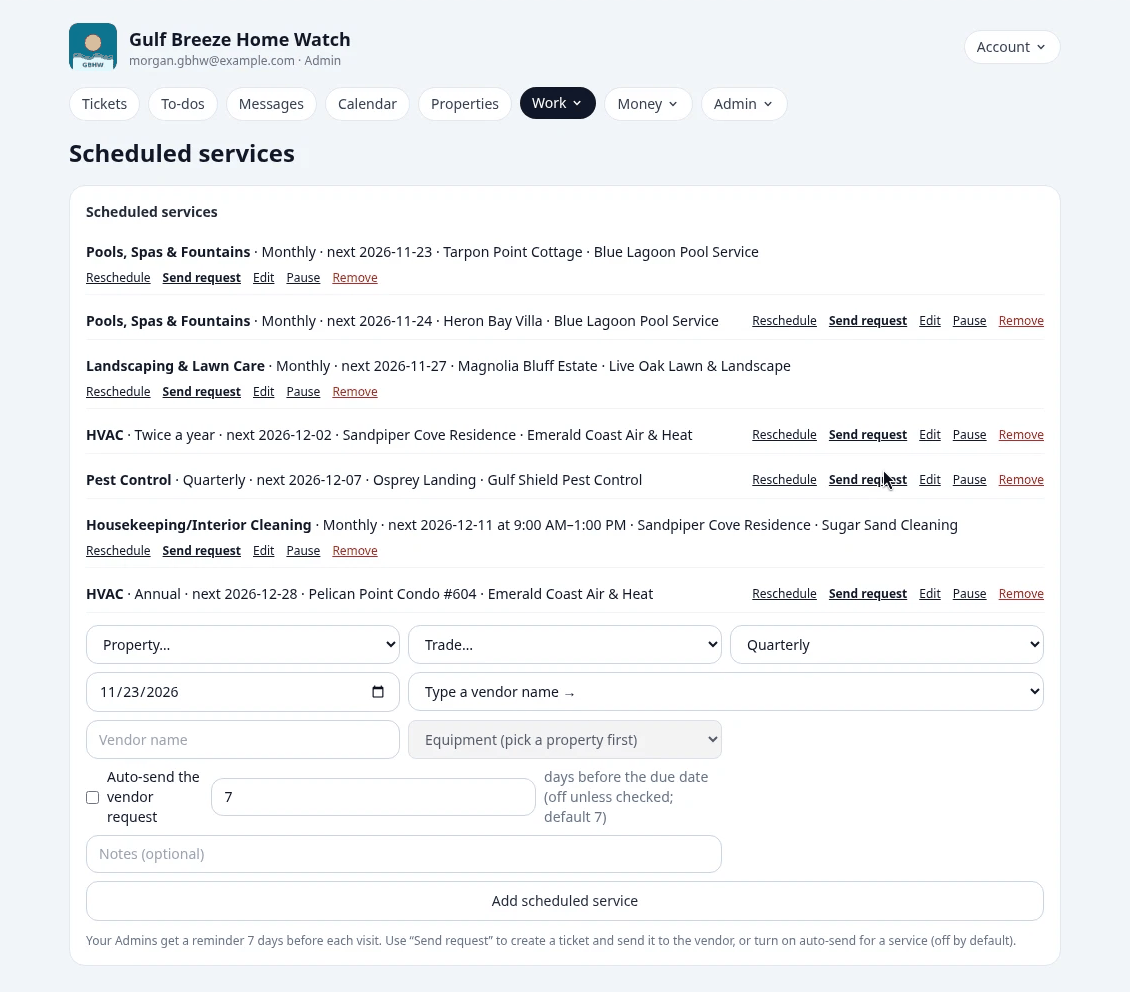
In this example the list has six services, including a monthly Pools, Spas & Fountains visit at Heron Bay Villa with Blue Lagoon Pool Service, and an HVAC visit at Pelican Point Condo #604 next on 2026-12-28.
Each row has Reschedule, Send request, Edit, Pause, and Remove.
Below the list is a form to add another service. The frequency defaults to Quarterly. Equipment stays disabled until you pick a property, then the label becomes Equipment (optional). Auto-send the vendor request is off by default, with a days before the due date field set to 7.
A note at the bottom of the page says your Admins get a reminder 7 days before each visit. Use Send request to create a ticket and send it to the vendor, or turn on auto-send for a service (off by default).
Edit a scheduled service
- On a row, choose Edit. The row expands in place, and Edit becomes Close.
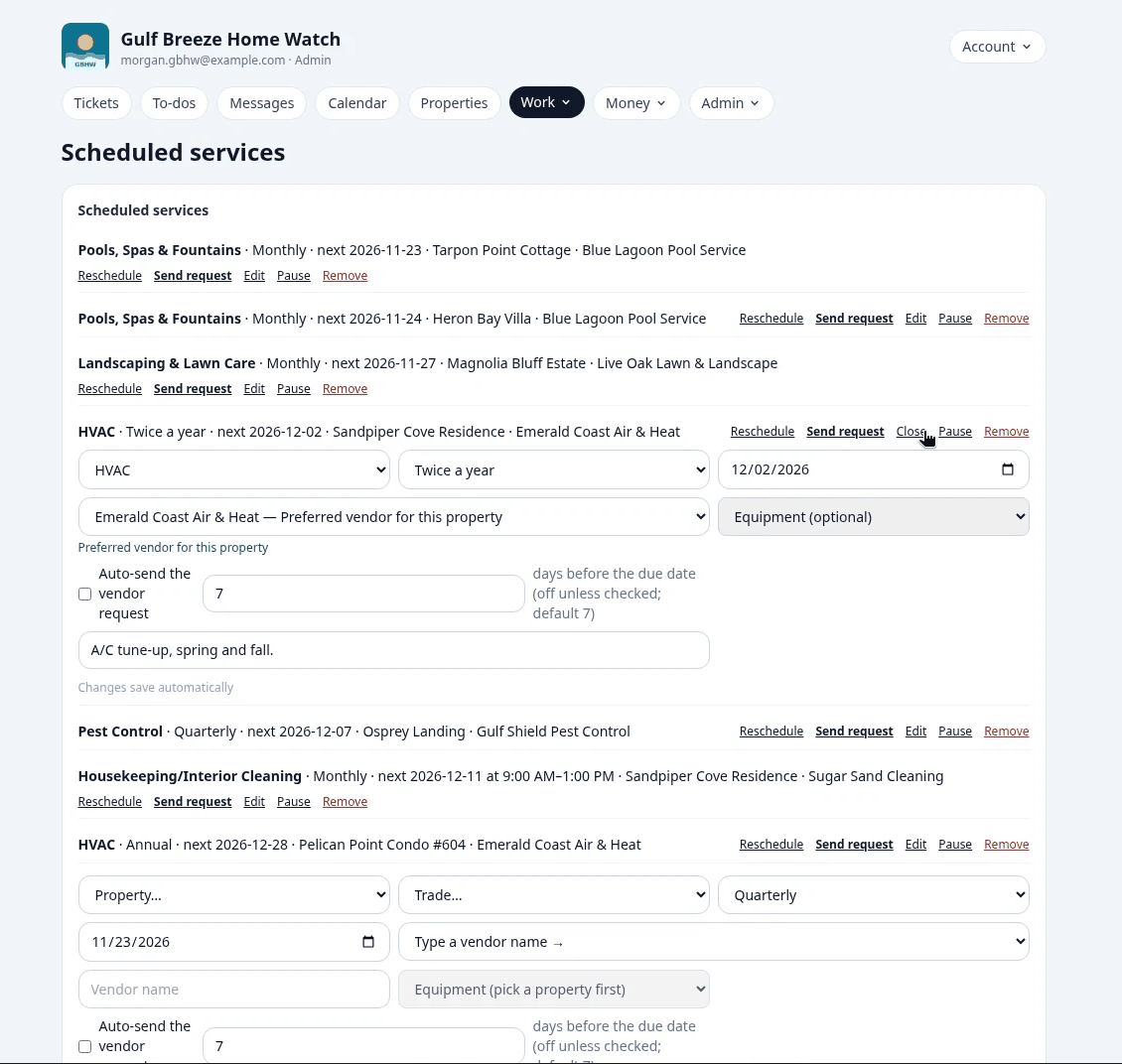
The fields include the trade (here Pools, Spas & Fountains), frequency (Monthly), the next date (11/24/2026), the vendor (Blue Lagoon Pool Service, with green text Preferred vendor for this property), Equipment (optional), Auto-send the vendor request (unchecked), the days field (7), and notes. In this example the notes are Monthly filter clean and equipment check.
Gray text under the notes says Changes save automatically. Choose Close when you are done reviewing the row.
Add a scheduled service
- In the form under the list, choose the Property, Trade, frequency, date, and vendor, and add Notes (optional) if you want them. Leave Auto-send the vendor request unchecked unless you want Property Keeper by TML to send the request on its own. Frequency options are Monthly, Quarterly, Twice a year, and Annual.
In this example the values are:
- Property: Tarpon Point Cottage
- Trade: Pools, Spas & Fountains
- Frequency: Monthly
- Date: 11/23/2026
- Vendor: Blue Lagoon Pool Service
- Notes: Pool service
- Auto-send: off
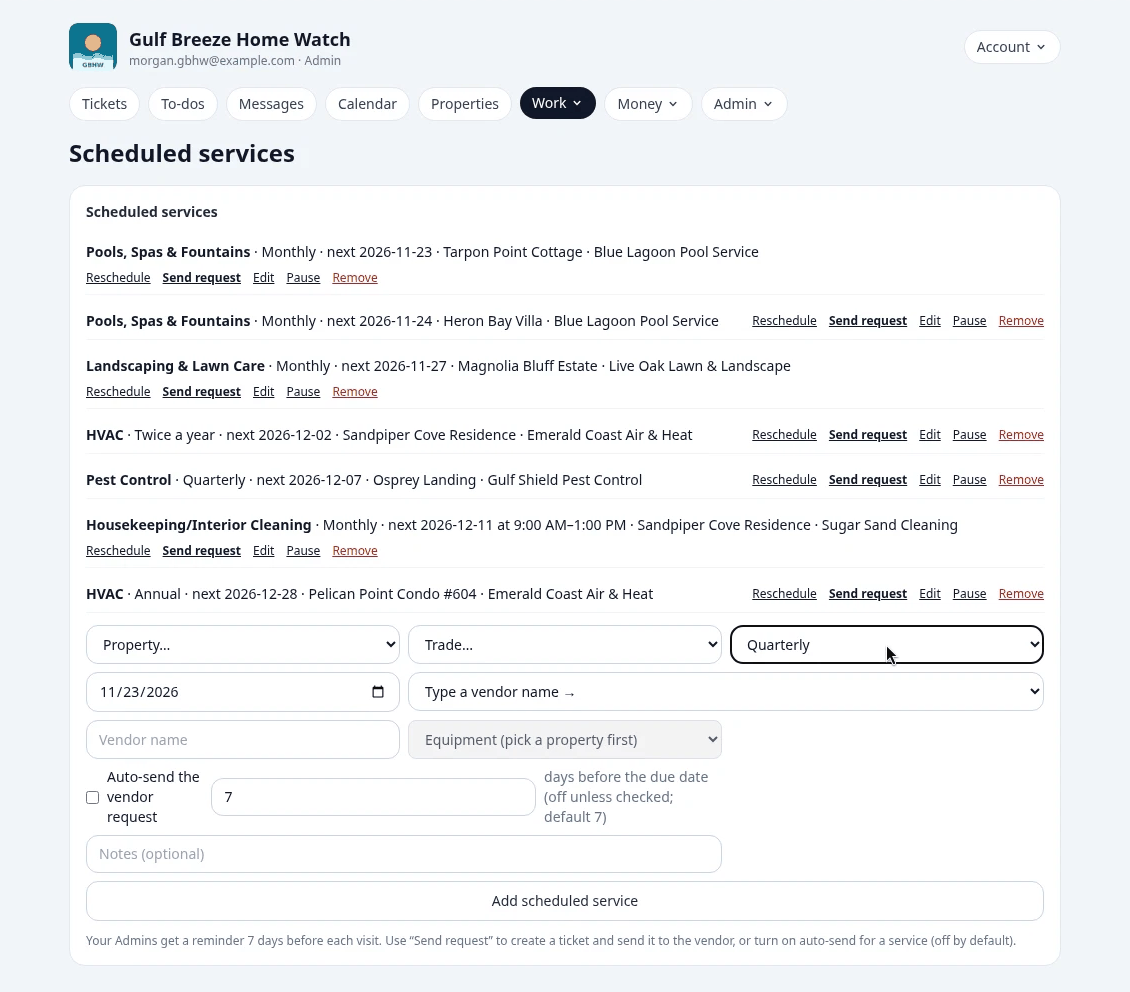
- Choose Add scheduled service. Green text Scheduled service added. appears at the bottom of the form, the form resets, and a new row is added to the list.
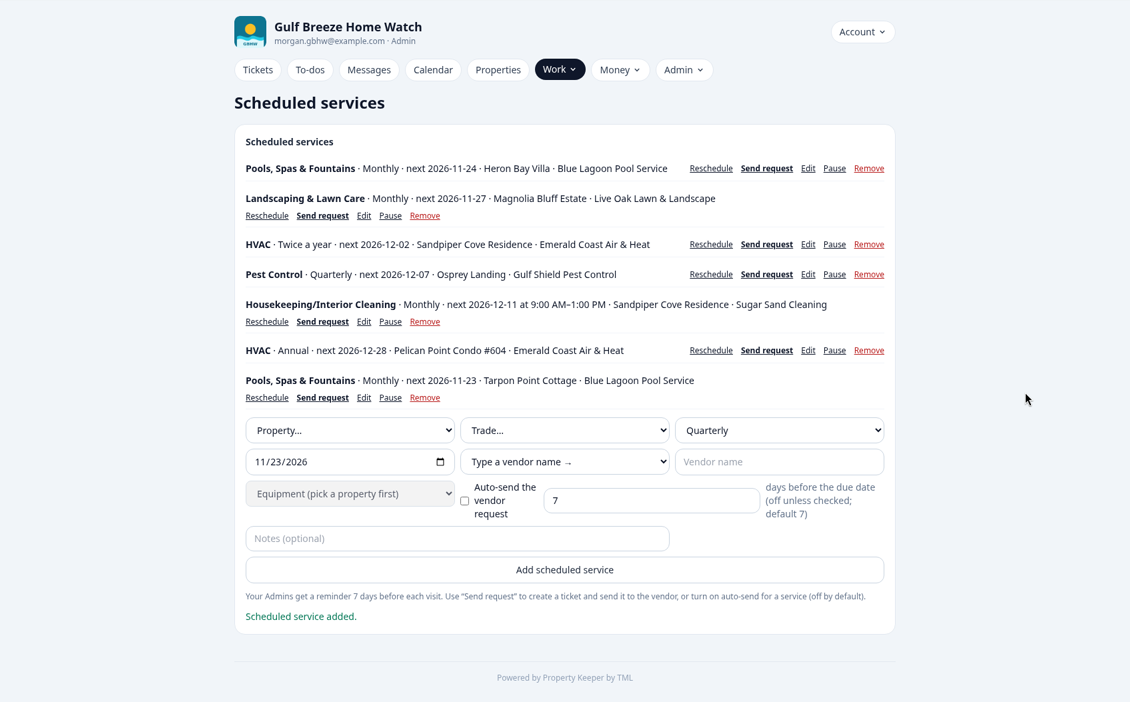
The new row in this example is Pools, Spas & Fountains · Monthly · next 2026-11-23 · Tarpon Point Cottage · Blue Lagoon Pool Service.
To add or review the vendor on a service, see Vendors.