
Checklists
Open the checklist library, edit a list and its items, create a checklist for a property, and open the import form.
Updated November 23, 2026
Checklists are the room-by-room lists you use on visits. Build a list once and use it on all your properties or just the ones you pick. Open them from Work in Property Keeper by TML.
To start or finish a visit with a checklist, see Run a checklist visit.
Open the library
- Choose Work, then Checklists. The heading is Checklists.
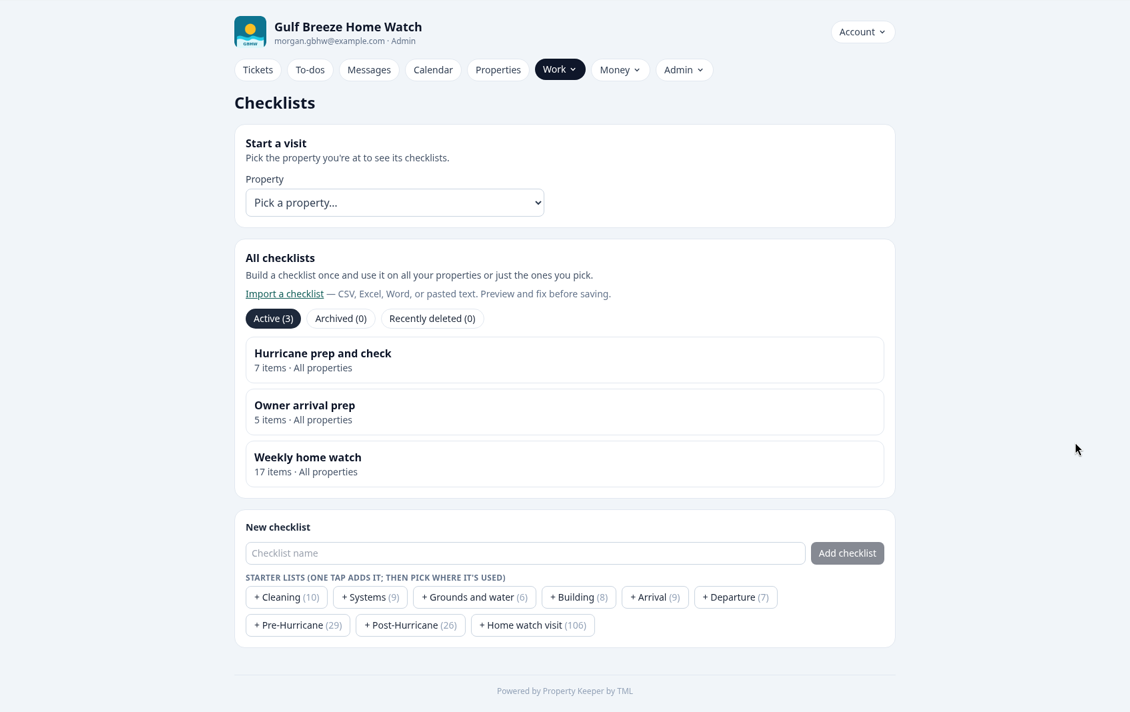
Start a visit says Pick the property you're at to see its checklists. and has a Property dropdown.
All checklists includes a link Import a checklist, with the note that you can use CSV, Excel, Word, or pasted text. Tabs are Active (here Active (3)), Archived (0), and Recently deleted (0). In this example the active lists are:
- Hurricane prep and check — 7 items · All properties
- Owner arrival prep — 5 items · All properties
- Weekly home watch — 17 items · All properties
New checklist has a Checklist name field and an Add checklist button that stays disabled until you type a name. Under it, STARTER LISTS (ONE TAP ADDS IT; THEN PICK WHERE IT'S USED) offers one-tap lists such as Cleaning (10) and Home watch visit (106).
Open a checklist
- Choose a list in All checklists, such as Weekly home watch. The page shows the title, how many items it has, and where it is used (here 17 items · used on All properties). A ← All checklists link takes you back to the library.
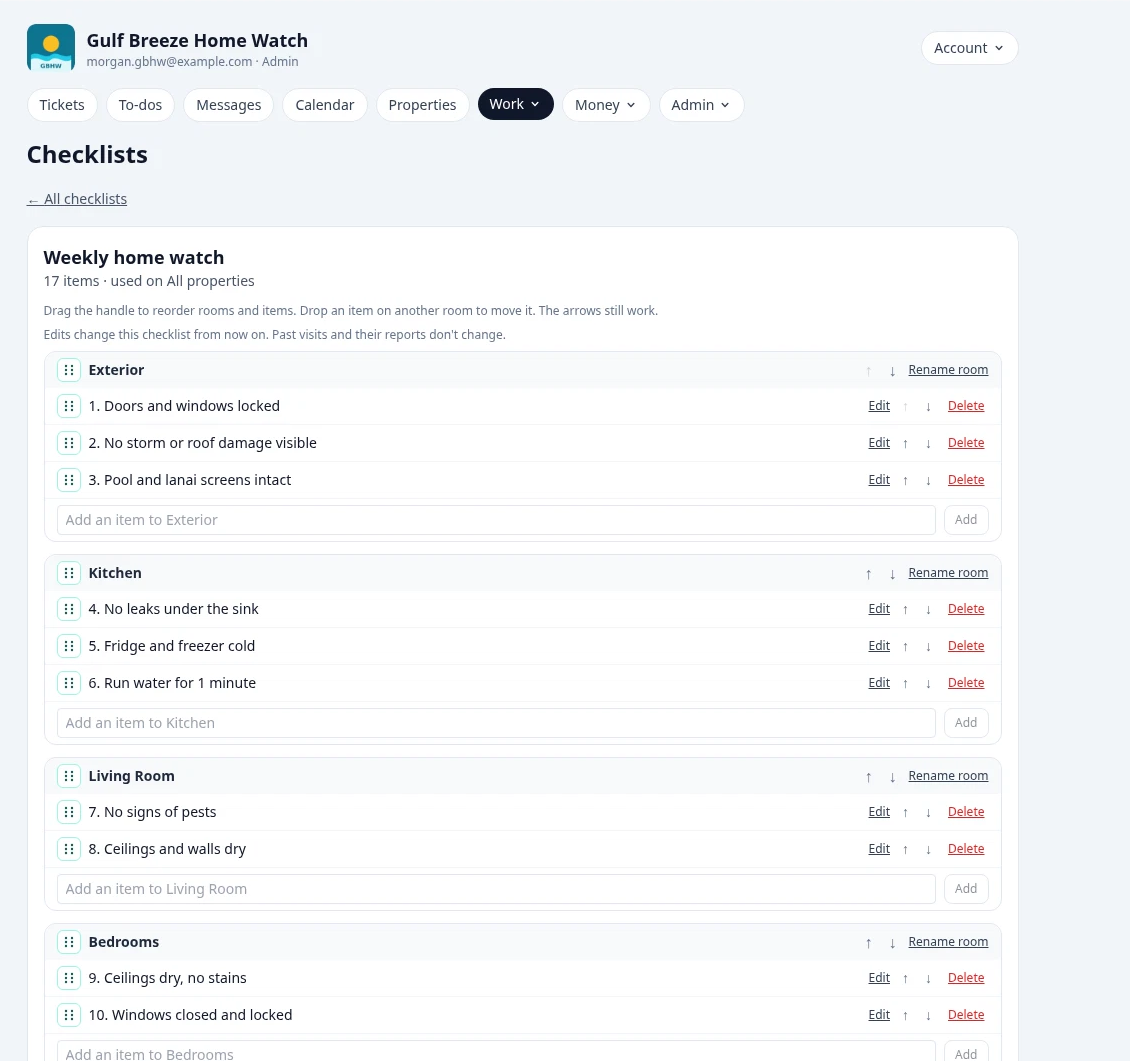
Help text on the page says you can drag the handle to reorder rooms and items, drop an item on another room to move it, and that the arrows still work. Edits change this checklist from now on. Past visits and their reports don't change.
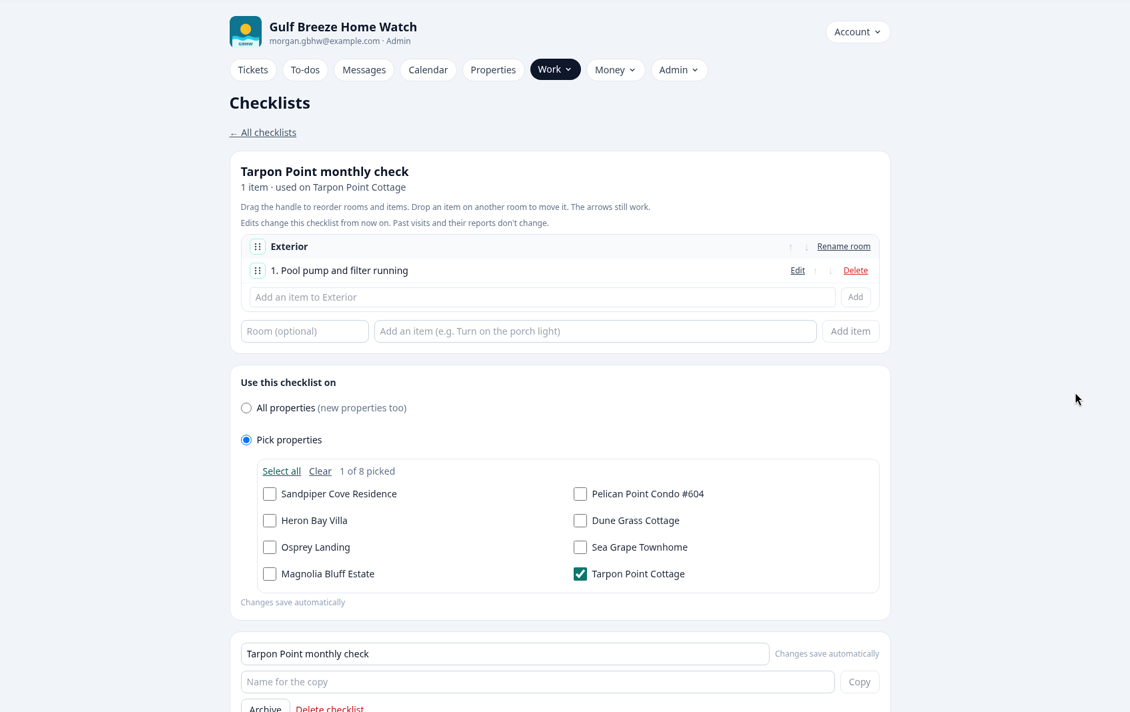
Each room has a drag handle, arrows, and Rename room. Each item has Edit, arrows, and Delete, plus an Add an item to field for that room.
- Scroll to see the rest of the rooms, where the list is used, and the copy, archive, and delete controls.
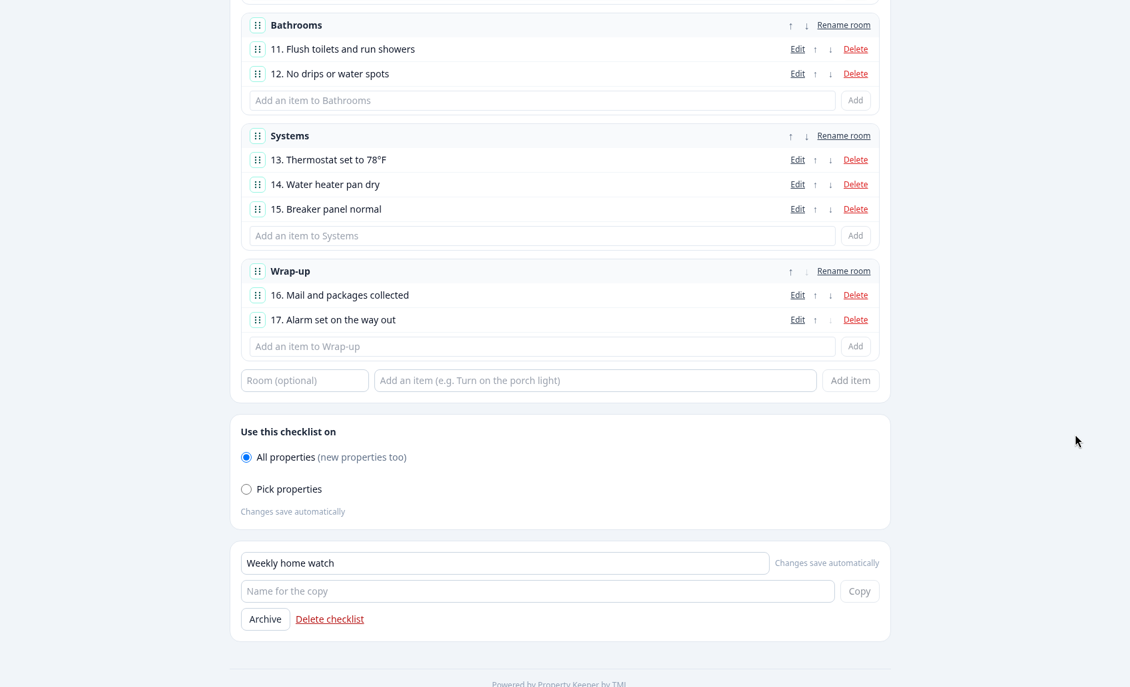
After the last rooms, you can add a Room (optional) and Add an item, then choose Add item.
Use this checklist on has two options: All properties (new properties too) (selected here) and Pick properties. Changes save automatically.
At the bottom, you can rename the checklist, enter a Name for the copy and choose Copy, or choose Archive or Delete checklist.
Edit an item
- Choose Edit on an item. The row becomes a text field. Gray text says Changes save automatically. Choose Cancel to leave the wording as it was.
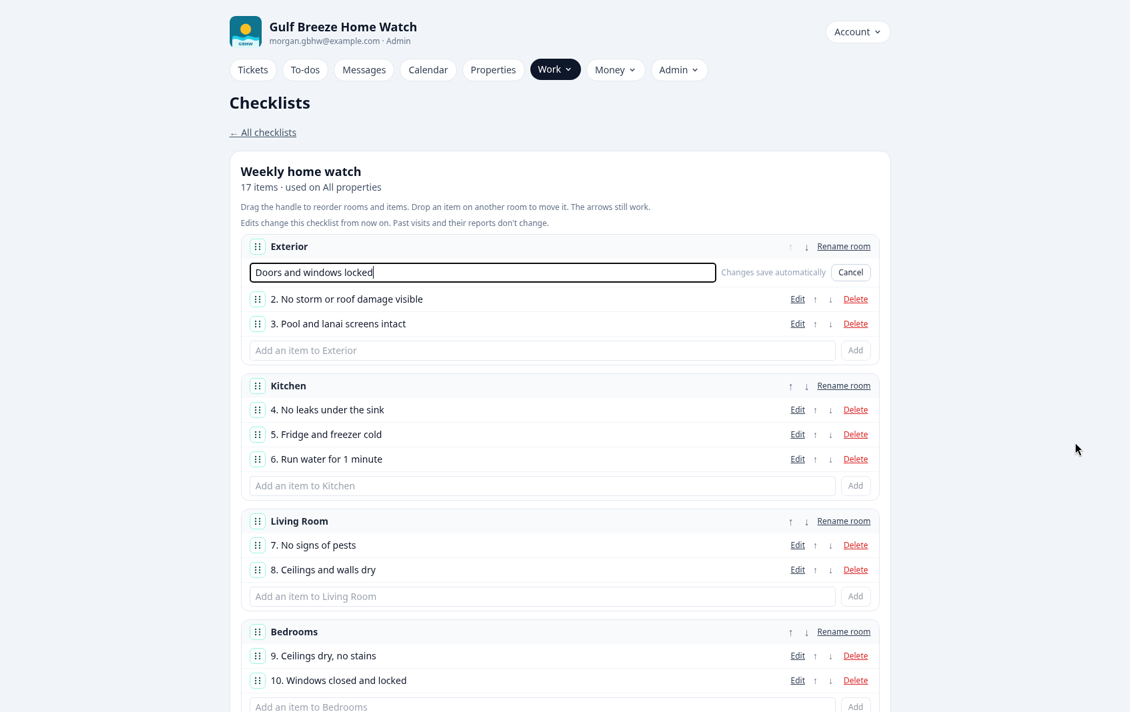
In this example the item is Doors and windows locked, and Cancel was used so the wording did not change.
Create a checklist for a property
- On Start a visit, pick the property, then type a name in New checklist for this property. The button next to the field becomes active once you type a name. In this example the property is Tarpon Point Cottage and the name is Tarpon Point monthly check.
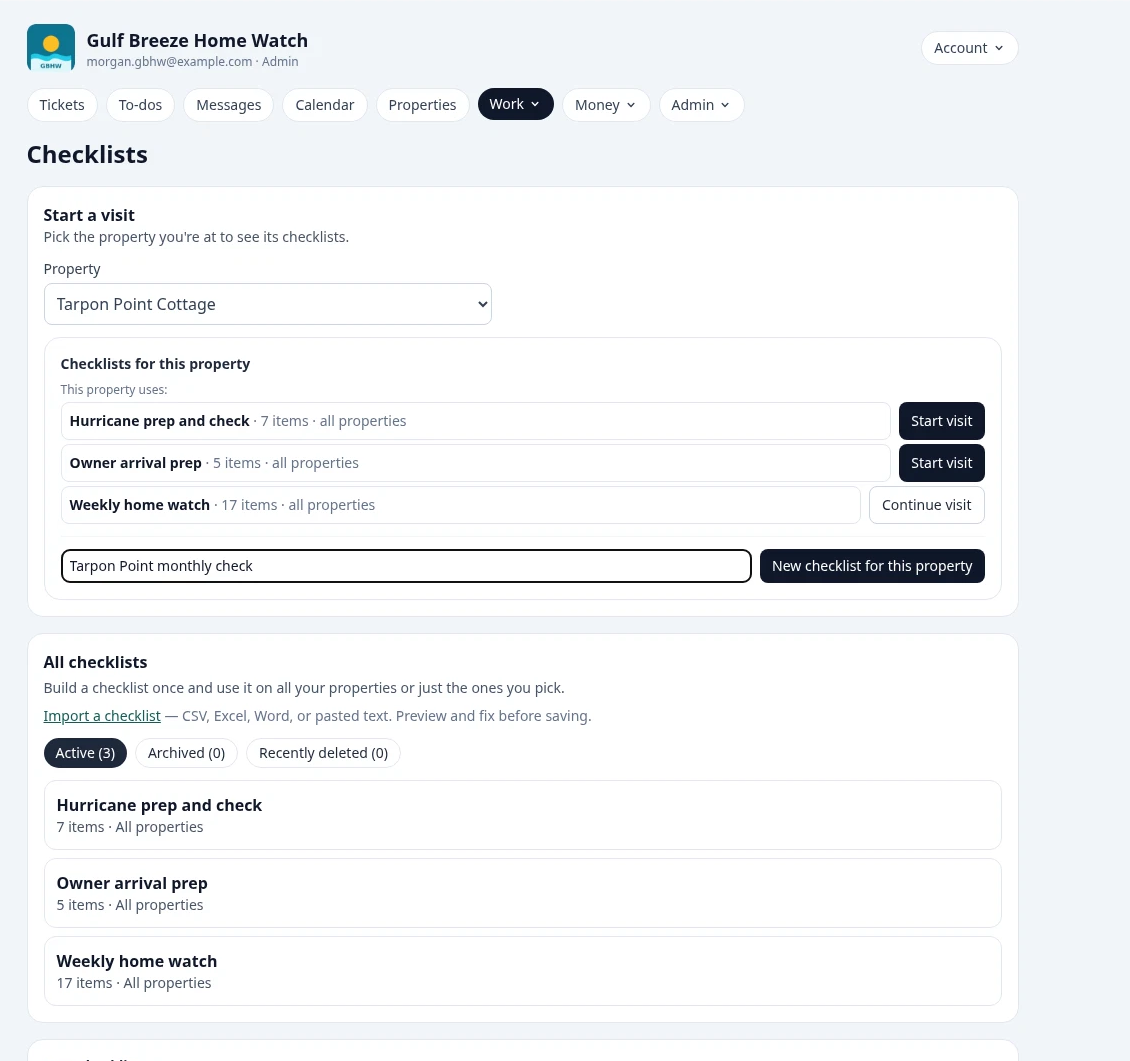
- Choose New checklist for this property. The new list opens empty: 0 items · used on Tarpon Point Cottage, with No items yet.
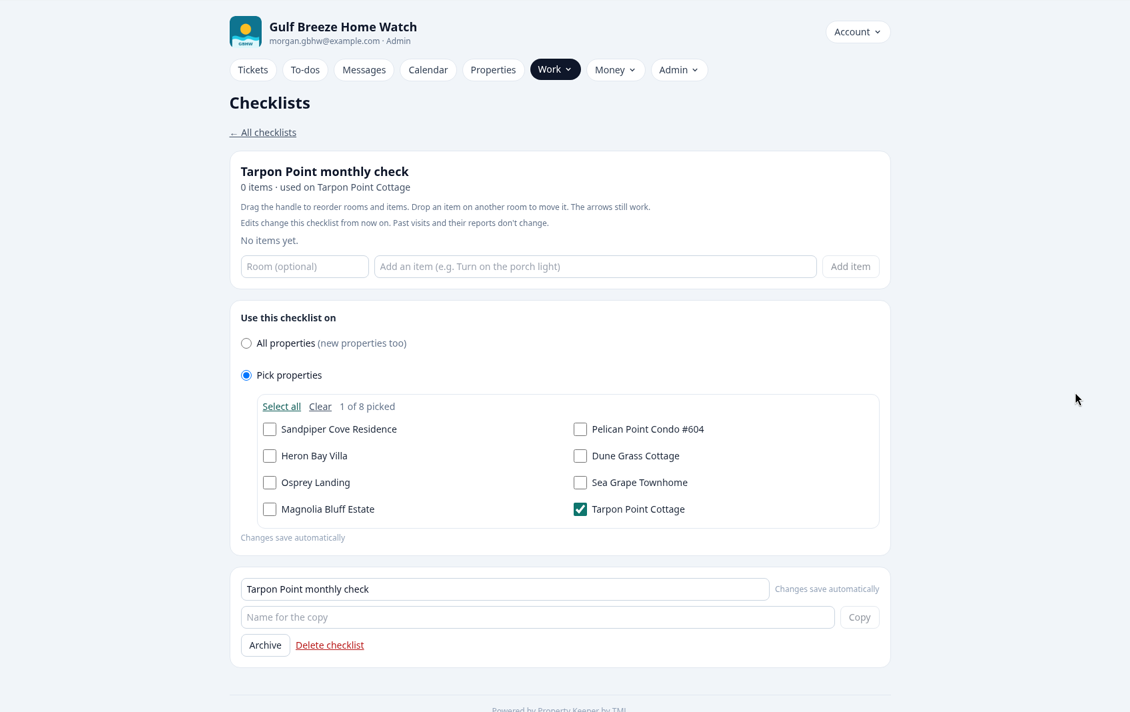
Use this checklist on is set to Pick properties, with only Tarpon Point Cottage ticked (1 of 8 picked). Select all and Clear sit above the property checkboxes.
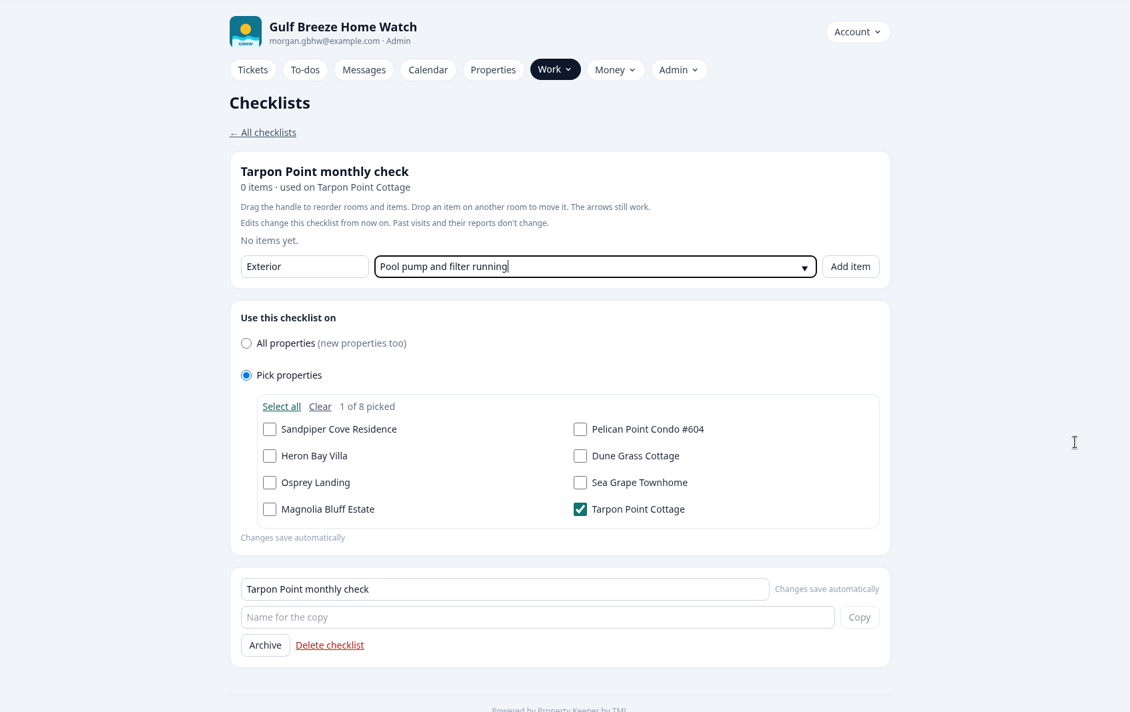
- Enter a Room (optional) and an item, then choose Add item. In this example the room is Exterior and the item is Pool pump and filter running.
- The list updates to 1 item, with the new room and item, plus Add an item to Exterior.
- Type another item in Add an item to Exterior and choose Add. In this example the second item is Pool water clear and level OK, and the list shows 2 items.
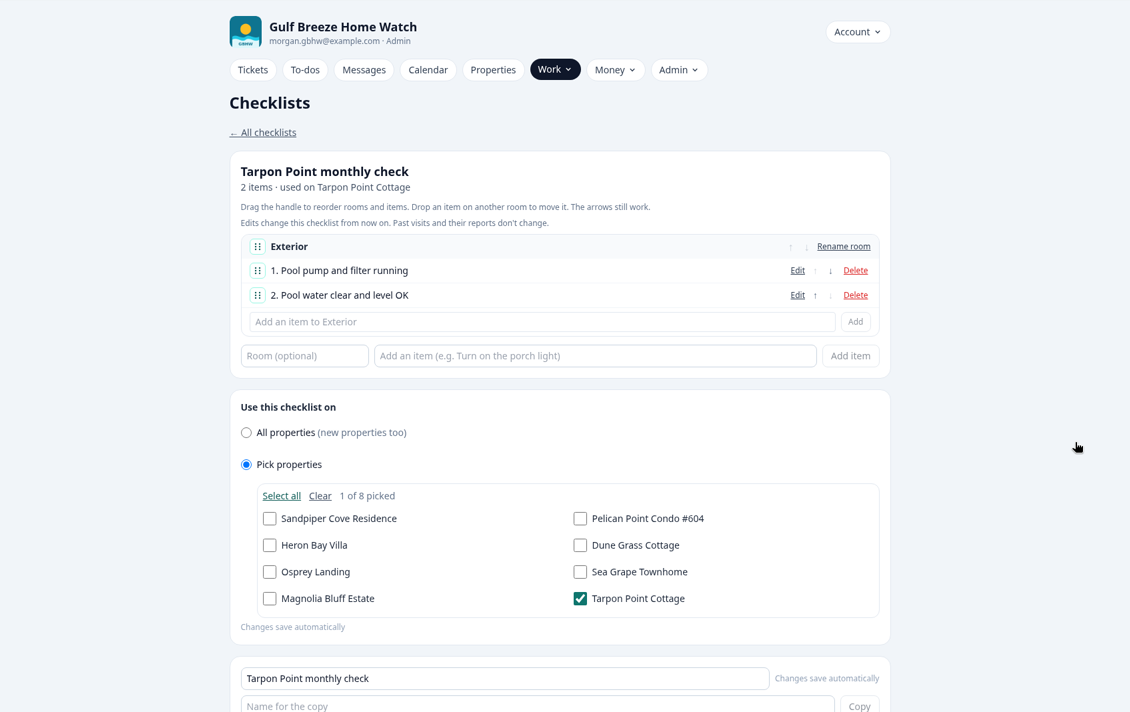
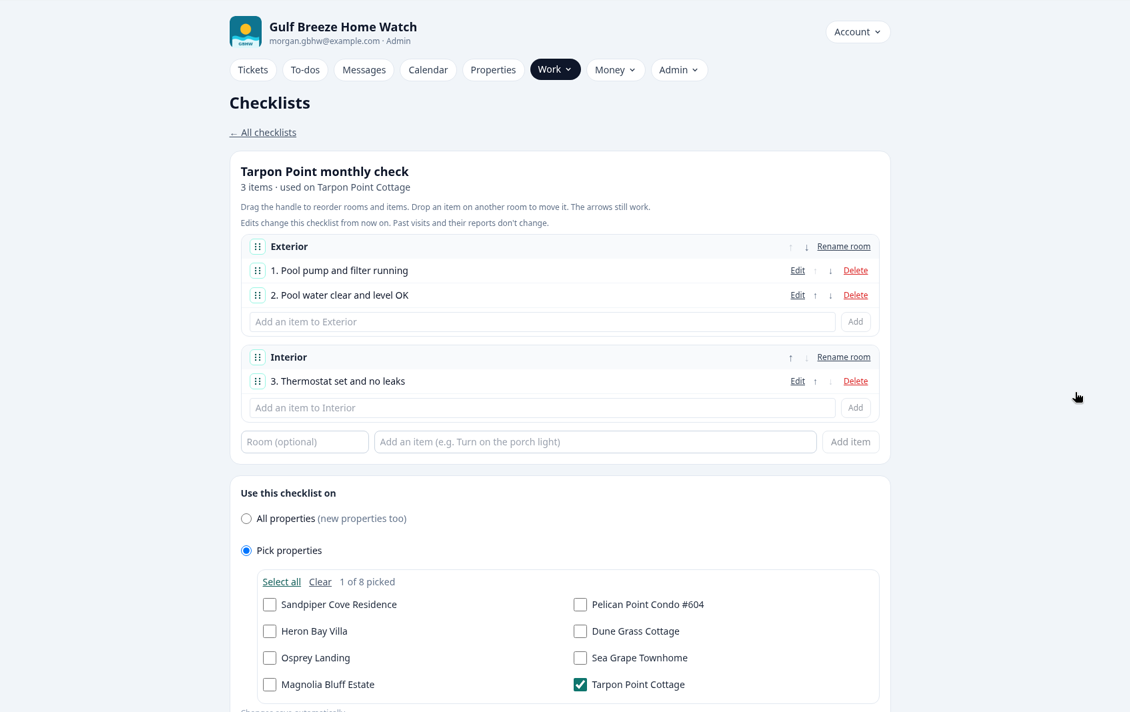
- To add a different room, use the Room (optional) and Add an item fields at the bottom, then choose Add item. In this example a third item is added in Interior: Thermostat set and no leaks. The heading then shows 3 items · used on Tarpon Point Cottage.
- Choose ← All checklists to return to the library. Active now shows a higher count (here Active (4)), and the new list appears both under Start a visit for that property and in All checklists (here Tarpon Point monthly check — 3 items · Tarpon Point Cottage).
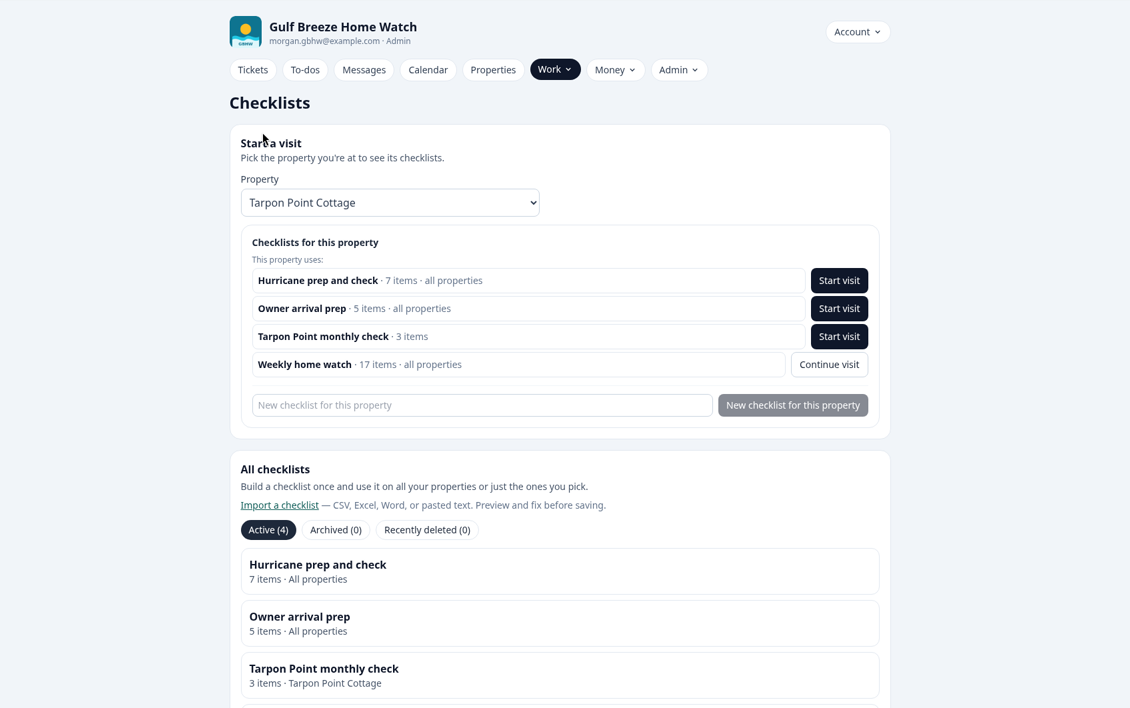
If a visit is already in progress on a list, that row shows Continue visit instead of Start visit. In this example, Weekly home watch shows Continue visit.
Open the import form
- In All checklists, choose Import a checklist. The heading is Import a checklist, with a ← Checklists link. Steps across the top are 1 Upload, 2 Review and fix, and 3 Saved.
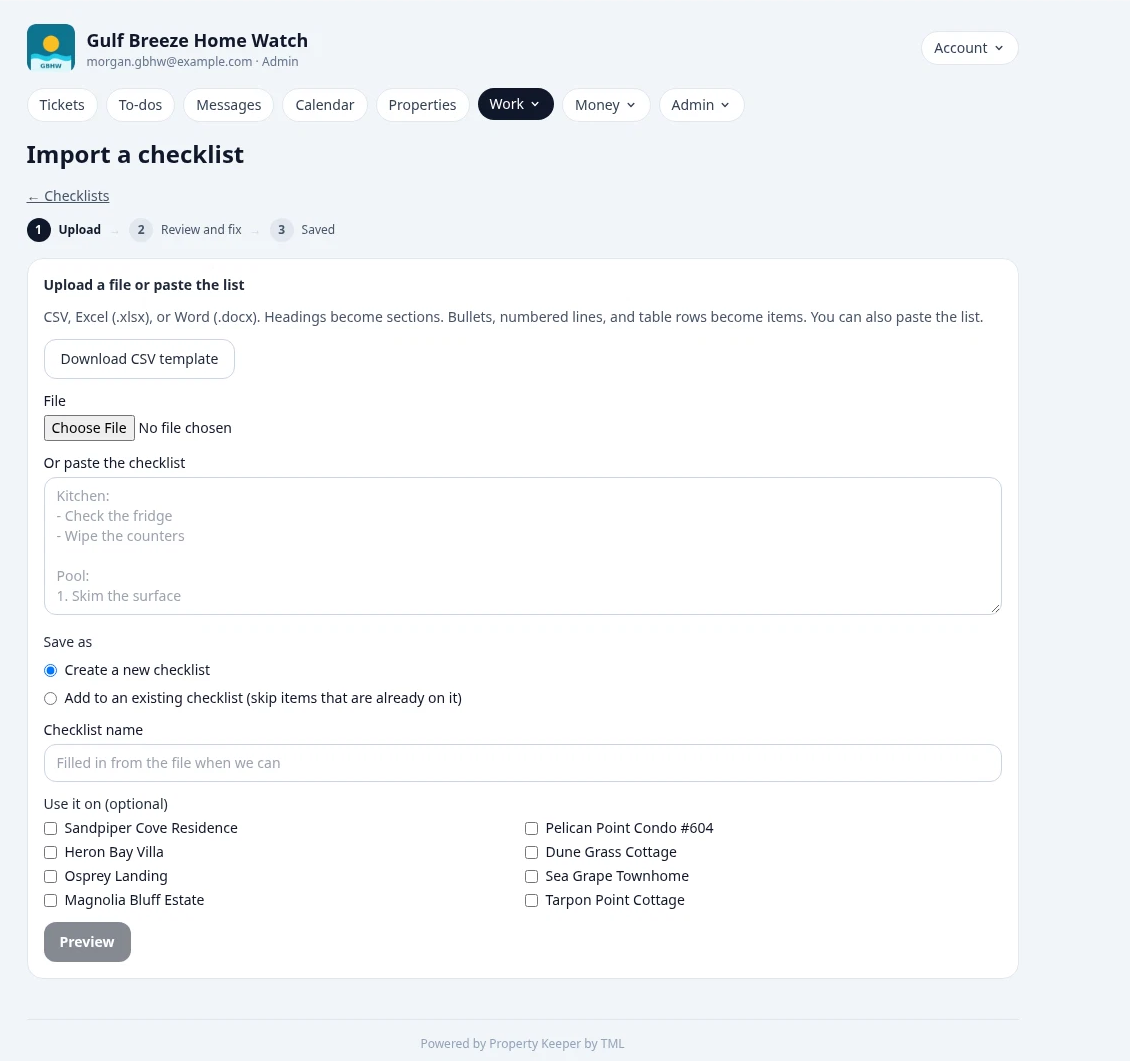
You can upload CSV, Excel (.xlsx), or Word (.docx), or paste the list. Headings become sections. Bullets, numbered lines, and table rows become items. Download CSV template is on the page, with a File picker and an Or paste the checklist box.
Save as offers Create a new checklist (selected) or Add to an existing checklist (skip items that are already on it). Checklist name can be filled in from the file when the app can. Use it on (optional) lists your properties. Preview stays disabled until there is something to review.