
Print and scan equipment QR labels
Print a QR label for a unit on the property, and see the repair form that opens when someone scans it.
Updated November 23, 2026
You can print a QR label for a piece of equipment on the property. Scanning the label opens that property's repair form with the unit already filled in. People who scan see only the unit's name, type, and where it is.
For adding a unit and a full walkthrough of the print layouts, see Equipment and QR labels. This page covers printing a label and the page that opens when someone scans it. For the property's repair-report sign, see Print QR signs and codes and QR codes for repair requests.
Open the equipment list
- Open the property, choose Home & records, and scroll to Equipment. The line under the heading says A/C, water heaters, pool pumps and other major units. A photo of the label saves the tech a trip. Buttons on the right are Print equipment labels and + Add.
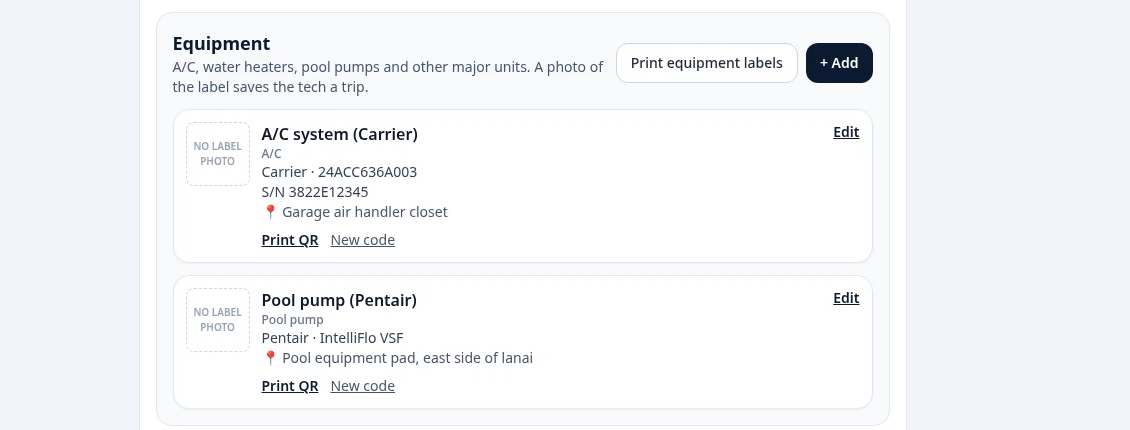
Each unit can show the name, type, make and model, serial number, location, Print QR, New code, and Edit. If no label photo is on file, the card shows NO LABEL PHOTO.
In this example the list has A/C system (Carrier) (type A/C, Carrier · 24ACC636A003, S/N 3822E12345, at Garage air handler closet) and Pool pump (Pentair) (type Pool pump, Pentair · IntelliFlo VSF, at Pool equipment pad, east side of lanai).
Print an equipment label
- Choose Print equipment labels. The Print equipment labels page opens, with a link back to the property. A note says Stick a label on each unit. Scanning it opens the property's report form with that unit filled in. People who scan see only the unit's name, type and where it is. Use 2" labels inside; 3" or 4" weatherproof labels outdoors (condensers, pool pumps).
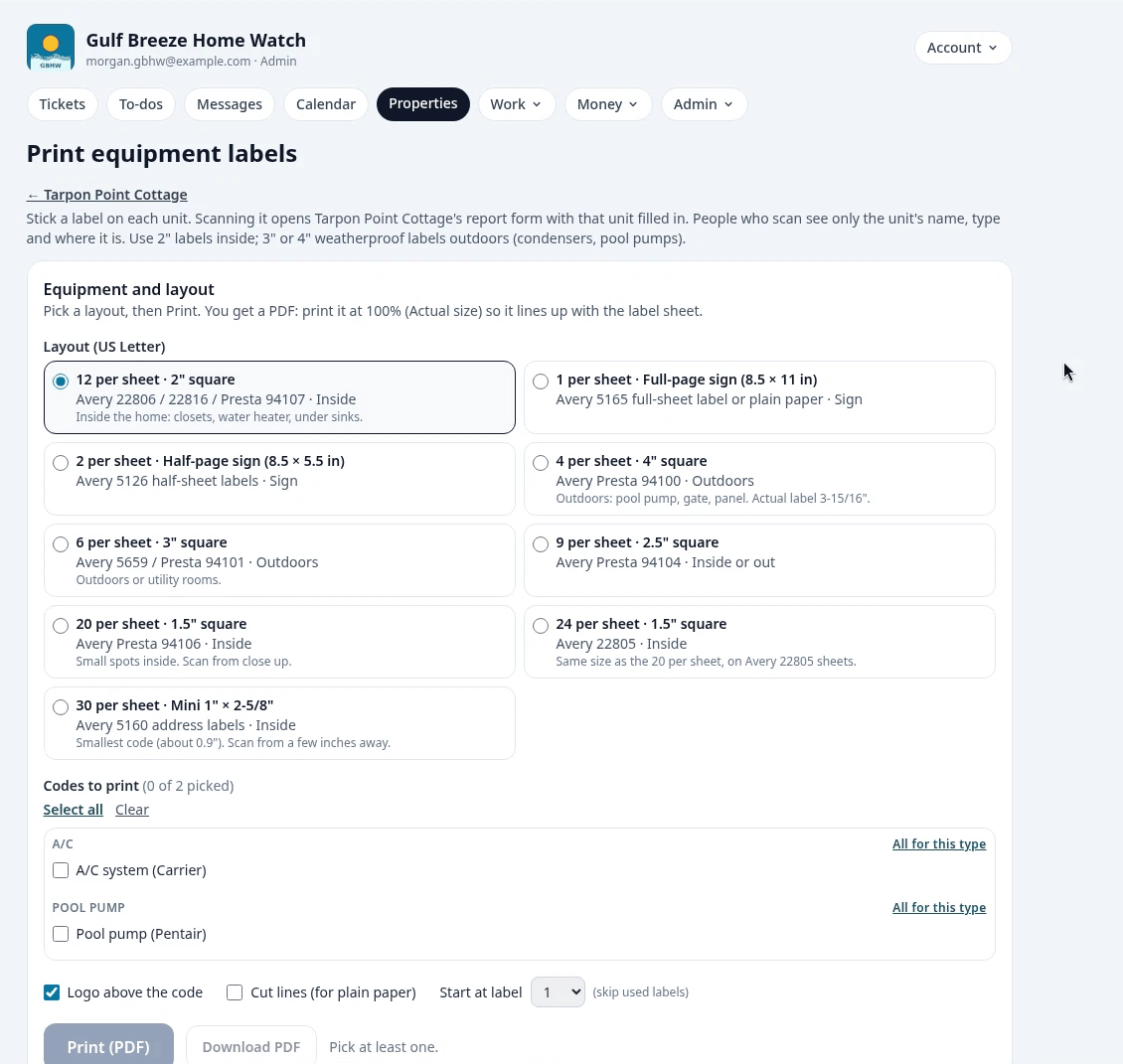
Under Equipment and layout, it says Pick a layout, then Print. You get a PDF: print it at 100% (Actual size) so it lines up with the label sheet. Choose a Layout (US Letter). The default in this example is 12 per sheet · 2" square (Avery 22806 / 22816 / Presta 94107 · Inside).
Other layouts include a 1 per sheet · Full-page sign (8.5 × 11 in), a 2 per sheet · Half-page sign (8.5 × 5.5 in), 4 per sheet · 4" square (Avery Presta 94100 · Outdoors, with the hint Outdoors: pool pump, gate, panel. Actual label 3-15/16".), 6 per sheet · 3" square, 9 per sheet · 2.5" square, 20 per sheet · 1.5" square, 24 per sheet · 1.5" square, and 30 per sheet · Mini 1" × 2-5/8".
Codes to print shows how many are picked (here 0 of 2 picked). Use Select all or Clear, or pick units by type with All for this type. In this example the list has A/C system (Carrier) and Pool pump (Pentair), and neither is checked yet.
Options under the list are Logo above the code (on in this example), Cut lines (for plain paper), and Start at label (to skip used labels). Print (PDF) and Download PDF stay unavailable, and the page says Pick at least one., until you choose a unit.
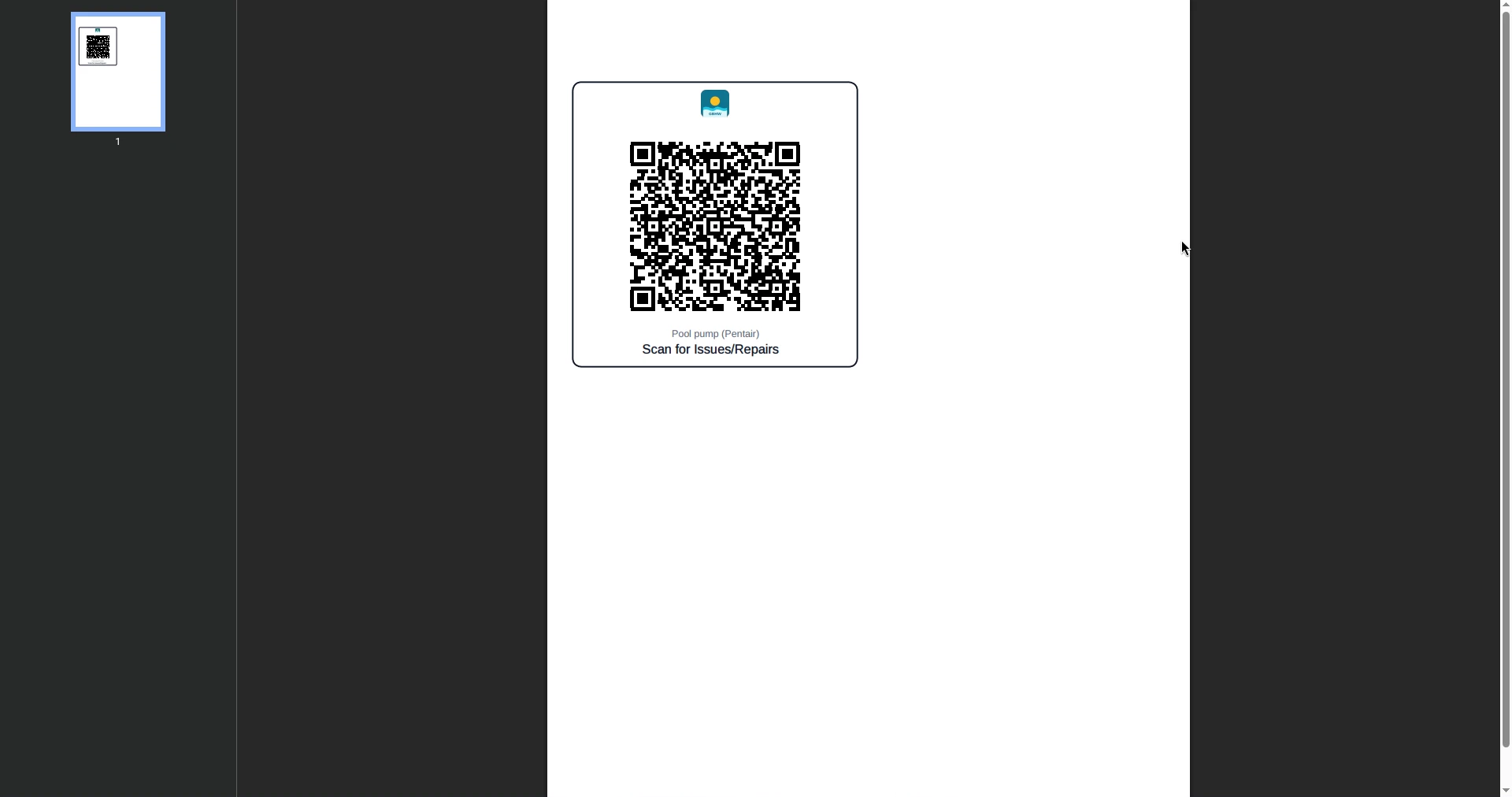
- Choose 4 per sheet · 4" square, tick Pool pump (Pentair) only, leave Logo above the code on, and choose Print (PDF). The label sheet opens as a PDF in a new tab. In this example one label is printed at the top left of the page: the company logo, the QR code, Pool pump (Pentair), and the heading Scan for Issues/Repairs.
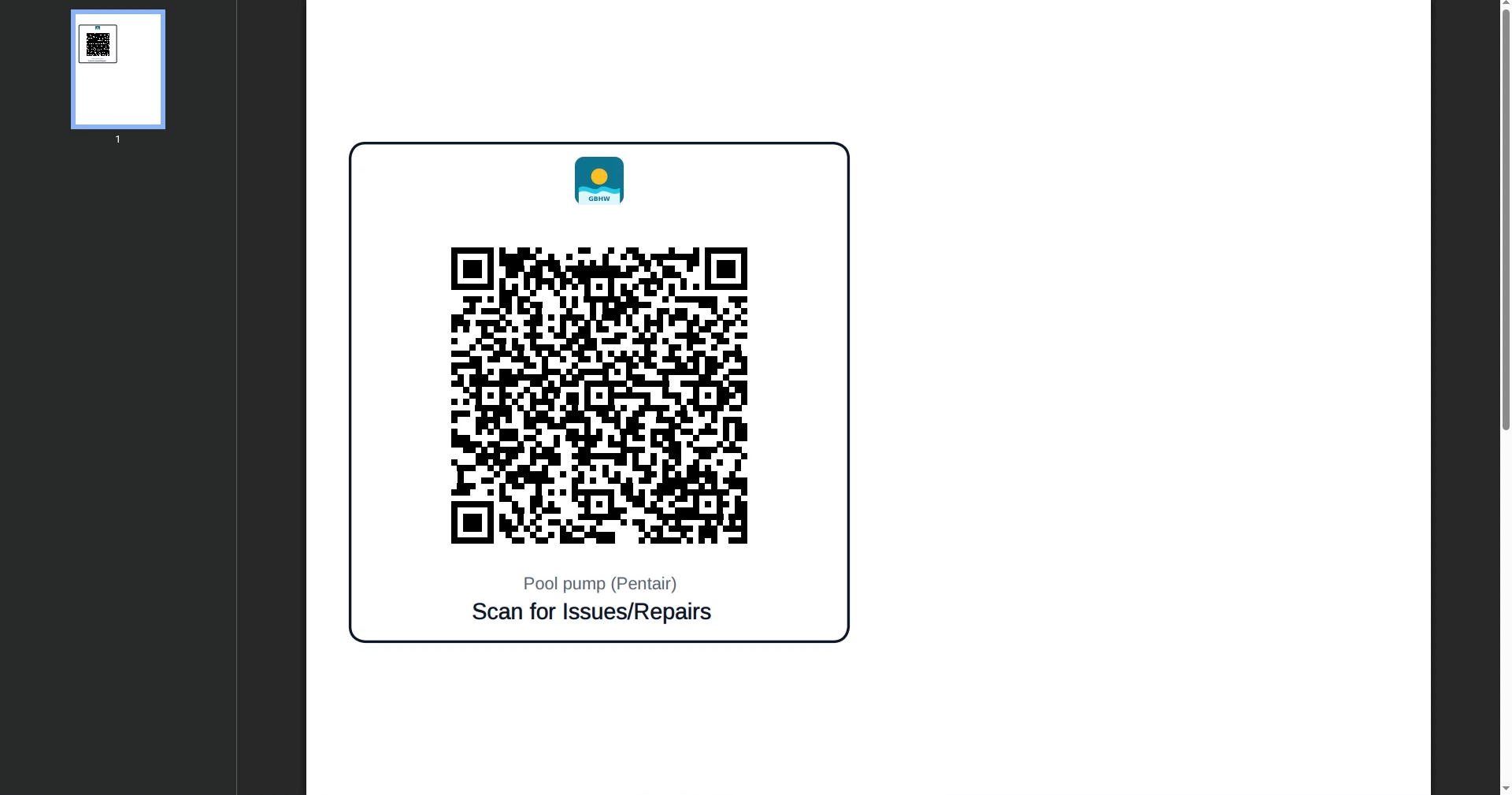
- A closer view of the same label shows the logo, the QR code, the unit name, and Scan for Issues/Repairs.
The page that opens when someone scans the label
- When someone scans the label, the page that opens is the property's Repair request form, with a blue REPORTING A PROBLEM WITH card already filled in for that unit. In this example the card shows Pool pump (Pentair), type Pool pump, and Pool equipment pad, east side of lanai. LOCATION is the property, and Where in the building (optional) is pre-filled with the same location.
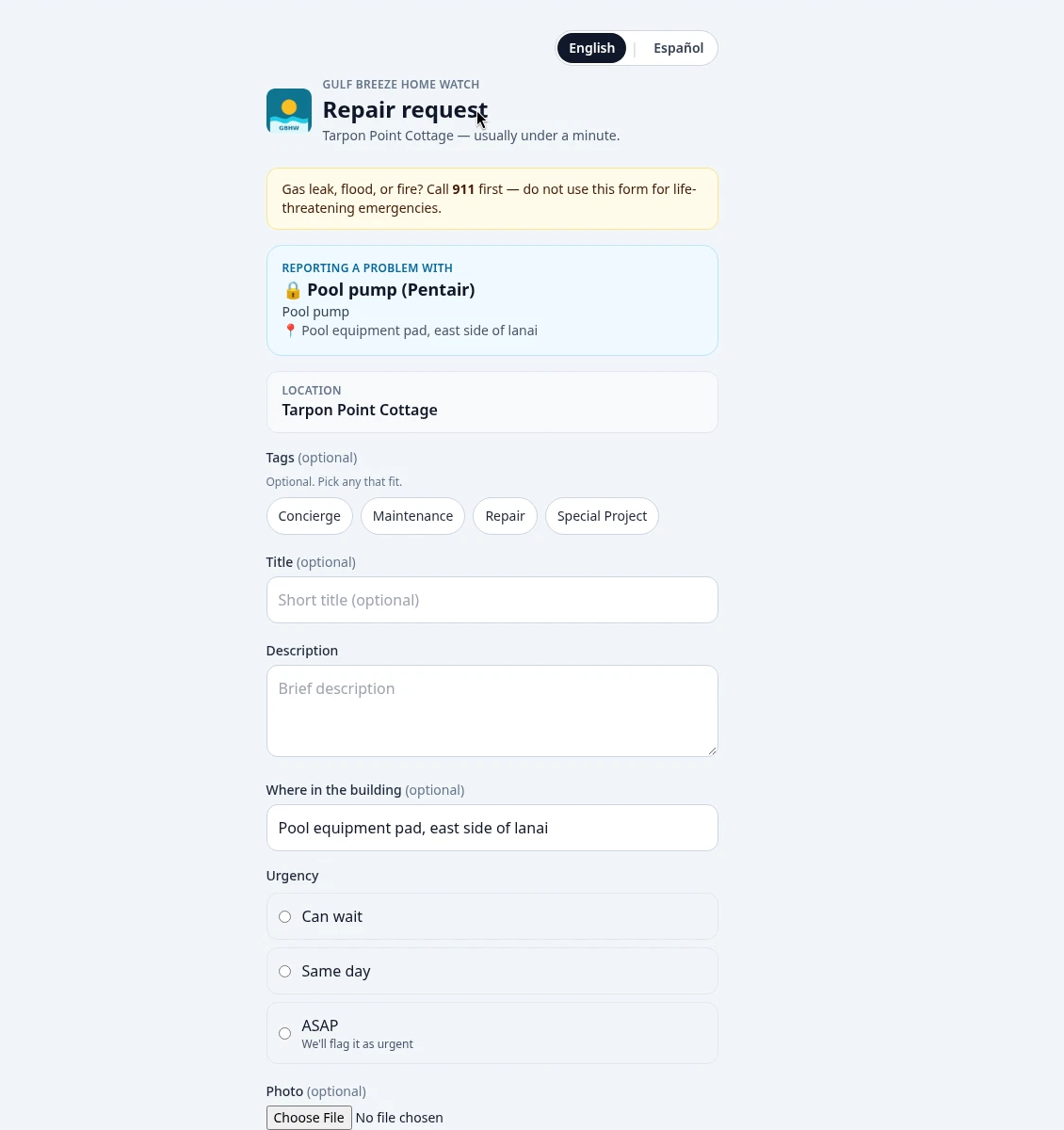
The rest of the form matches the property repair form, including Tags (optional), Title (optional), Description, Urgency, and Photo (optional). Your name, Callback number, and Submit repair request are below the fold in this screenshot. Your name and Callback number are required. See QR codes for repair requests.