
Create a ticket
Open a new ticket from the board, fill in the property and the problem, and save it.
Updated November 23, 2026
Use a ticket when something at a property needs attention — a leak, a sticking door, a vendor visit, or a follow-up from a visit.
Open the form
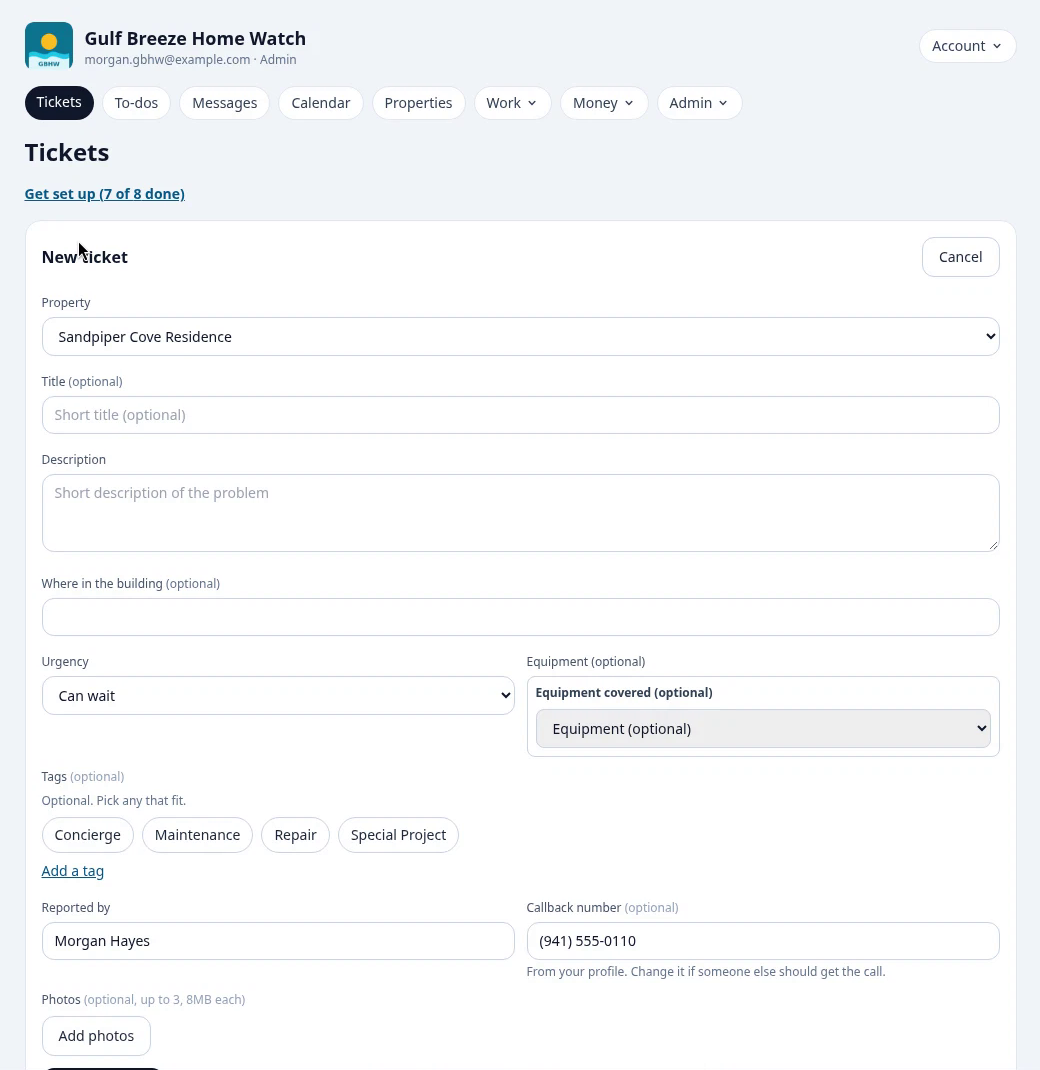
- On the Tickets board, choose New ticket. An inline form titled New ticket opens on the same page (not a popup), with Cancel at the top right.
Fill in the ticket
The form includes:
- Property, a required list. In this example it starts on Sandpiper Cove Residence.
- Title (optional), with the placeholder Short title (optional)
- Description, with the placeholder Short description of the problem
- Where in the building (optional)
- Urgency, which starts on Can wait. The other choices are Same day and ASAP — We'll flag it as urgent.
- Equipment (optional), in a box labeled Equipment covered (optional). If the property has no equipment on file, the list stays empty.
- Tags (optional), with the note Optional. Pick any that fit. and chips for your company's tags, plus Add a tag
- Reported by, which is filled in with your name
- Callback number (optional), which is filled in from your profile, with the help text From your profile. Change it if someone else should get the call.
- Photos (optional, up to 3, 8MB each) and an Add photos button
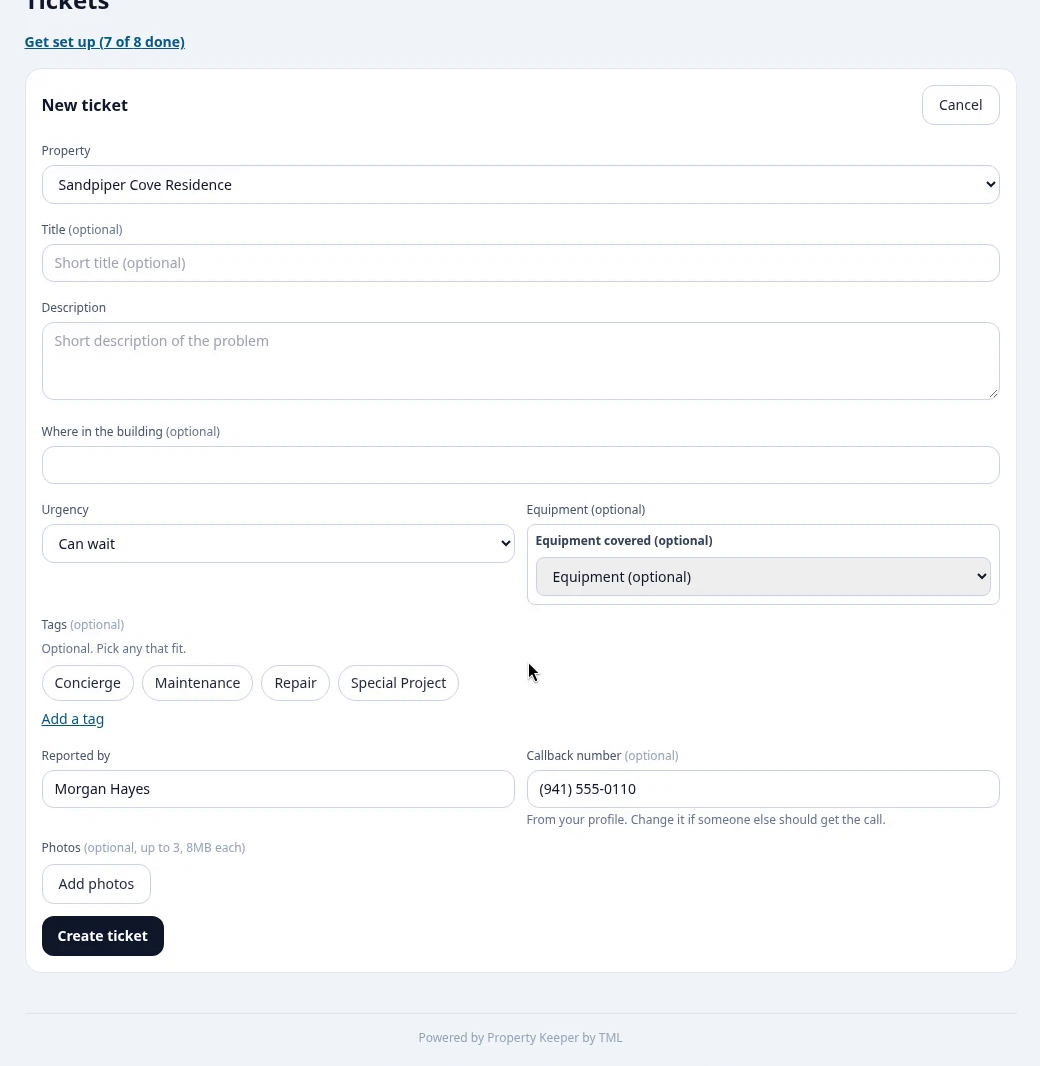
- Choose the Property.
- Add a Title and a Description so the team can recognize the problem in the list.
- Fill in Where in the building if you know the spot.
- Set Urgency if it should not stay on Can wait.
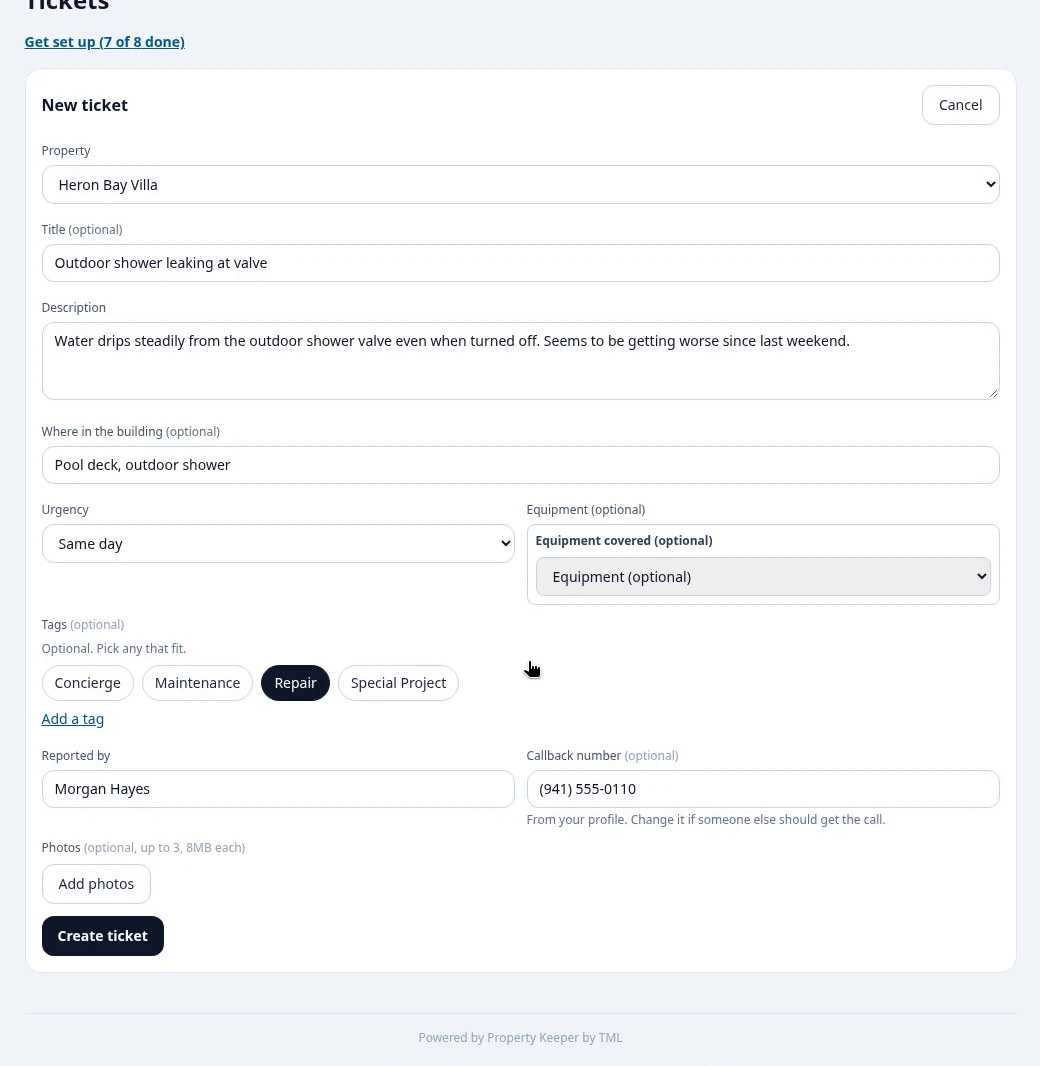
- Optionally pick Tags, change Reported by or the Callback number, and Add photos. This example uses Heron Bay Villa, the title Outdoor shower leaking at valve, a short description of the drip, Pool deck, outdoor shower for the location, Same day for urgency, and the Repair tag.
Save the ticket
- Choose Create ticket. The ticket opens right away on its detail page. In this example it became Ticket #7184ED95. There is no separate confirmation message.
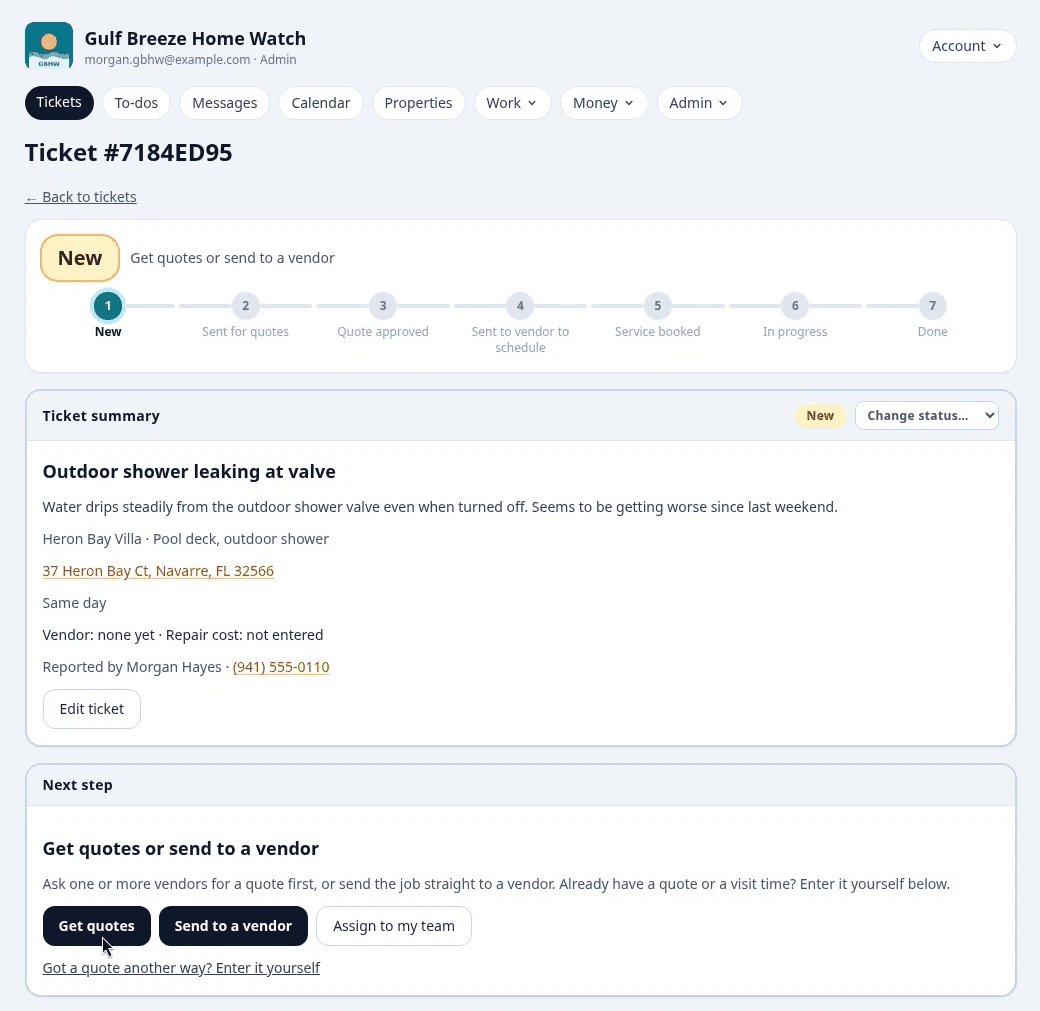
From here you can review the sections on the ticket or change its status. See Ticket details and status. When you are ready to send the work out, see Send a ticket to a vendor.