
Roles and permissions
Review Manager and Staff permissions, see People overrides, and create a custom role. Admin is locked.
Updated November 23, 2026
Roles control what people on your team can see and do in Property Keeper by TML. Open the page from Admin. Admin is locked and always has full access. You can change Manager and Staff, or add your own roles.
Open Roles
- Choose Admin, then Roles. The heading is Roles.
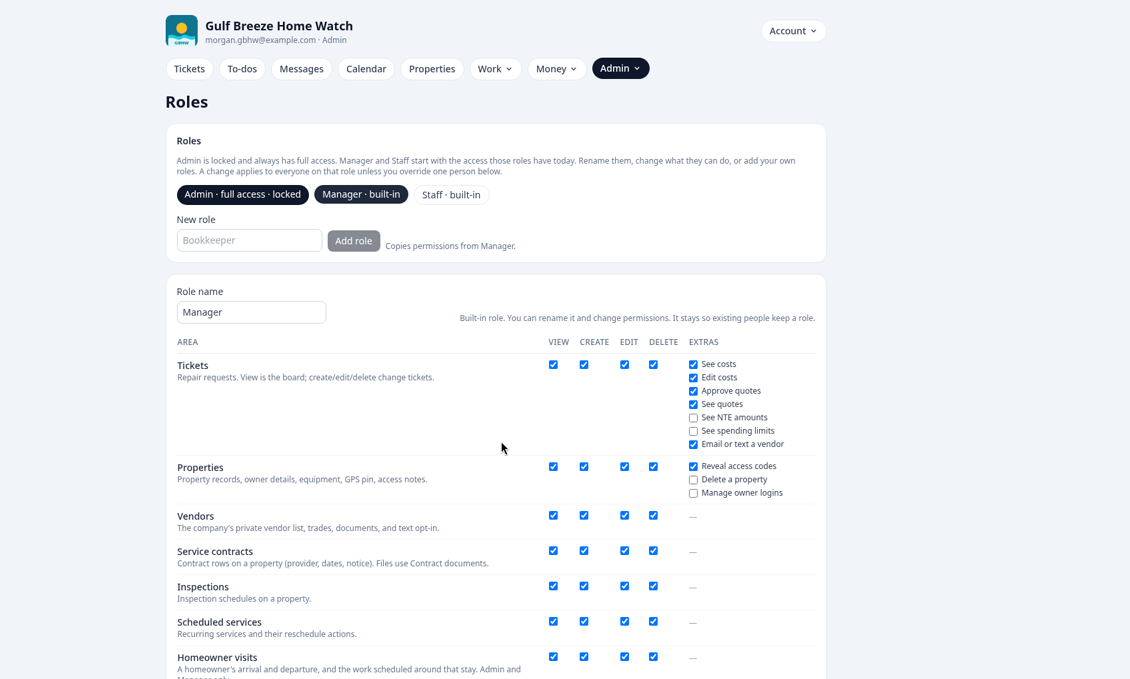
The intro says: Admin is locked and always has full access. Manager and Staff start with the access those roles have today. Rename them, change what they can do, or add your own roles. A change applies to everyone on that role unless you override one person below.
Role pills are Admin · full access · locked, Manager · built-in, and Staff · built-in. Choosing Admin does not open a permissions matrix.
New role has the placeholder Bookkeeper, an Add role button, and the hint Copies permissions from the selected role (here Manager).
The selected-role panel has a Role name field (here Manager) and the note Built-in role. You can rename it and change permissions. It stays so existing people keep a role. The matrix columns are AREA, VIEW, CREATE, EDIT, DELETE, and EXTRAS. Changes save automatically appears at the bottom of the matrix.
Manager permissions
With Manager selected, the matrix starts at Tickets and continues through Homeowner visits in the first view, then through the rest of the areas as you scroll.
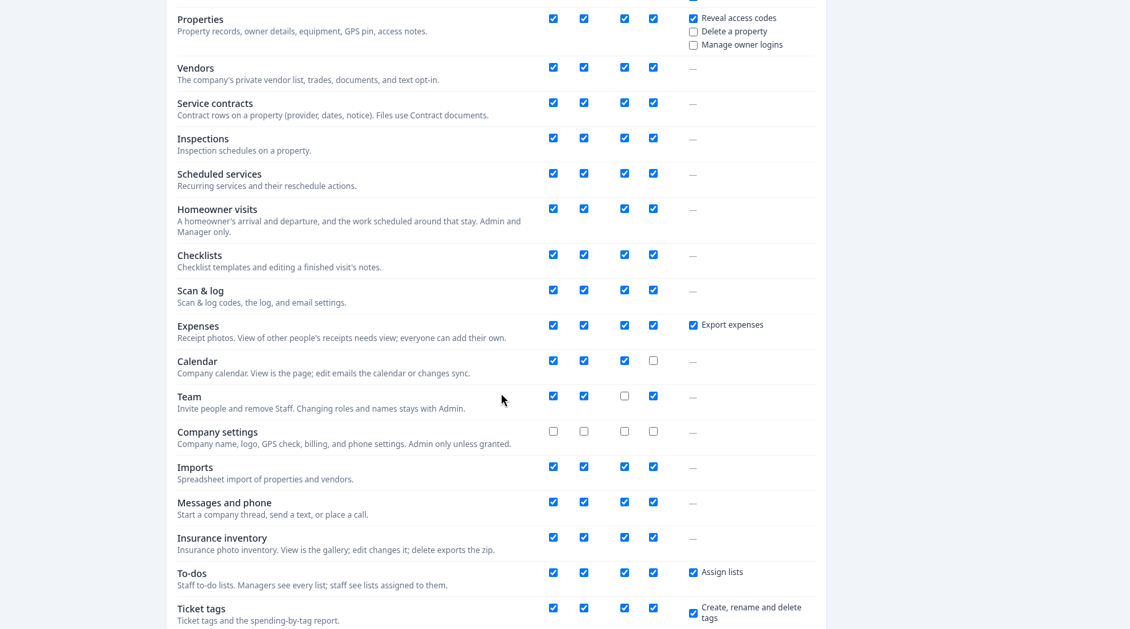
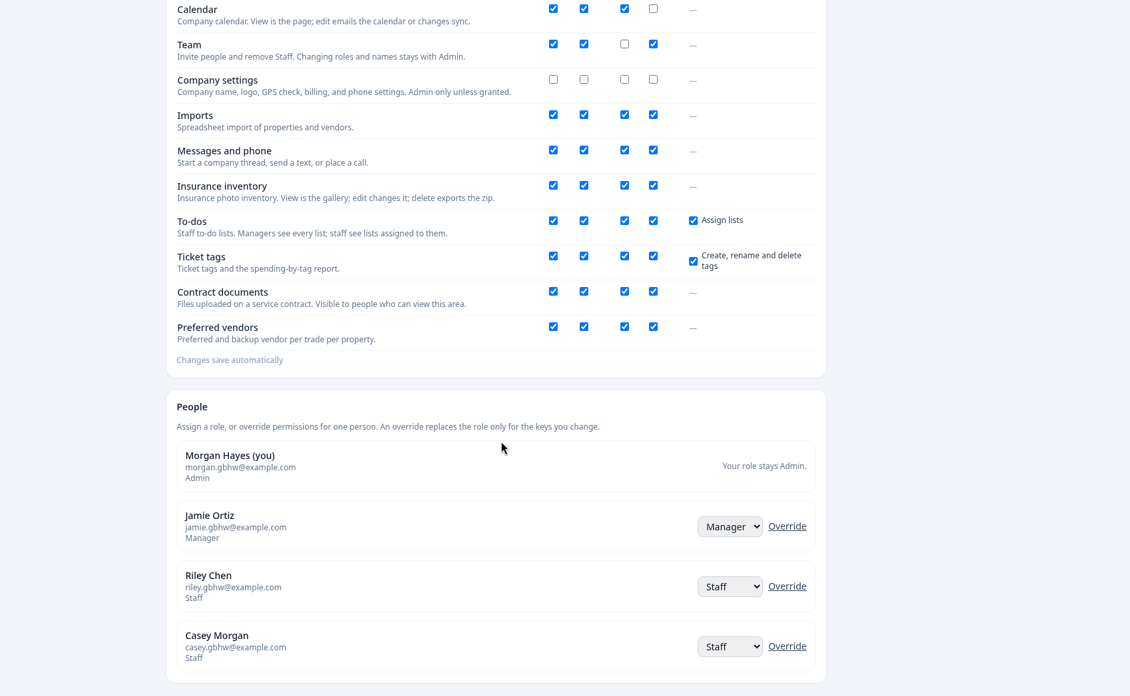
In this example, Manager has View, Create, Edit, and Delete on for every area except:
- Calendar, which has Delete off
- Team, which has Edit off
- Company settings, which has all four off
Extras that are on: See costs, Edit costs, Approve quotes, See quotes, Email or text a vendor, Reveal access codes, Export expenses, Assign lists, and Create, rename and delete tags. Extras that are off: See NTE amounts, See spending limits, Delete a property, and Manage owner logins.
Each area has a short help line. Homeowner visits says it is Admin and Manager only. Company settings says Company name, logo, GPS check, billing, and phone settings. Admin only unless granted. Imports says Spreadsheet import of properties and vendors.
Staff permissions
- Choose the Staff · built-in pill. The Role name is Staff, and the hint says Copies permissions from Staff.
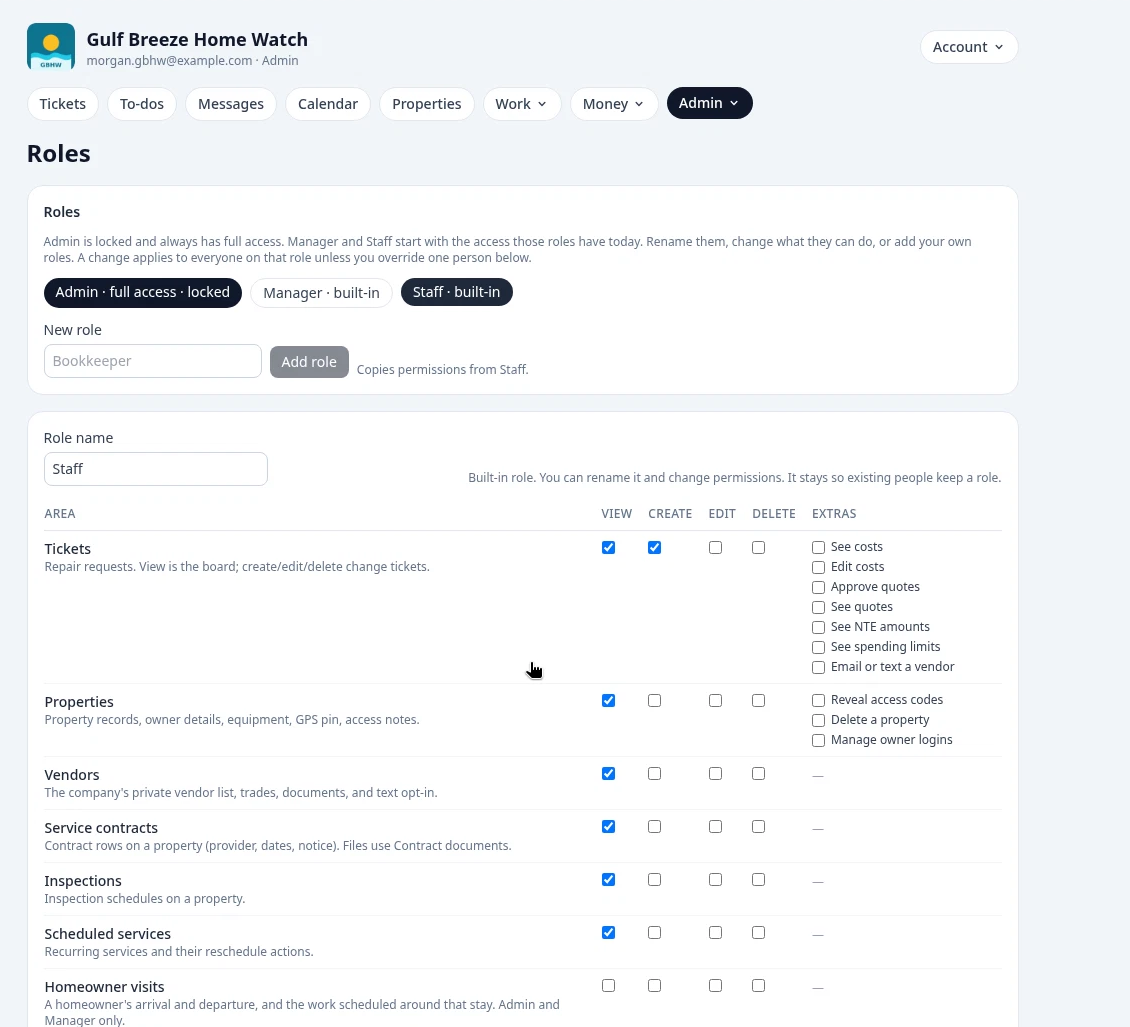
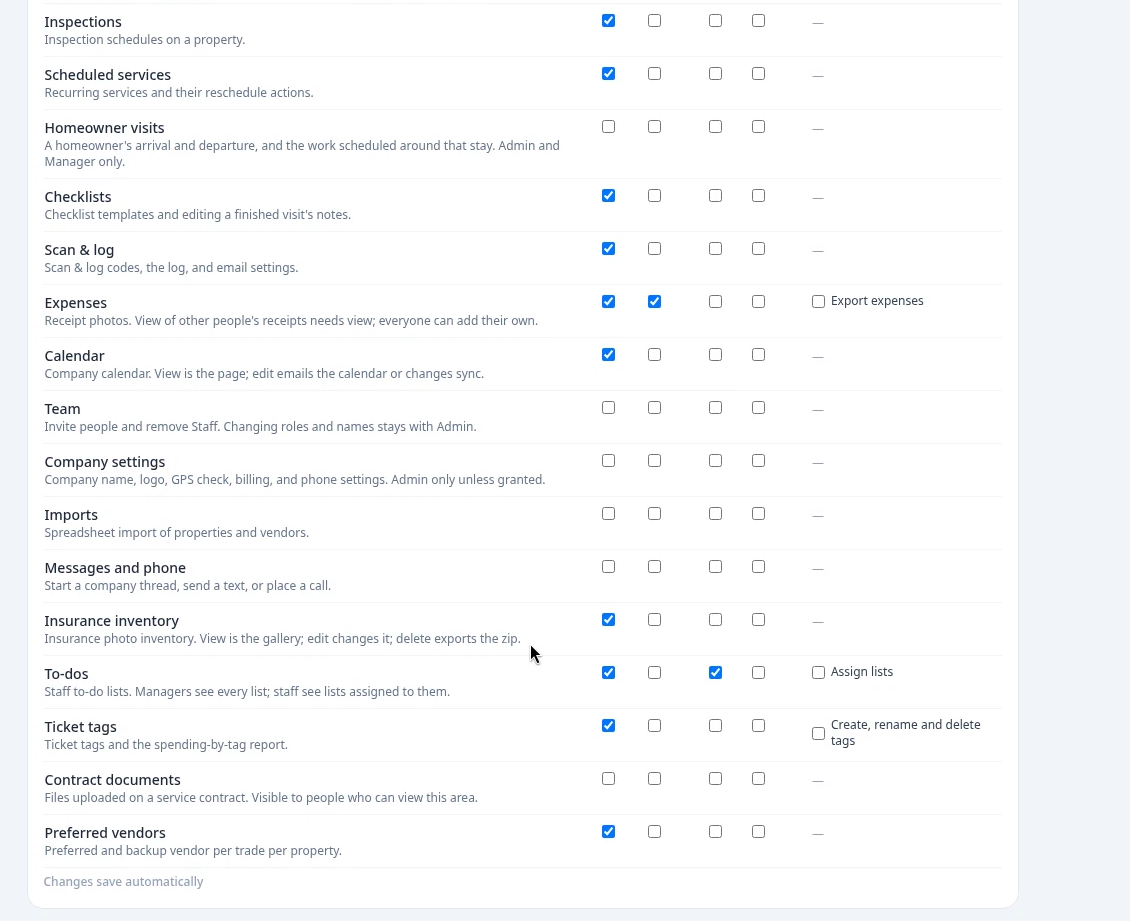
In this example, Staff defaults are:
- Tickets: View and Create (no Edit, Delete, or extras)
- Properties, Vendors, Service contracts, Inspections, Scheduled services, Checklists, Scan & log, Calendar, Insurance inventory, Ticket tags, and Preferred vendors: View only
- Expenses: View and Create (Export expenses off)
- To-dos: View and Edit (Assign lists off)
- Homeowner visits, Team, Company settings, Imports, Messages and phone, and Contract documents: all off, with no extras
People and overrides
The People section is under the matrix. It says: Assign a role, or override permissions for one person. An override replaces the role only for the keys you change.
In this example:
- Morgan Hayes (you) is Admin, with the line Your role stays Admin.
- Jamie Ortiz is Manager, with a role menu and an Override link
- Riley Chen is Staff, with a role menu and Override
- Casey Morgan is Staff, with a role menu and Override
Create a custom role
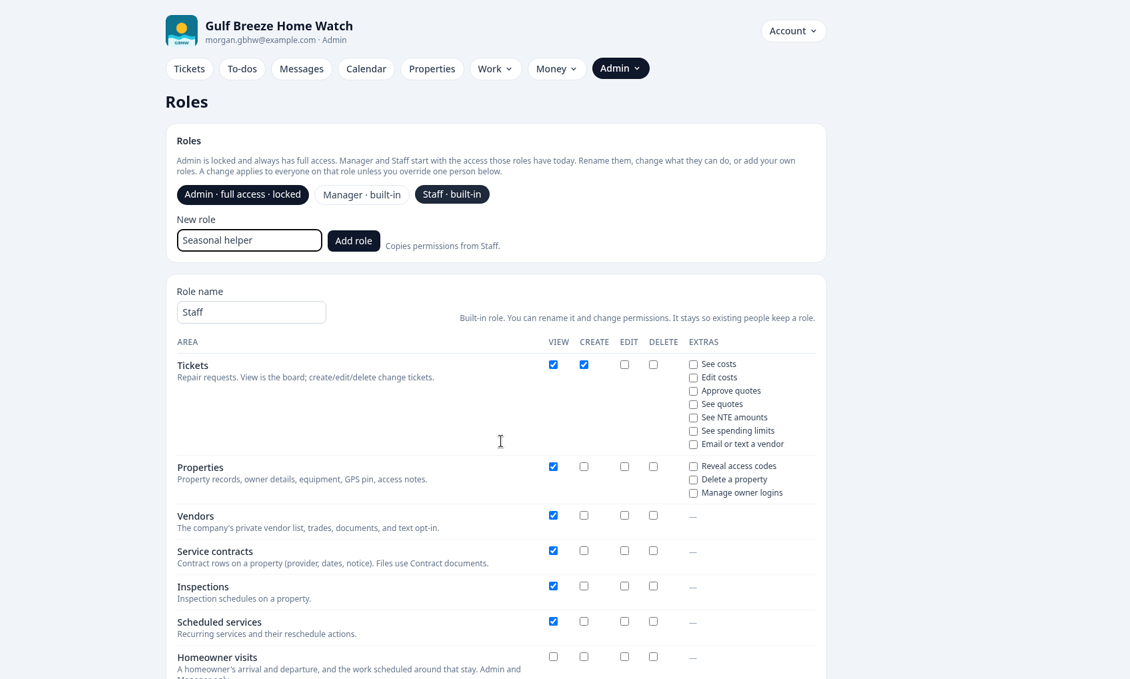
- With Staff still selected, enter a name in New role. In this example: Seasonal helper. The hint still says Copies permissions from Staff.
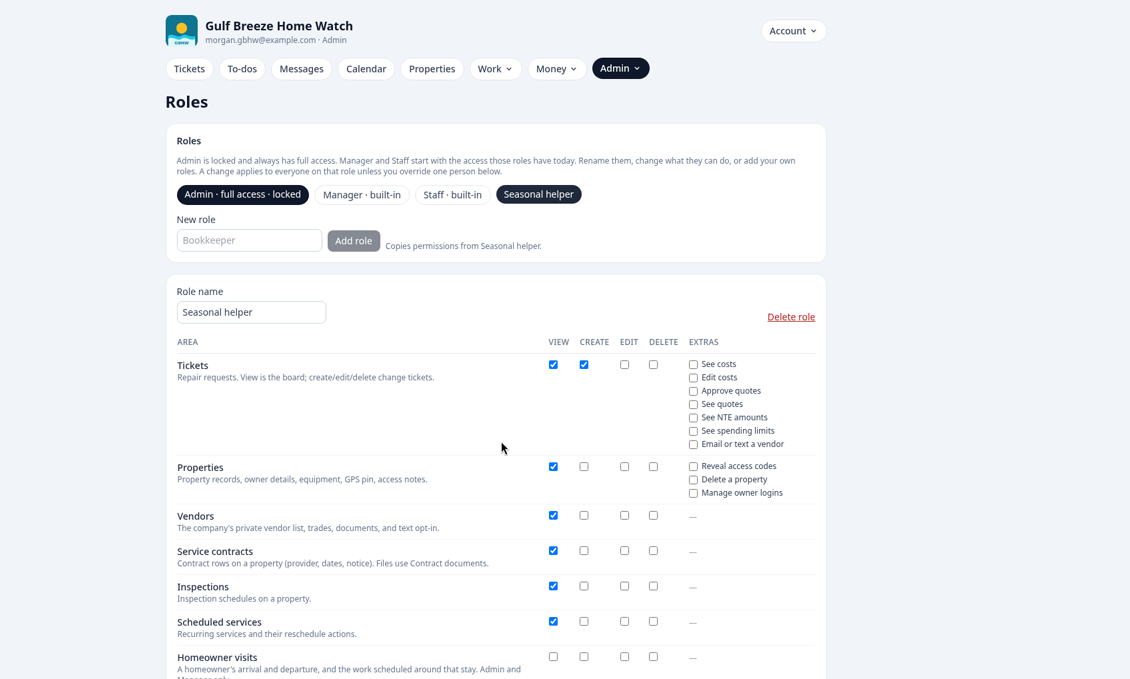
- Choose Add role. A Seasonal helper pill appears and is selected. Role name is Seasonal helper, and a Delete role link is on the panel. The Tickets row still matches Staff (View and Create on, Edit and See quotes off). The hint now says Copies permissions from Seasonal helper.
- On the Tickets row, tick Edit and the See quotes extra.
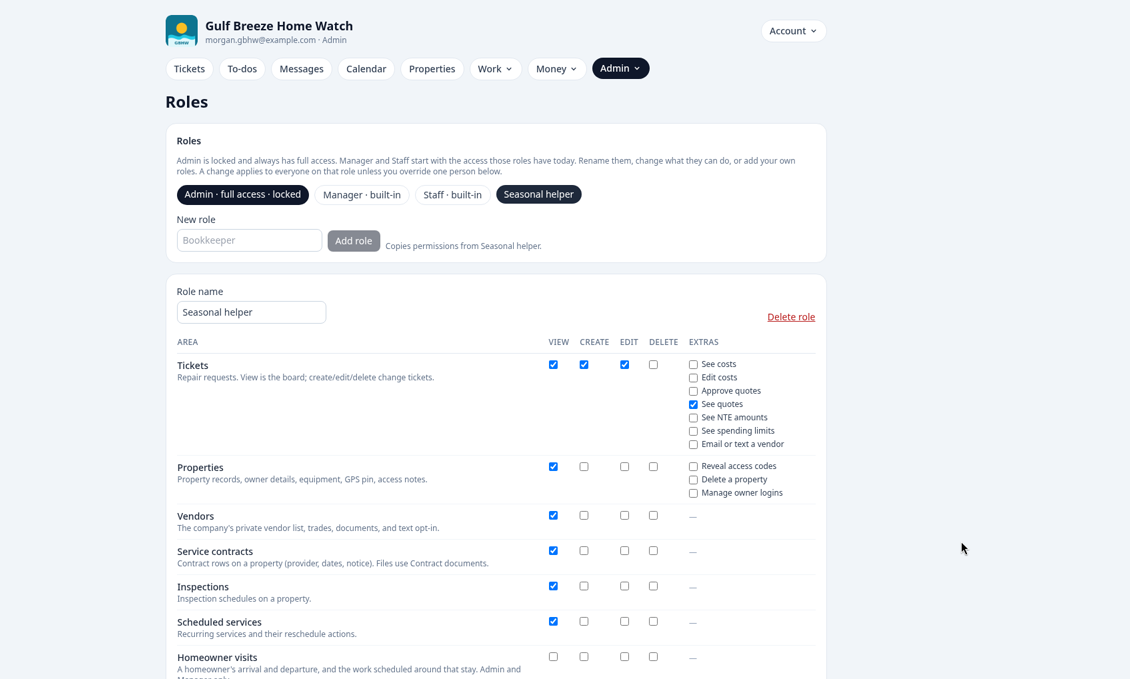
In this example the role was created and those two Tickets permissions were turned on. It was not assigned to anyone.