
Import properties and vendors
Import properties from a spreadsheet, including column matching and preview, and review the vendor import screens.
Updated November 23, 2026
You can import properties and vendors from a CSV or Excel spreadsheet. Property import starts from the Properties list in Property Keeper by TML. The same page has a tab for vendors.
Open Import properties
- Choose Properties. The heading is Properties, with a count of how many are on the list (in this example, 8 properties). Choose ··· More, then Import properties (CSV or Excel). The same menu also has Print QR codes (signs and label sheets). See The properties list and Print QR signs and codes.
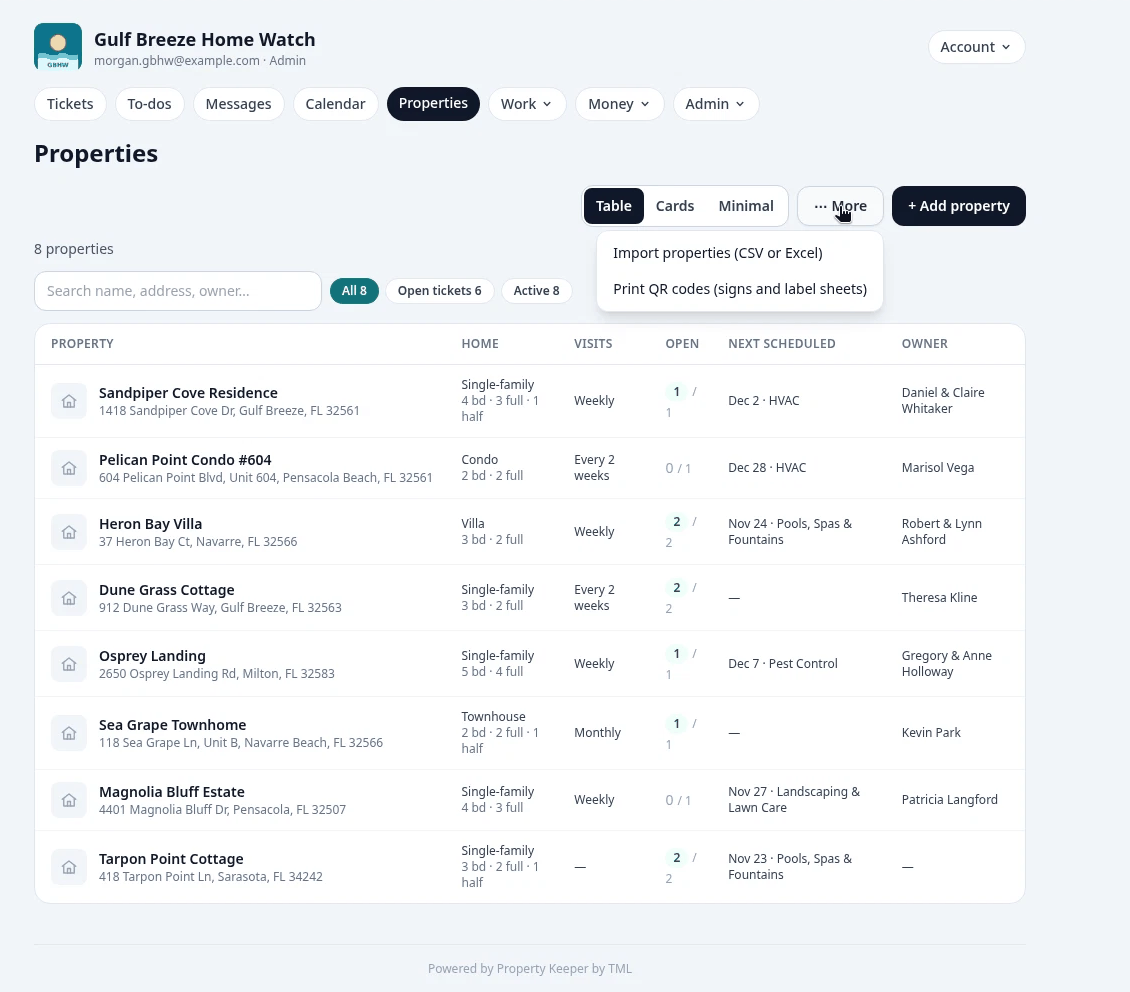
The upload screen
- The page heading is Import from a spreadsheet. Tabs are Import properties (selected) and Import vendors. The steps start as 1 Upload, 2 Review and fix, and 3 Import.
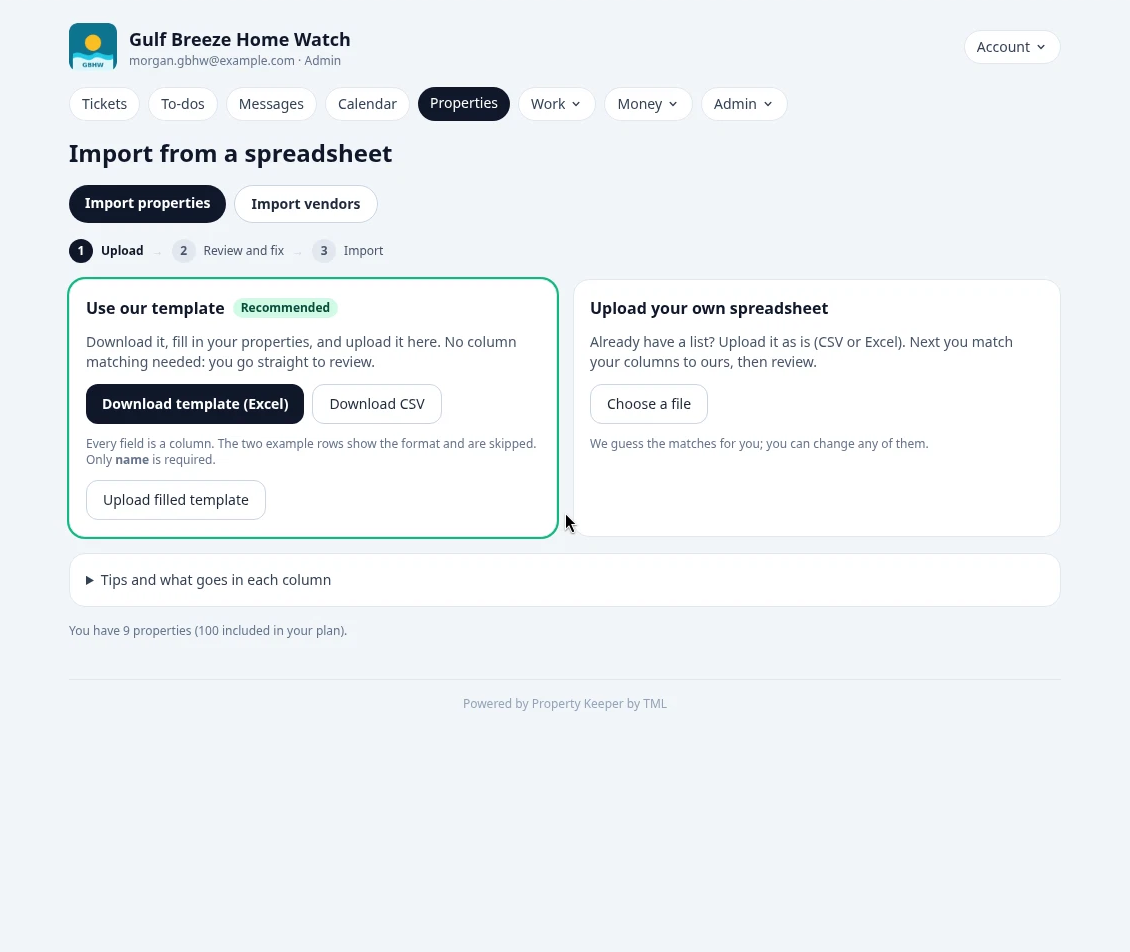
Use our template is marked Recommended. It says: Download it, fill in your properties, and upload it here. No column matching needed: you go straight to review. Buttons are Download template (Excel), Download CSV, and Upload filled template. Help text says: Every field is a column. The two example rows show the format and are skipped. Only name is required.
Upload your own spreadsheet says: Already have a list? Upload it as is (CSV or Excel). Next you match your columns to ours, then review. There is a Choose a file button, and the line We guess the matches for you; you can change any of them.
Tips and what goes in each column starts collapsed.
Tips for each column
- Expand Tips and what goes in each column.
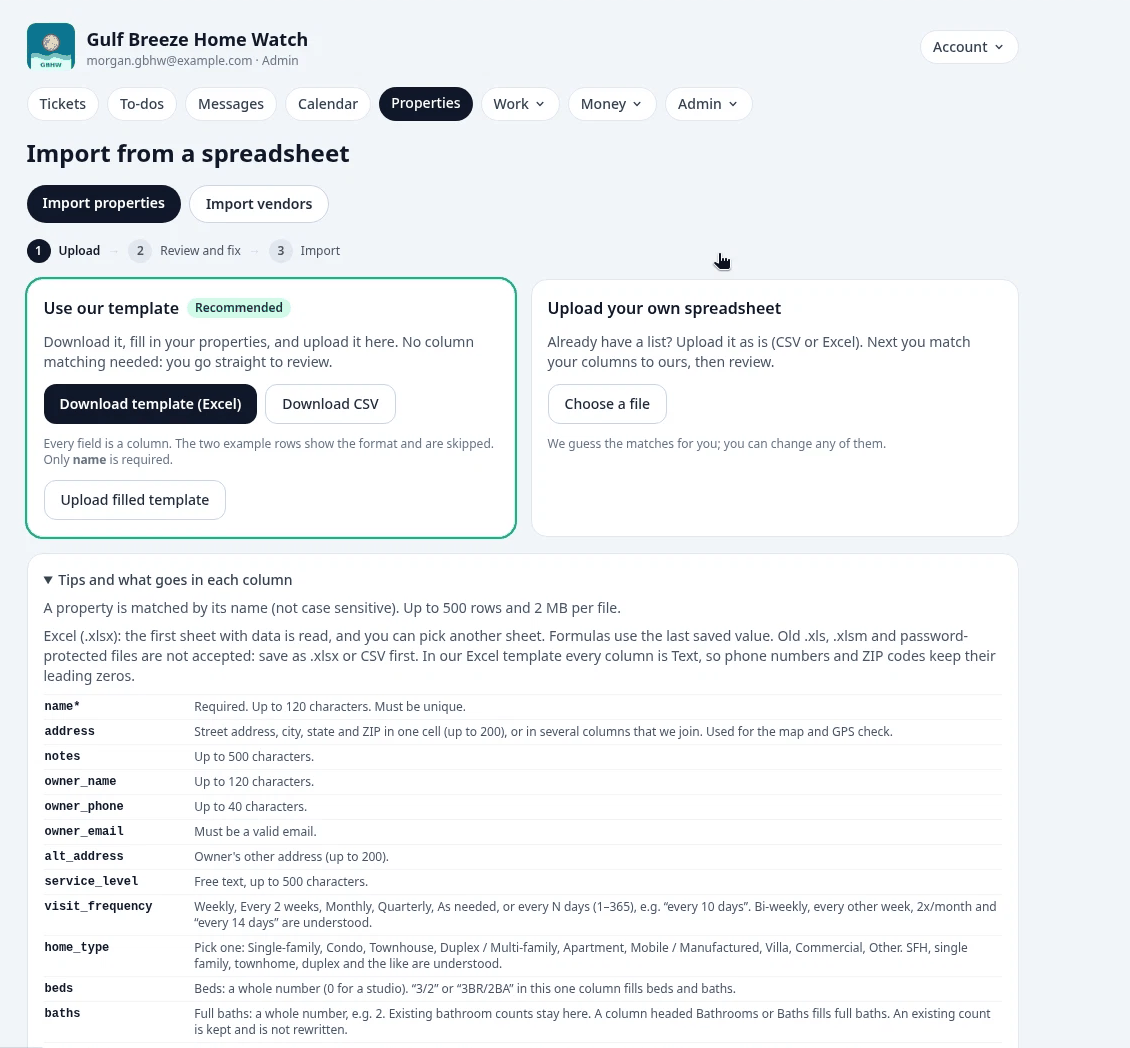
The tips open with: A property is matched by its name (not case sensitive). Up to 500 rows and 2 MB per file. They also explain Excel (.xlsx) files: the first sheet with data is read, and you can pick another sheet; formulas use the last saved value; old .xls, .xlsm, and password-protected files are not accepted (save as .xlsx or CSV first); and in the Excel template every column is Text, so phone numbers and ZIP codes keep their leading zeros.
Columns visible in this view include name* (required, up to 120 characters, must be unique), address, notes, owner_name, owner_phone, owner_email, alt_address, service_level, visit_frequency, home_type, beds, and baths. The rest of the column list continues below in the tips panel.
Match columns
- Under Upload your own spreadsheet, choose Choose a file and pick your spreadsheet. In this example the file is coquina-key-bungalow.csv. After a file that is not the filled template is chosen, the steps become 1 Upload, 2 Match columns, 3 Review and fix, and 4 Import.
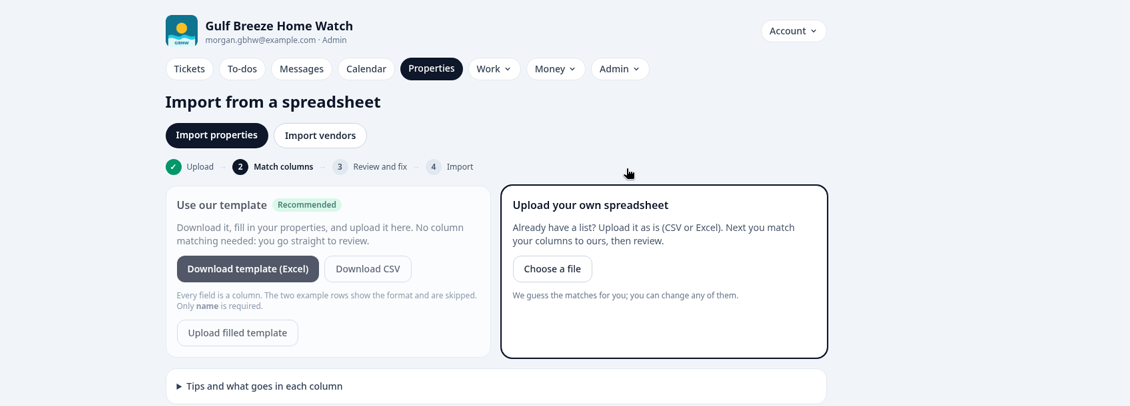
- Scroll to the matching options.
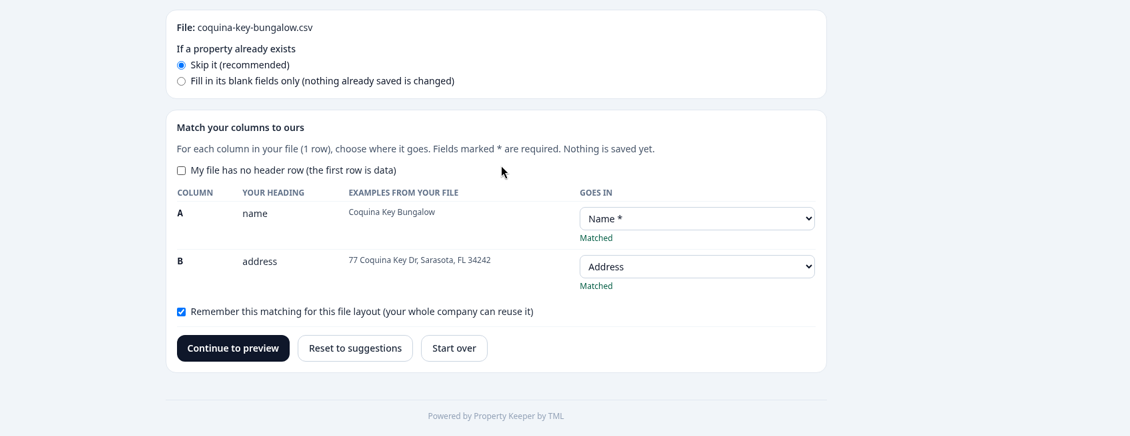
The file name is shown as File: coquina-key-bungalow.csv.
If a property already exists has two choices. Skip it (recommended) is selected. The other choice is Fill in its blank fields only (nothing already saved is changed).
Match your columns to ours says: For each column in your file (1 row), choose where it goes. Fields marked * are required. Nothing is saved yet. The checkbox My file has no header row (the first row is data) is off.
The matching table has columns COLUMN, YOUR HEADING, EXAMPLES FROM YOUR FILE, and GOES IN. In this example, A name (example Coquina Key Bungalow) goes to Name * and is marked Matched, and B address (example 77 Coquina Key Dr, Sarasota, FL 34242) goes to Address and is marked Matched.
Remember this matching for this file layout (your whole company can reuse it) is ticked by default.
Buttons are Continue to preview, Reset to suggestions, and Start over.
Preview and import
- Choose Continue to preview. The heading says Check the preview. Nothing is saved yet.
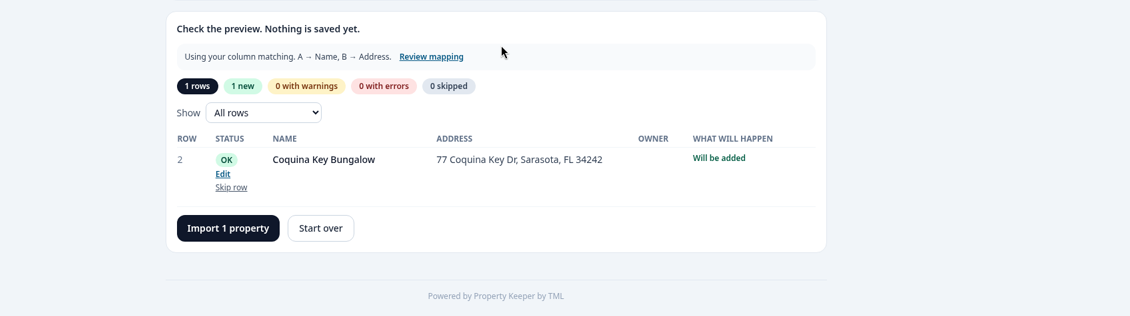
A line says Using your column matching. A → Name, B → Address, with a Review mapping link. Chips show 1 rows, 1 new, 0 with warnings, 0 with errors, and 0 skipped. Show is set to All rows.
Row 2 is marked OK, with Edit and Skip row, the name Coquina Key Bungalow, the address 77 Coquina Key Dr, Sarasota, FL 34242, and Will be added. Buttons are Import 1 property and Start over.
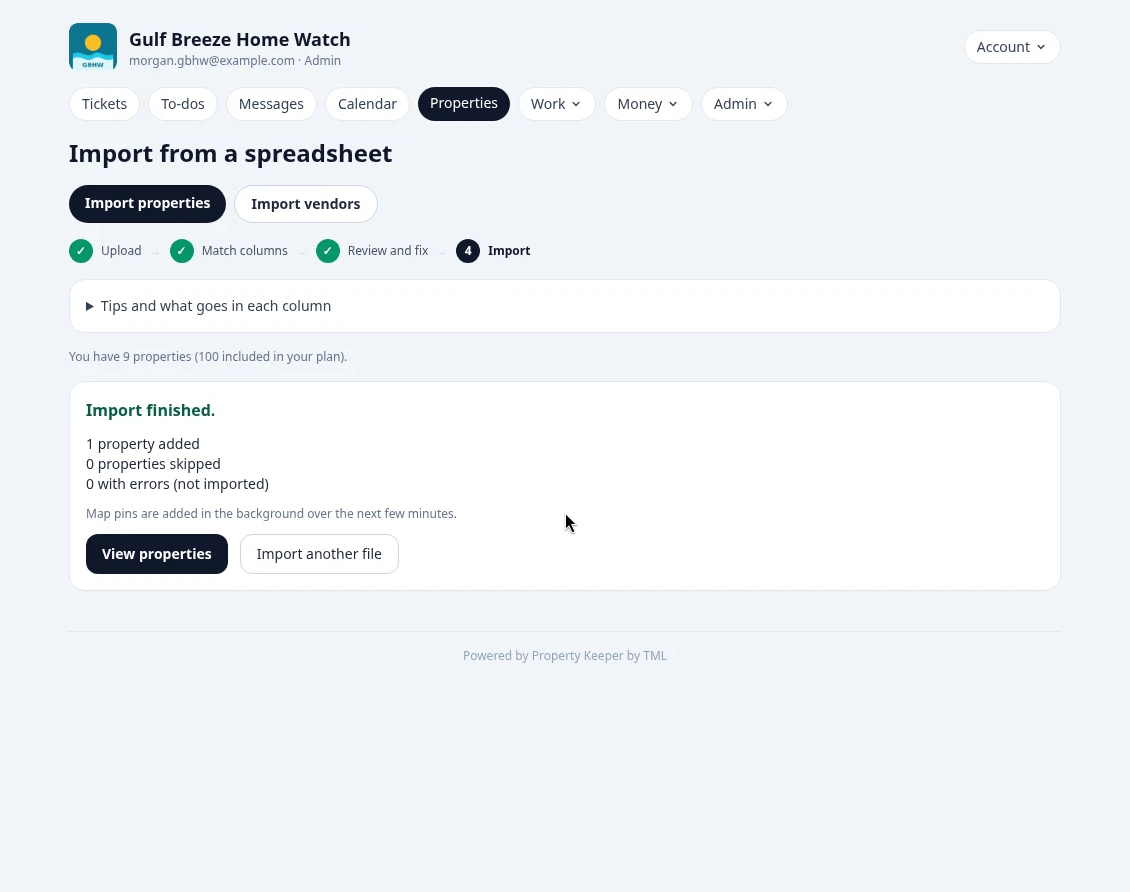
- Choose Import 1 property. The page shows Import finished., with 1 property added, 0 properties skipped, and 0 with errors (not imported). A line says Map pins are added in the background over the next few minutes. Buttons are View properties and Import another file. In this example the imported property is Mangrove Landing Cottage. A line above the result says You have 9 properties (100 included in your plan).
Import vendors
- On the same page, choose the Import vendors tab. The steps are again 1 Upload, 2 Review and fix, and 3 Import. Properties stays highlighted in the top navigation on both Import properties and Import vendors.
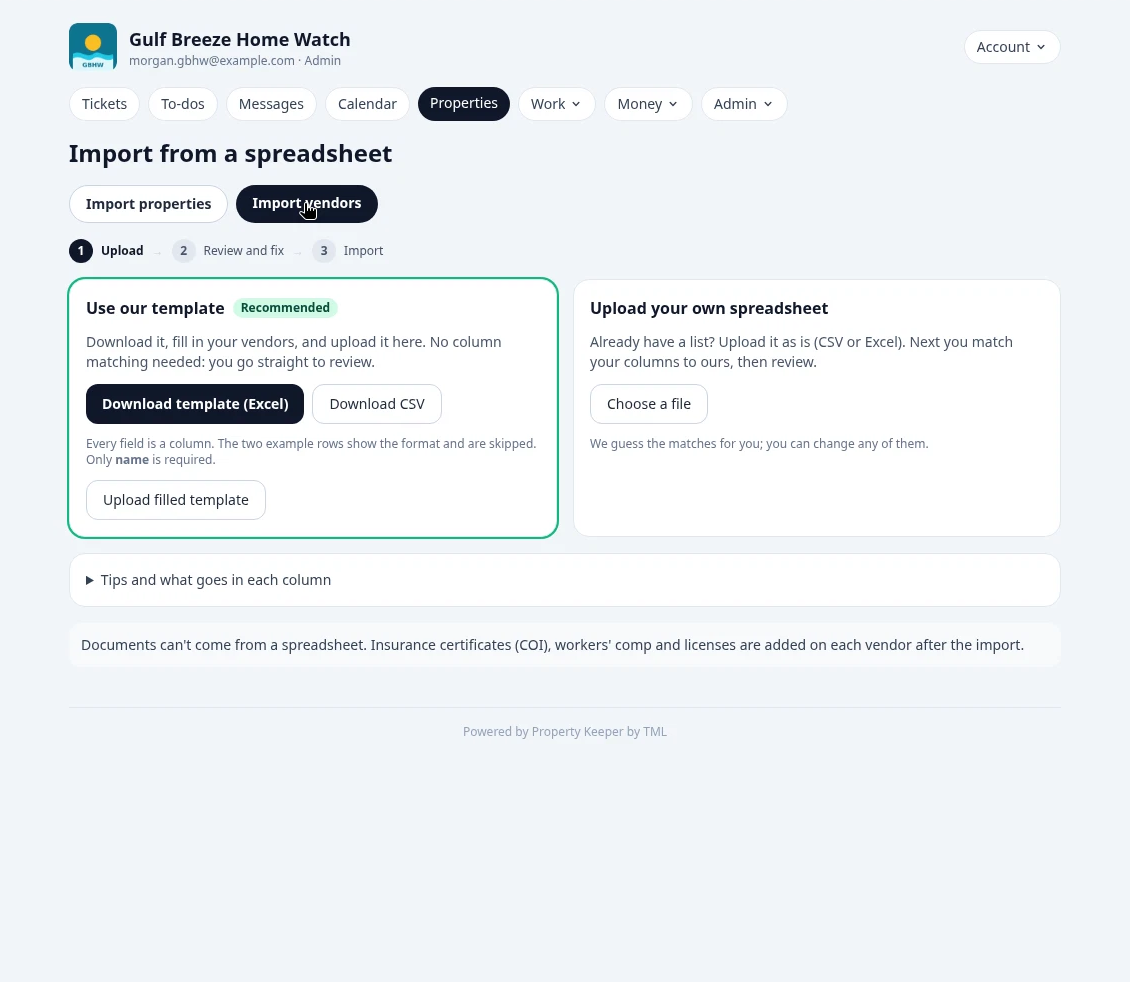
The layout matches property import, with Use our template (Recommended) and Upload your own spreadsheet. The template help says to download it, fill in your vendors, and upload it here, with no column matching needed. A note under the tips bar says: Documents can't come from a spreadsheet. Insurance certificates (COI), workers' comp and licenses are added on each vendor after the import.
- Expand Tips and what goes in each column.
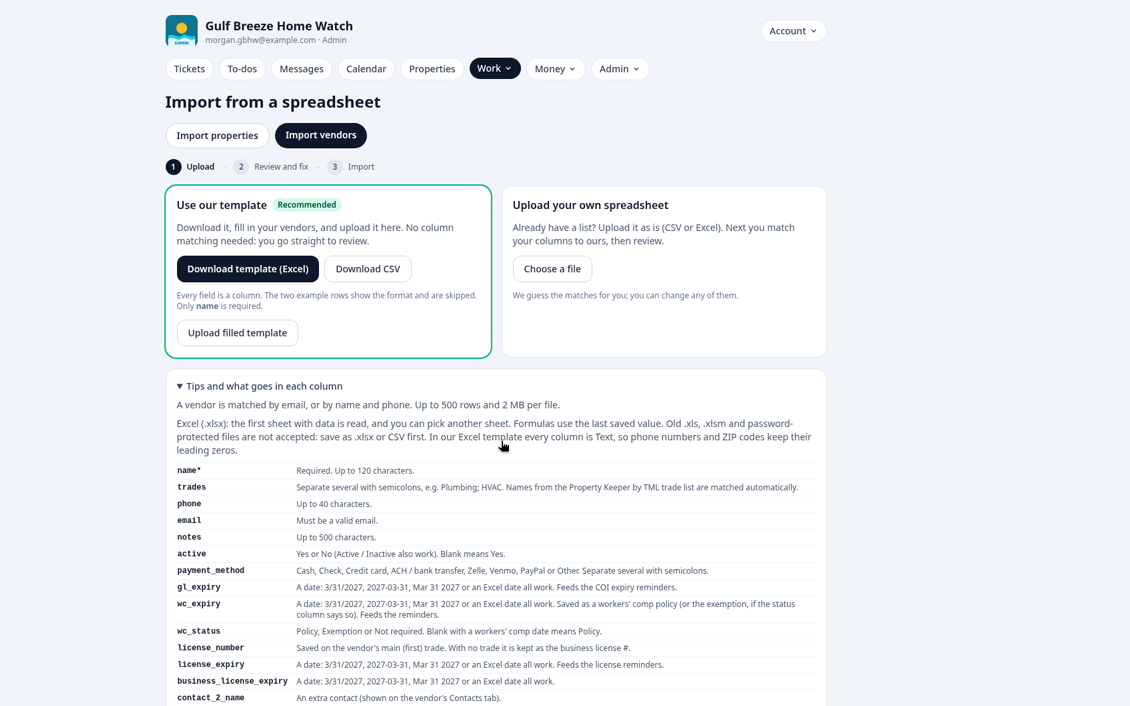
The tips open with: A vendor is matched by email, or by name and phone. Up to 500 rows and 2 MB per file. The Excel help matches the property tips. Columns visible in this view include name* (required, up to 120 characters), trades, phone, email, notes, active, payment_method, gl_expiry, wc_expiry, wc_status, license_number, license_expiry, business_license_expiry, and contact_2_name. The rest of the column list continues below in the tips panel.