
Sign in on the web
Enter your work email to get a one-time sign-in link, then find your way around the top of the web app.
Updated November 23, 2026
You sign in to Property Keeper by TML on the web with your work email. There is no password field. The app emails you a one-time link instead.
Open the sign-in page
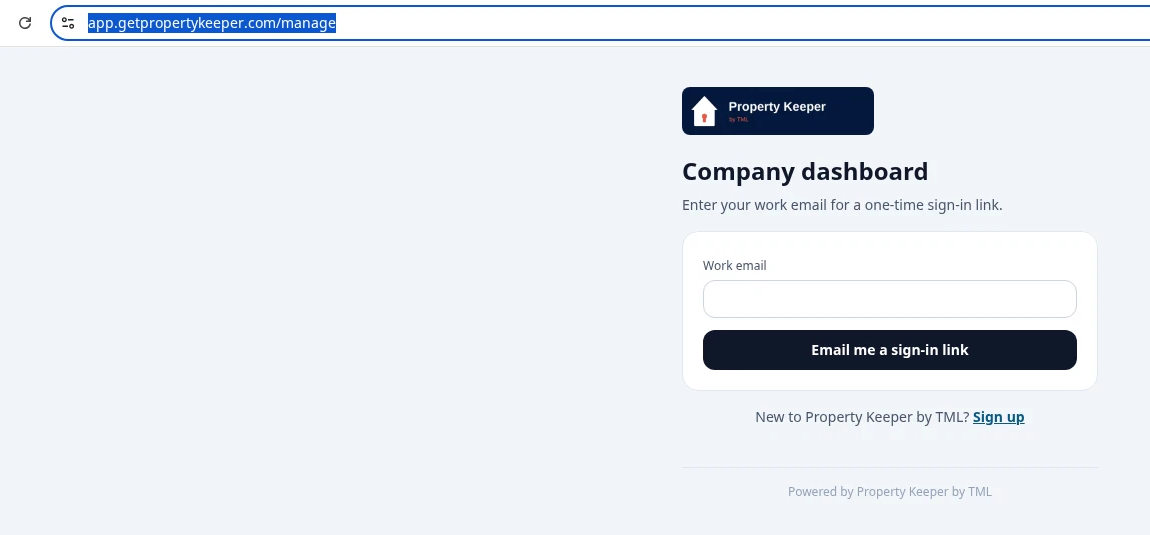
- Go to app.getpropertykeeper.com/manage. The page heading is Company dashboard, and the line under it says Enter your work email for a one-time sign-in link.
Request a sign-in link
- In Work email, enter the work email you use with your company.
- Choose Email me a sign-in link. Property Keeper emails you a one-time sign-in link. Open that link to sign in.
If you don't have an account yet, New to Property Keeper by TML? Sign up is under the button.
After you sign in
- After you open the link, you land on Tickets for your company. Your company name and your email appear at the top, with your role (for example, Admin) after the email.
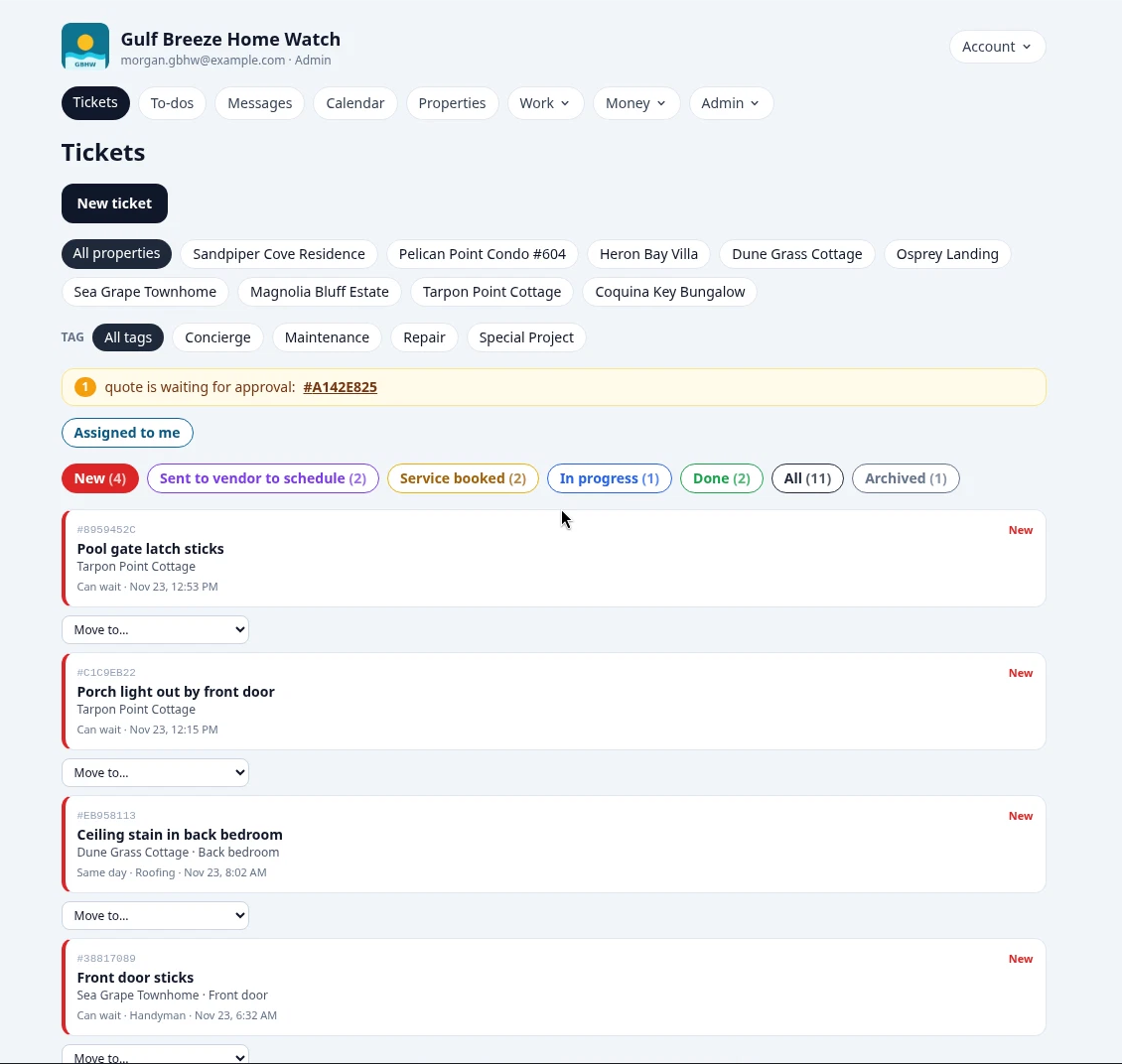
Across the top of every page you will see:
- Tickets, To-dos, Messages, Calendar, and Properties
- Work, which includes Scheduled, Homeowner visits, Checklists, and Vendors
- Money, which includes Expenses, Spending, and Spending by tag
- Admin, which includes Team, Roles, and Settings
- Account at the top right, which includes Request a feature, Help, and Sign out
The footer on these pages is Powered by Property Keeper by TML.
Find help
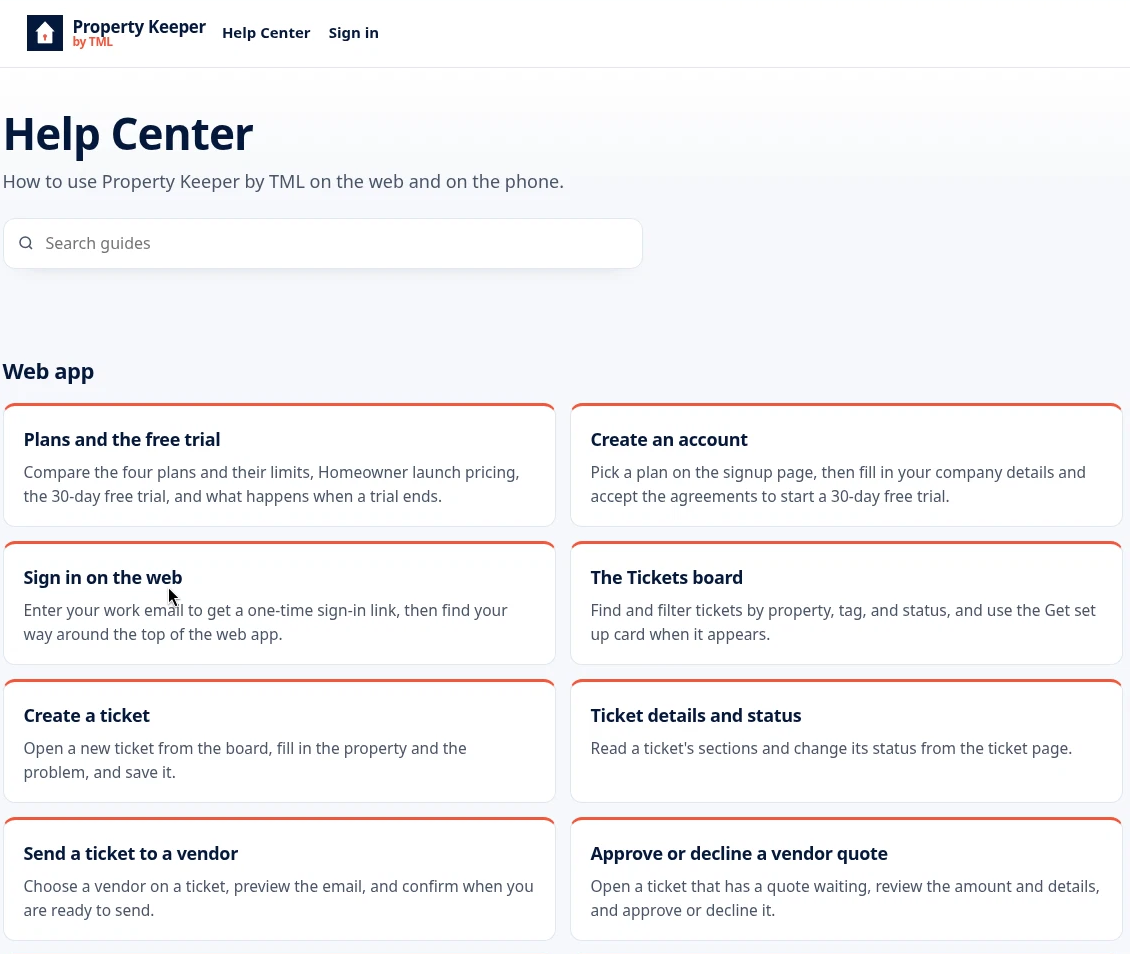
- Choose Account in the top right, then Help. The Help Center opens in a new tab. You can also go to getpropertykeeper.com/help. The heading is Help Center. The line under it says How to use Property Keeper by TML on the web and on the phone. There is a Search guides field, and a Web app list of guides.
To start work, stay on Tickets or choose another item in the top navigation. See The Tickets board to find and filter tickets, or Create a ticket to log a new one.