
Approve or decline a vendor quote
Open a ticket that has a quote waiting, review the amount and details, and approve or decline it.
Updated November 23, 2026
When a quote is waiting, the Tickets board shows a yellow banner so you can open the ticket and decide.
Find a quote that needs approval
- On the Tickets board, look for the yellow banner. In this example it reads 1 quote is waiting for approval: followed by a link to the ticket ID (here, #A142E825).
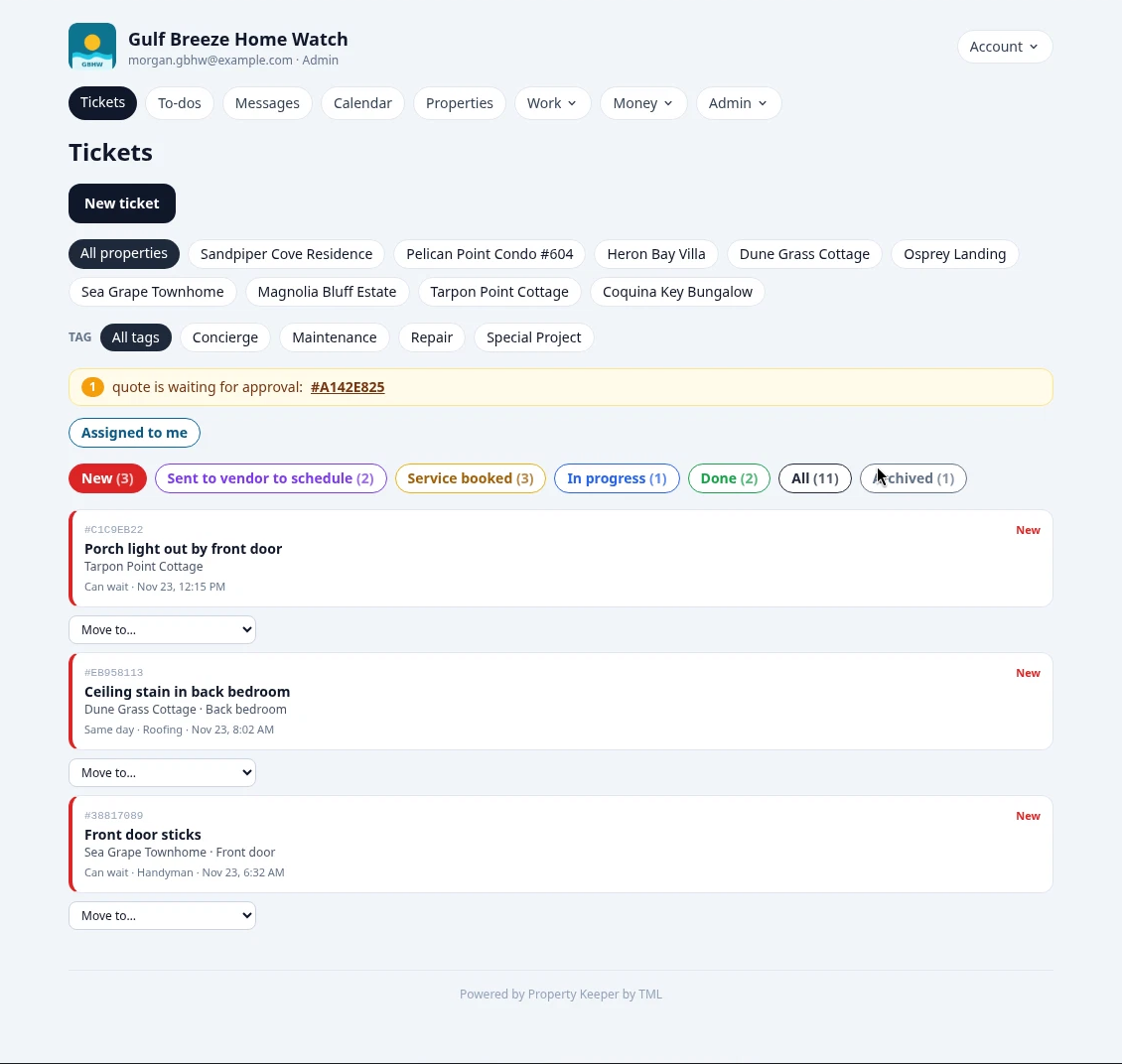
In the All columns view, that ticket can also show a Quote needs approval badge.
- Choose the ticket number in the banner to open the ticket.
Review the ticket
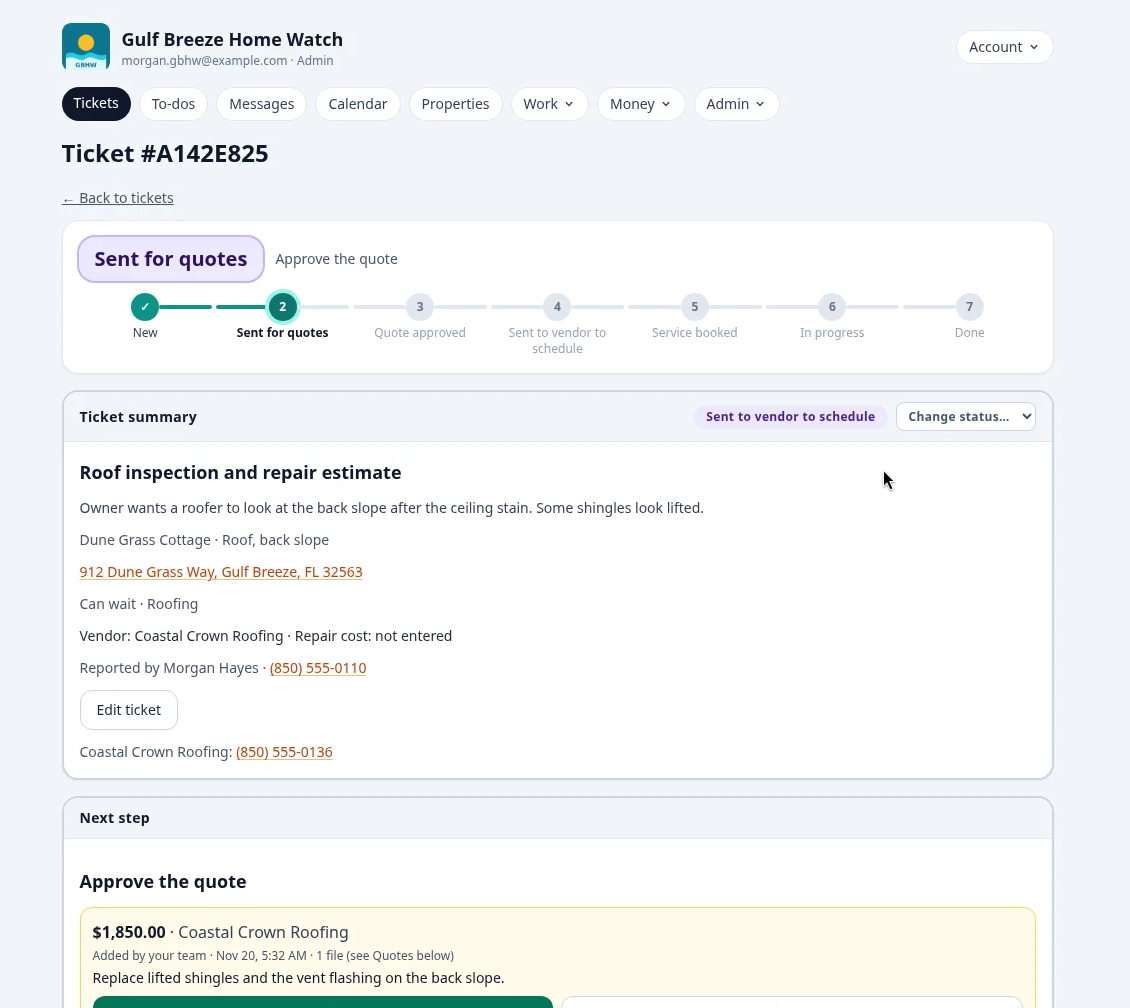
- Check the status banner, tracker, and Ticket summary. In this example, Ticket #A142E825 is Roof inspection and repair estimate. The banner shows Sent for quotes with the hint Approve the quote. The tracker is on step 2 Sent for quotes, after New. The summary pill is Sent to vendor to schedule.
The summary includes the description, property and location, address, urgency and category (Can wait · Roofing), Vendor: Coastal Crown Roofing · Repair cost: not entered, who reported it, and the vendor's phone.
Approve or decline
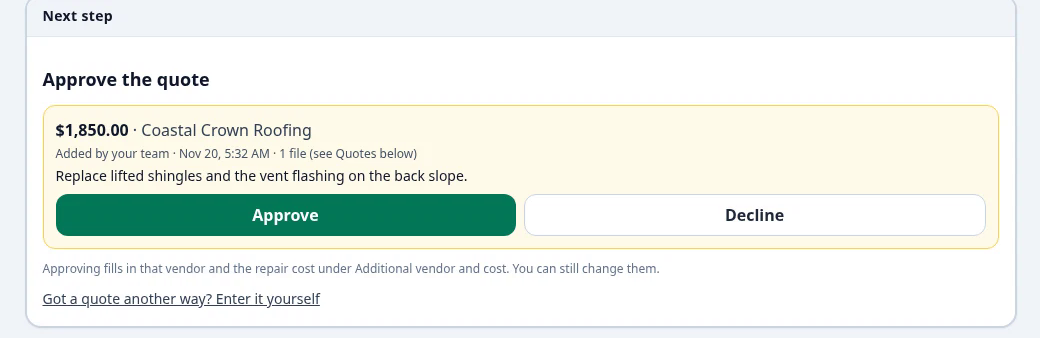
- In Next step, the card is titled Approve the quote. A yellow box shows the amount and vendor (here, $1,850.00 · Coastal Crown Roofing), when it was added (Added by your team · Nov 20, 5:32 AM · 1 file (see Quotes below)), and the work described (Replace lifted shingles and the vent flashing on the back slope.).
- Choose the green Approve button, or Decline. Under the buttons, the page says Approving fills in that vendor and the repair cost under Additional vendor and cost. You can still change them. The link Got a quote another way? Enter it yourself is also there if you need to enter a quote yourself.
Review the quote file
- Scroll to Additional vendor and cost and Quotes. In this example the vendor list already shows Coastal Crown Roofing, an amount of 0.00, the Main vendor option, Remove, and + Add a vendor. Repair cost: not entered yet is still shown, along with Not to exceed (never shown to the vendor) and Every quote needs approval.
Quotes (1) is expanded, with a 1 waiting badge. The quote repeats the amount and vendor, with a Needs approval badge, who added it, the description, Download PDF, Print, a PDF · coastal-crown-estimate.pdf (1 KB) chip, and the line Approve or decline it in Next step above.
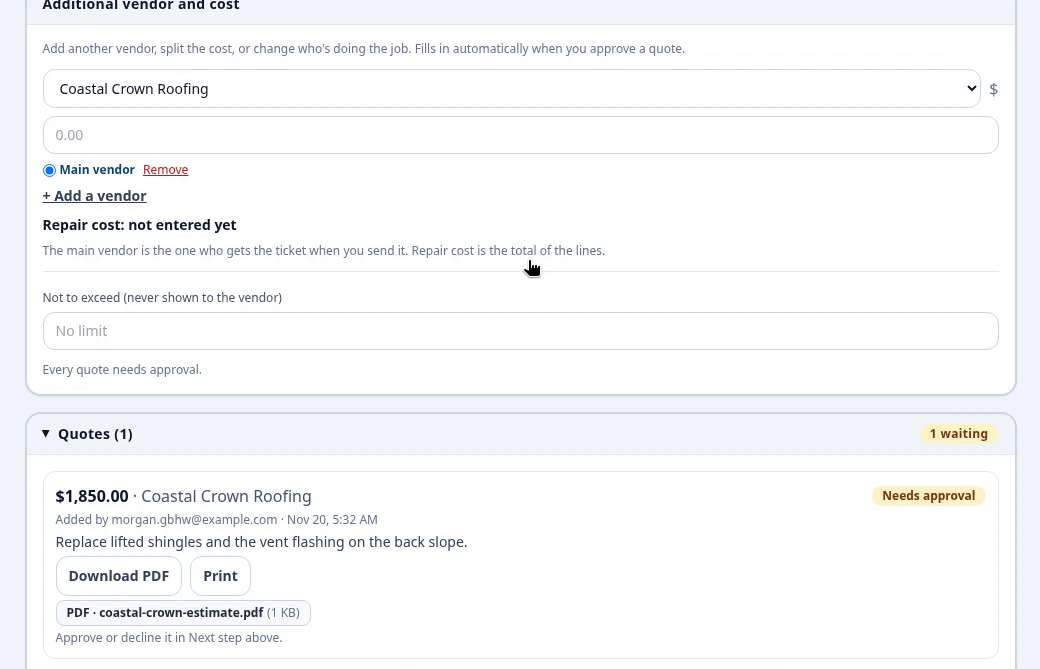
Use Approve or Decline in Next step above, not in this list.