
Homeowner visits
Track when a homeowner is in town, open a stay to review or attach work, and add a new visit.
Updated November 23, 2026
Homeowner visits track when a homeowner is in town, and the work around that stay. Open them from Work in the top navigation of Property Keeper by TML.
Open Homeowner visits
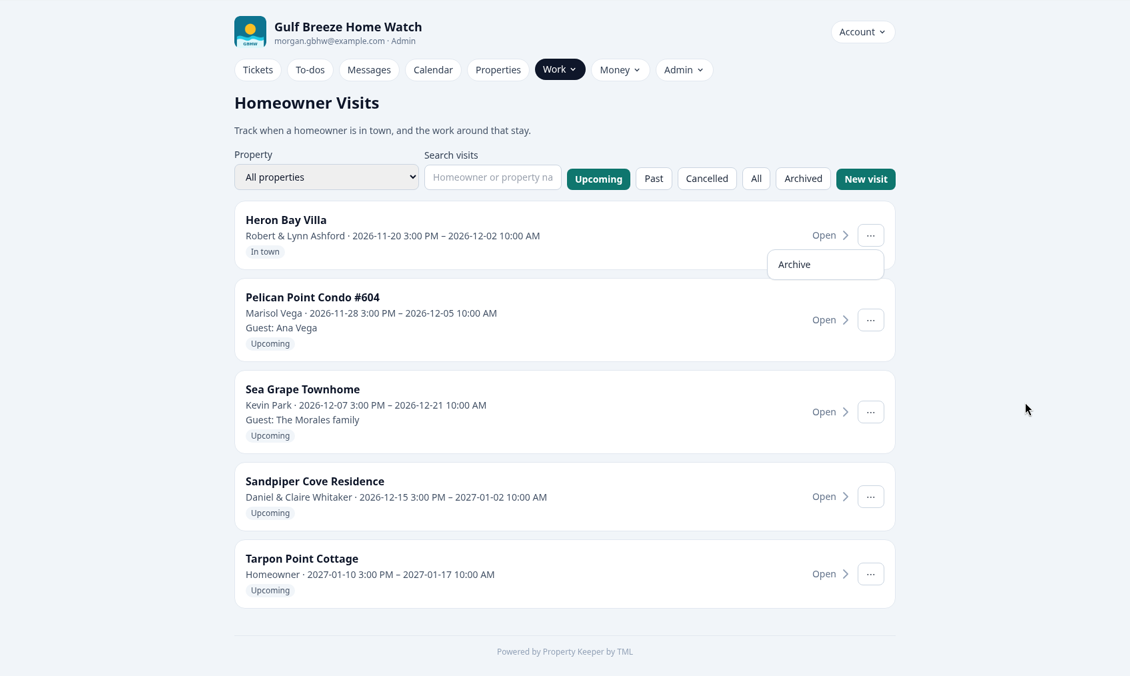
- Choose Work, then Homeowner visits. The heading is Homeowner Visits. Under it, the page says Track when a homeowner is in town, and the work around that stay.
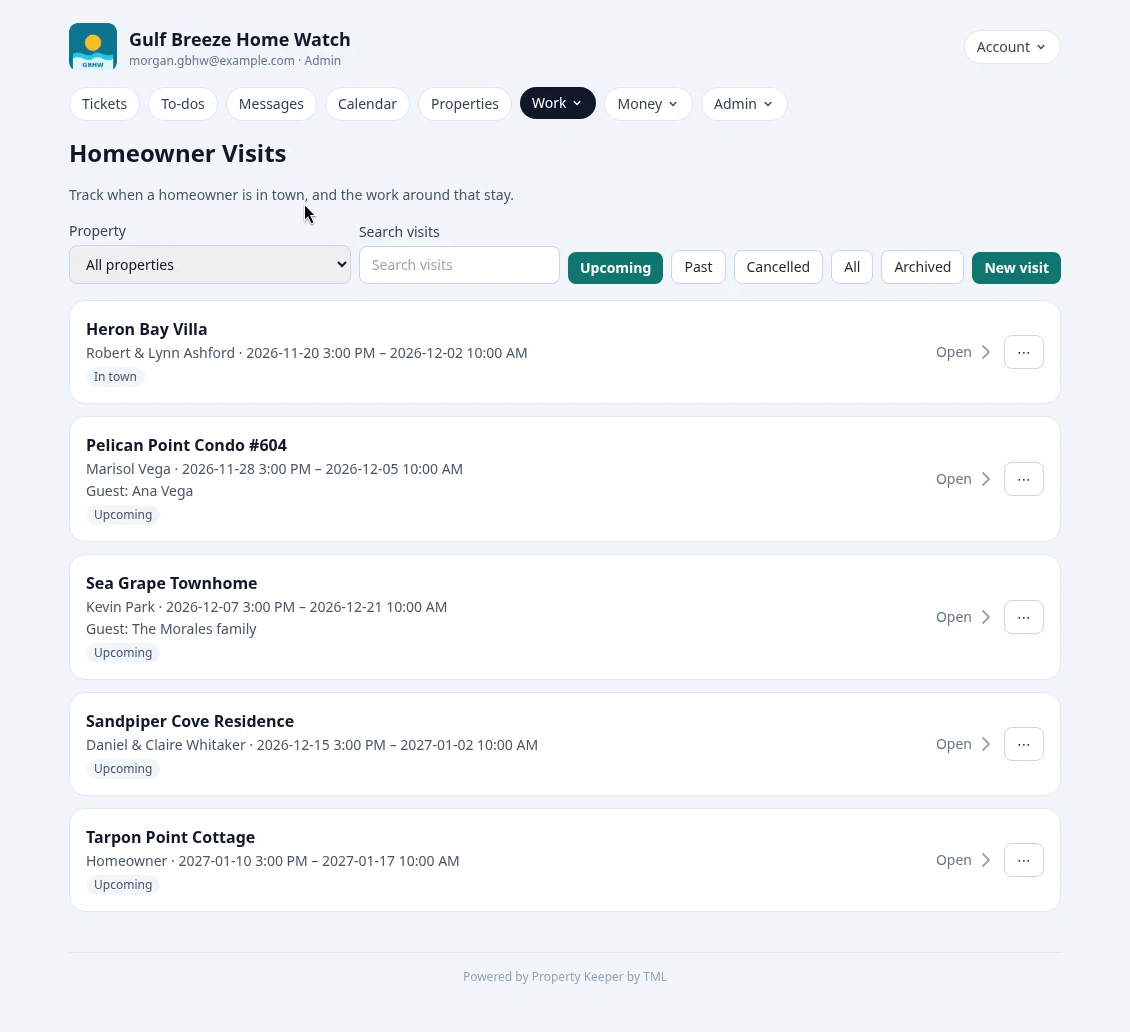
A Property dropdown defaults to All properties. Next to it is a search box labeled Search visits, with the same placeholder in the box, and filter buttons Upcoming (selected), Past, Cancelled, All, and Archived, plus a green New visit button.
Each row shows the property, who is staying, the arrival and departure, and a status such as In town or Upcoming. Guests appear on their own line when the stay is for a guest. Each row has Open > and a menu button.
In this example, Heron Bay Villa shows Robert & Lynn Ashford in town from 2026-11-20 at 3:00 PM to 2026-12-02 at 10:00 AM, and Pelican Point Condo #604 has an upcoming stay with Guest: Ana Vega.
Open a visit
- Choose Open > on a row. The page shows an Edit visit card and a Back to visits button.
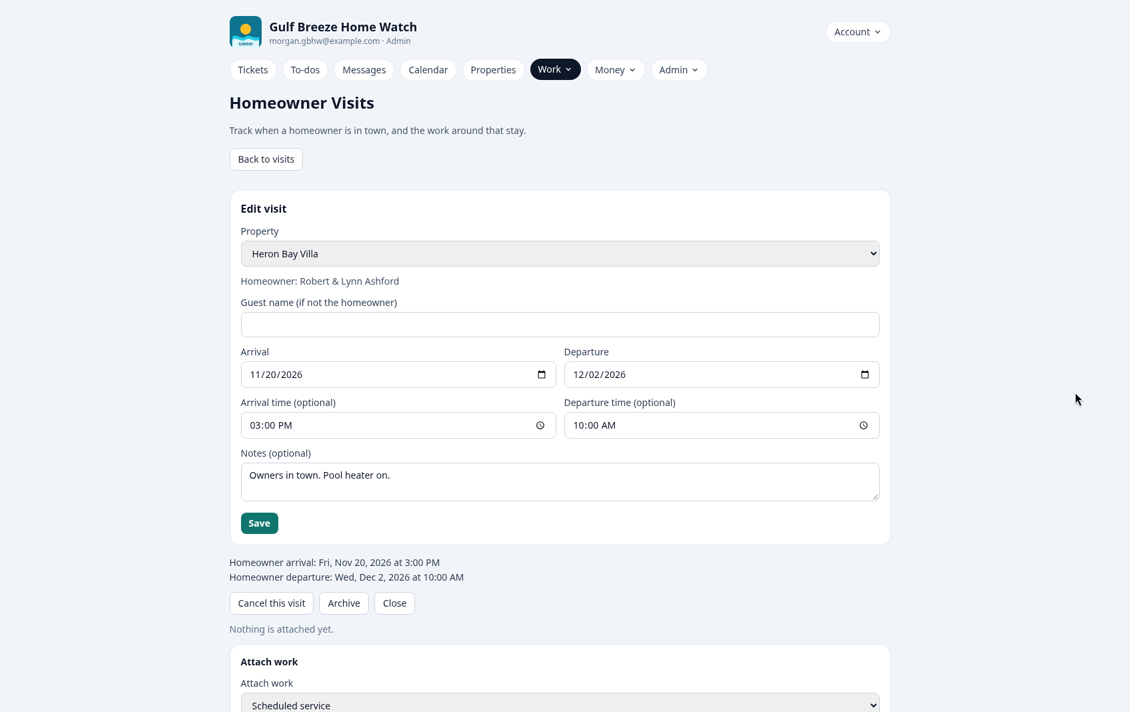
The card includes:
- Property (here Heron Bay Villa)
- Homeowner: Robert & Lynn Ashford
- Guest name (if not the homeowner)
- Arrival and Departure
- Arrival time (optional) and Departure time (optional)
- Notes (optional)
- Save
Below the form, the stay is summarized as Homeowner arrival and Homeowner departure (for example, Fri, Nov 20, 2026 at 3:00 PM and Wed, Dec 2, 2026 at 10:00 AM). Buttons Cancel this visit, Archive, and Close sit under that summary. If nothing is attached, the page says Nothing is attached yet.
In this example the notes are Owners in town. Pool heater on.
- Scroll to Attach work to connect a scheduled service to the stay.
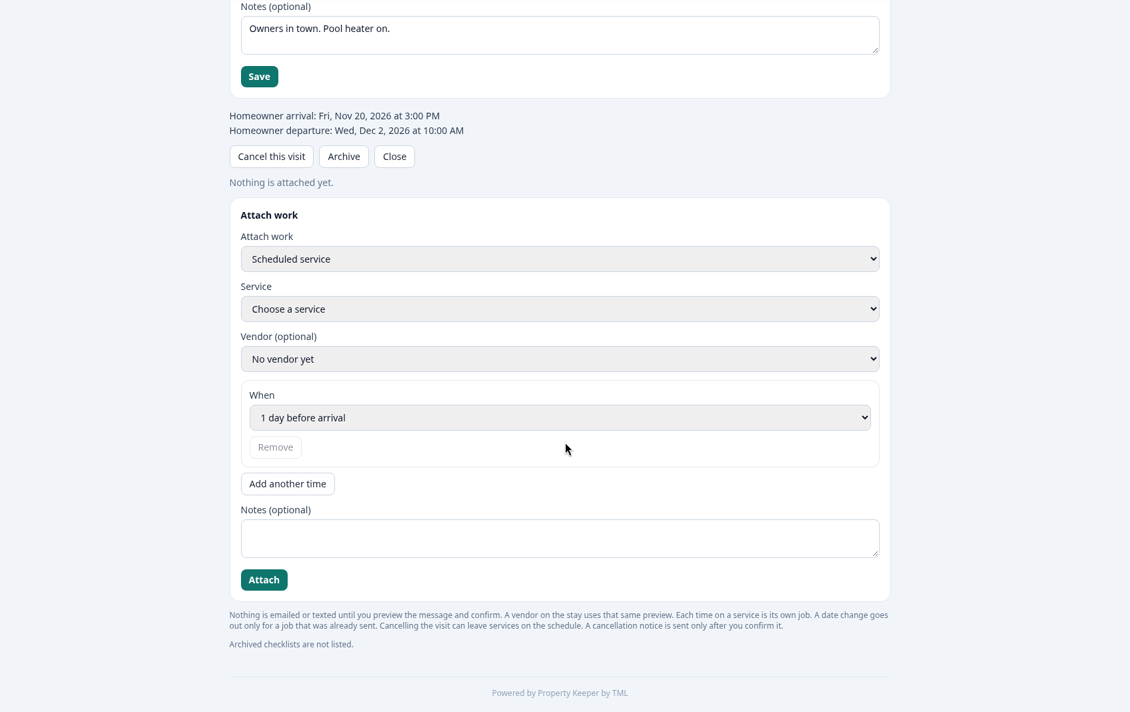
The card has an Attach work dropdown (here Scheduled service), Service (Choose a service), Vendor (optional) (No vendor yet), When (here 1 day before arrival), a Remove button, Add another time, Notes (optional), and Attach.
A note at the bottom of the page says nothing is emailed or texted until you preview the message and confirm. A vendor on the stay uses that same preview. Each time on a service is its own job. A date change goes out only for a job that was already sent. Cancelling the visit can leave services on the schedule. A cancellation notice is sent only after you confirm it. Archived checklists are not listed.
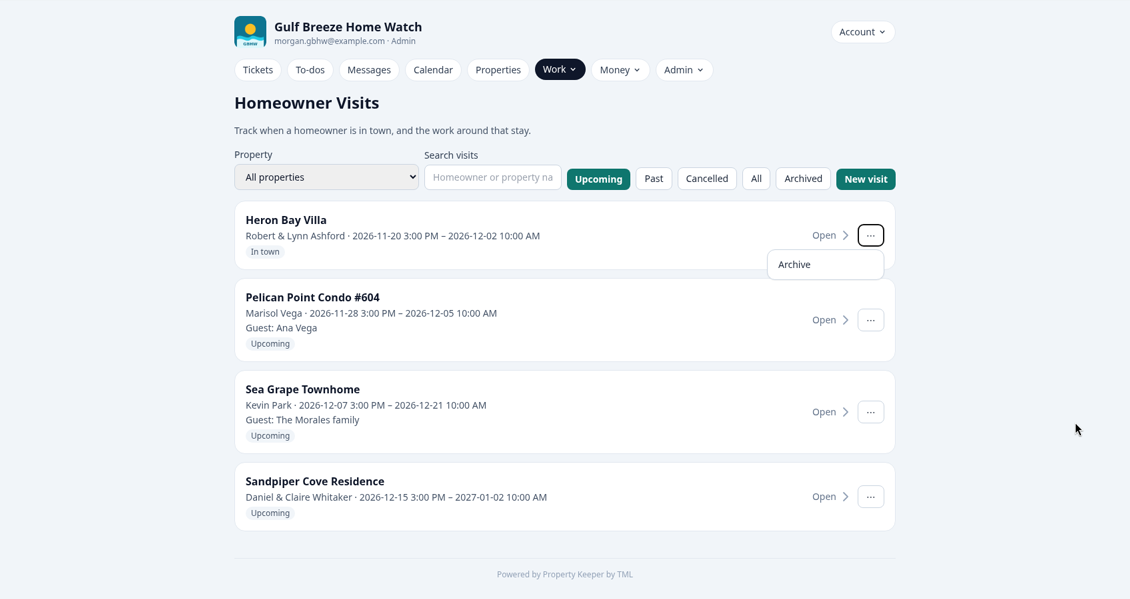
Open the row menu
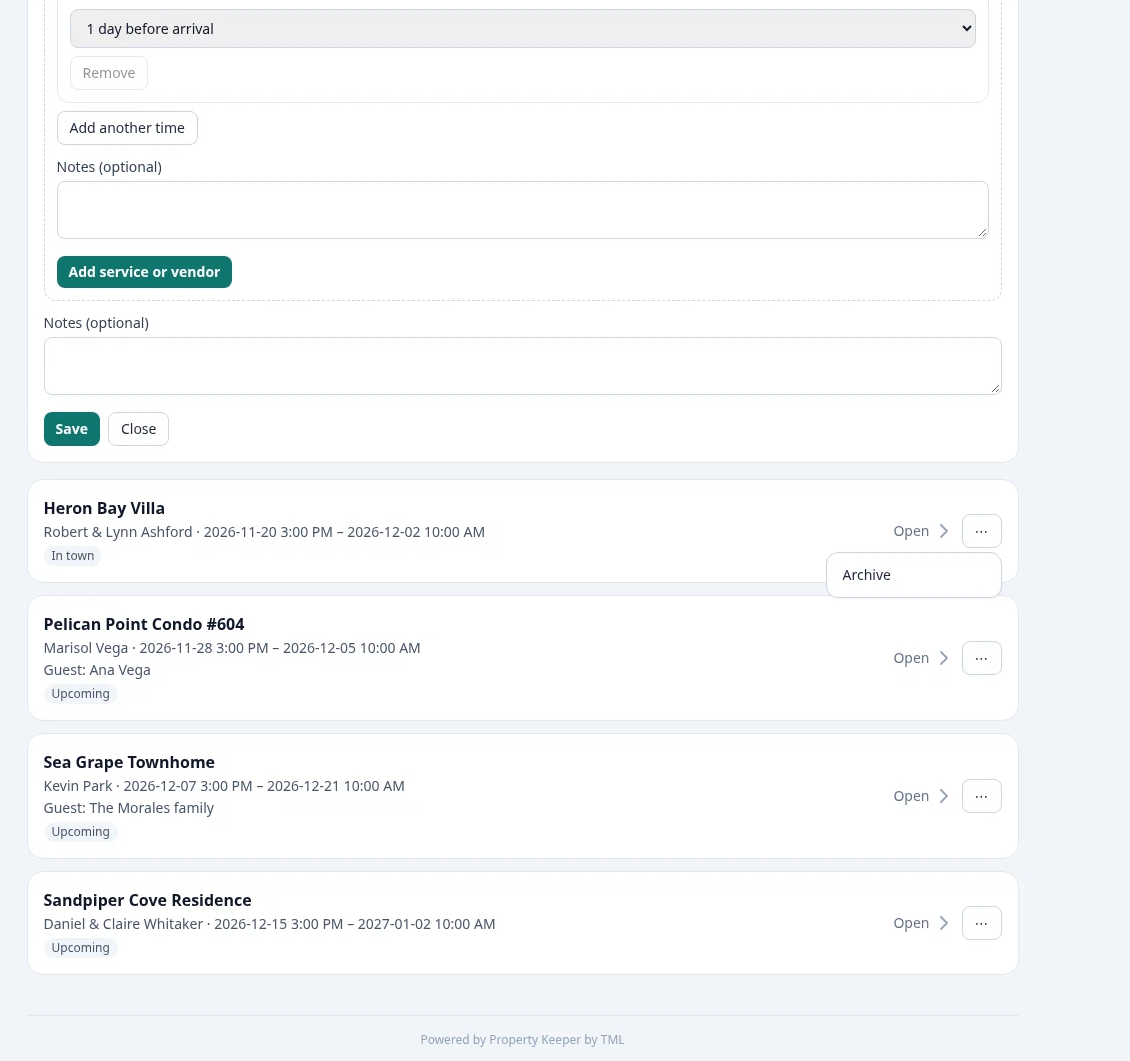
- On a visit row, choose the menu button. The menu lists Archive.
Add a visit
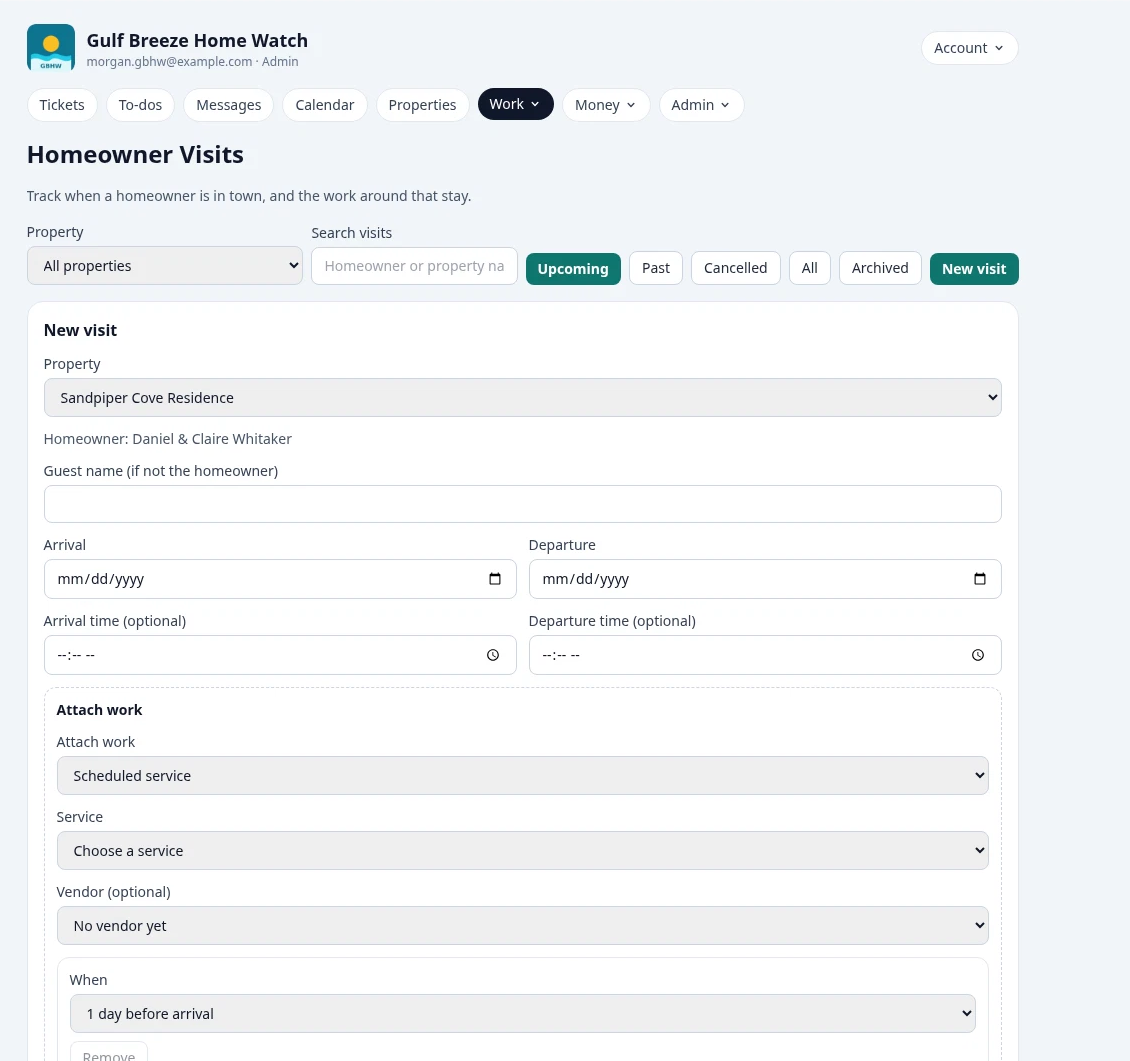
- Choose New visit. A New visit card opens. In this example, Property defaults to Sandpiper Cove Residence, and the card shows Homeowner: Daniel & Claire Whitaker. Arrival and departure dates and optional times start empty. An Attach work box is on the form, with When set to 1 day before arrival.
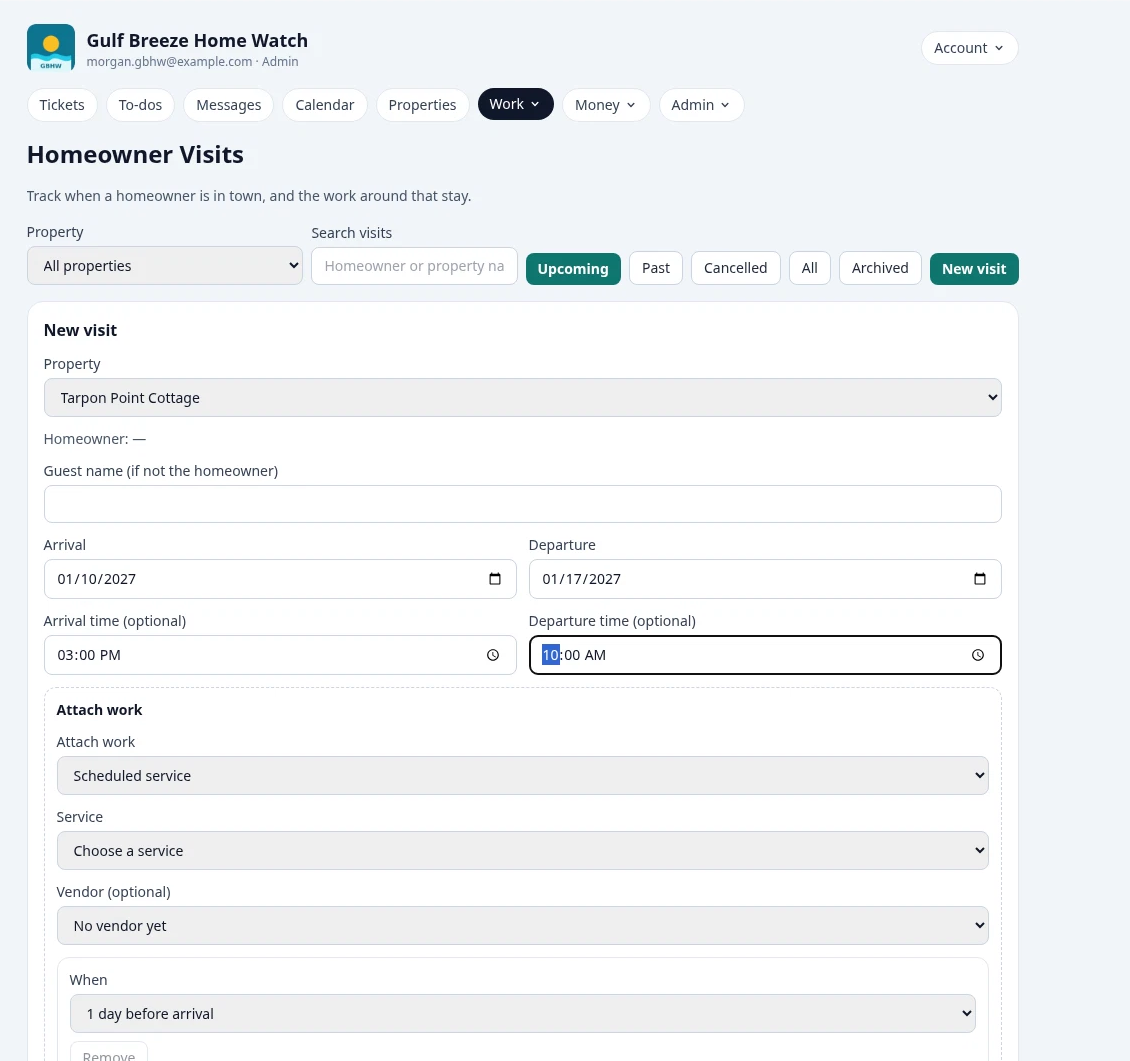
- Choose the property and fill in the arrival, departure, and times. In this example:
- Property: Tarpon Point Cottage (the card then shows Homeowner: —)
- Arrival: 01/10/2027
- Departure: 01/17/2027
- Arrival time: 03:00 PM
- Departure time: 10:00 AM
No work is attached.
- Scroll to the bottom of the form to add notes or attach work, then choose Save. You can also choose Add another time, Add service or vendor, or Close.
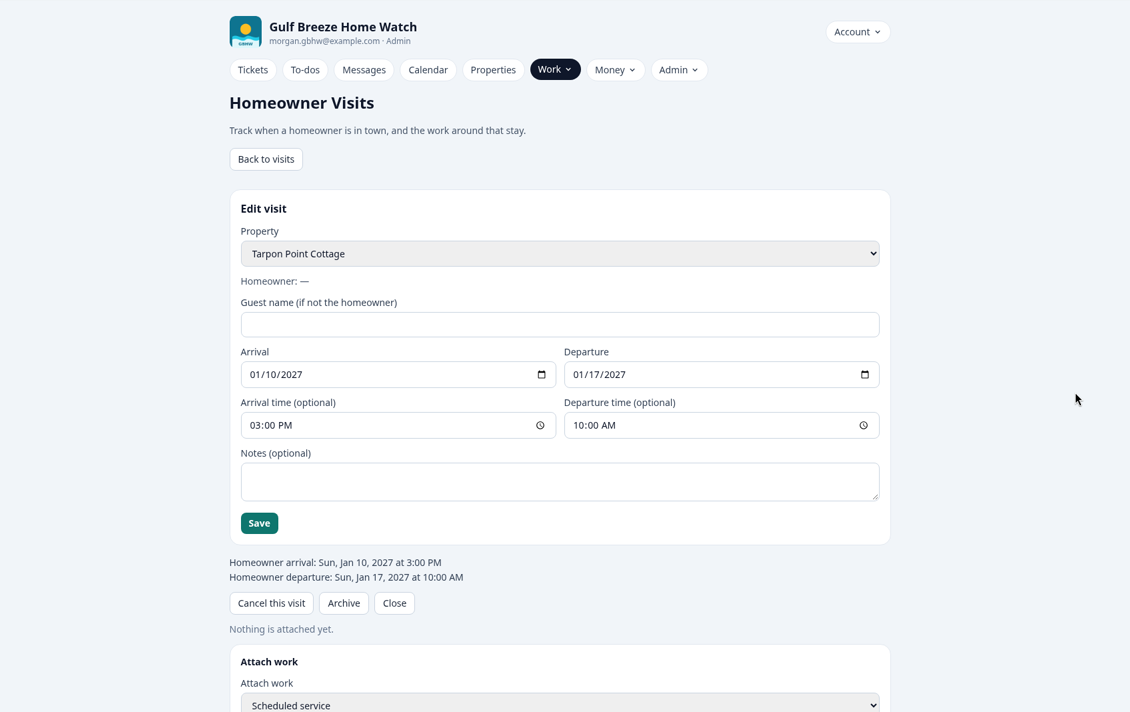
- After you save, the page switches to Edit visit for that stay, with the arrival and departure summarized (here Sun, Jan 10, 2027 at 3:00 PM and Sun, Jan 17, 2027 at 10:00 AM).
- Choose Back to visits to return to the list. The new stay appears as its own row. In this example: Tarpon Point Cottage · Homeowner · 2027-01-10 3:00 PM – 2027-01-17 10:00 AM · Upcoming.
To add the scheduled services you can attach to a stay, see Scheduled services.