
Expenses
Review company expenses, filter the list, add an expense, and export the current list as a CSV.
Updated November 23, 2026
Expenses in Property Keeper by TML are the costs you log for supplies, fuel, cleaning, and other day-to-day spending. Open them from the Money menu in the top navigation.
Open Expenses
- Choose Money, then Expenses. The Money menu also lists Spending and Spending by tag. The heading is Expenses.
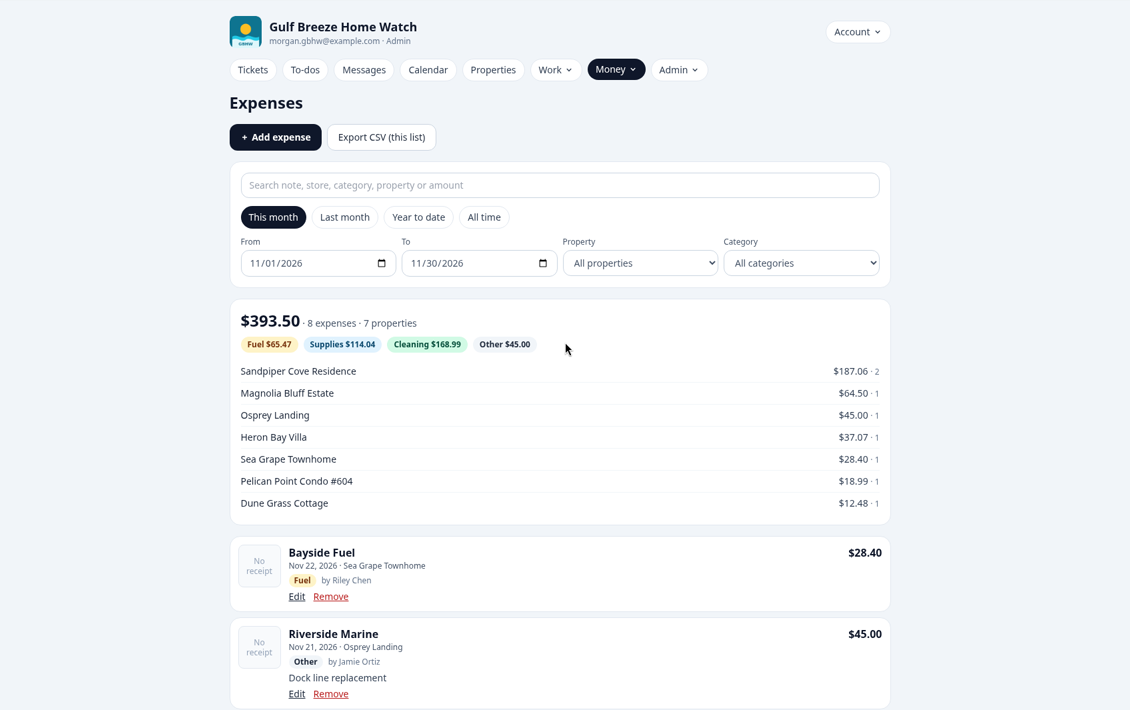
+ Add expense and Export CSV (this list) sit under the heading. A search box is labeled Search note, store, category, property or amount. Range buttons are This month (selected), Last month, Year to date, and All time, with From and To dates (here 11/01/2026 and 11/30/2026), a Property dropdown (here All properties), and a Category dropdown (here All categories).
A summary shows the total, how many expenses, and how many properties (here $393.50 · 8 expenses · 7 properties), with category chips such as Fuel $65.47, Supplies $114.04, Cleaning $168.99, and Other $45.00, plus a total for each property.
Each expense row shows the title, date, property, category, who logged it, Edit, Remove, the amount, and a No receipt thumbnail when no photo is attached. In this example, Bayside Fuel is $28.40 on Nov 22, 2026 at Sea Grape Townhome, category Fuel, by Riley Chen.
Add an expense
- Choose + Add expense. The button becomes Close, and a form opens.
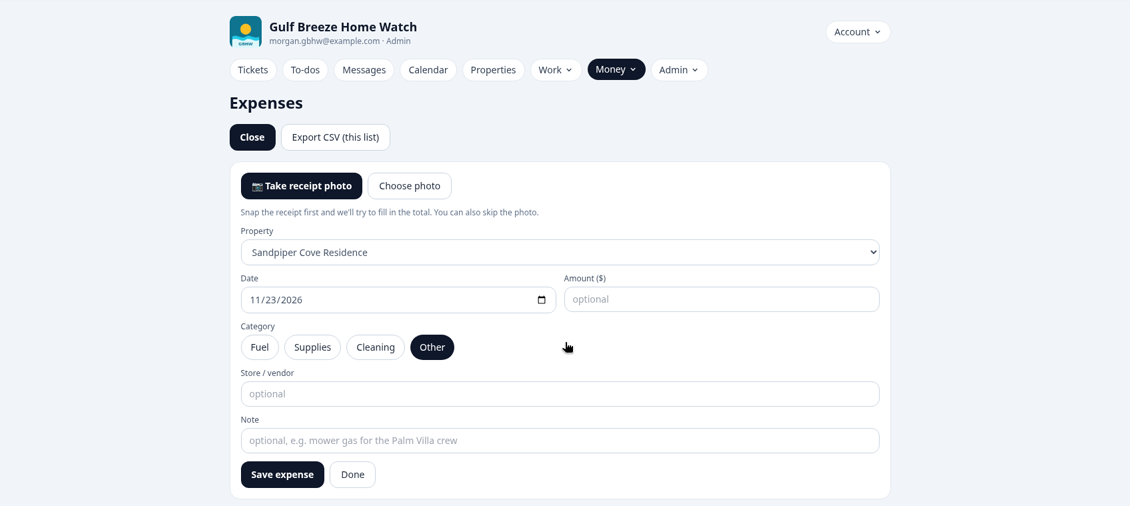
The form includes:
- Take receipt photo and Choose photo, with the help text Snap the receipt first and we'll try to fill in the total. You can also skip the photo.
- Property, which in this example defaults to Sandpiper Cove Residence
- Date (here 11/23/2026)
- Amount ($)
- Category buttons Fuel, Supplies, Cleaning, and Other (here Other is selected)
- Store / vendor (optional)
- Note (optional)
- Save expense and Done
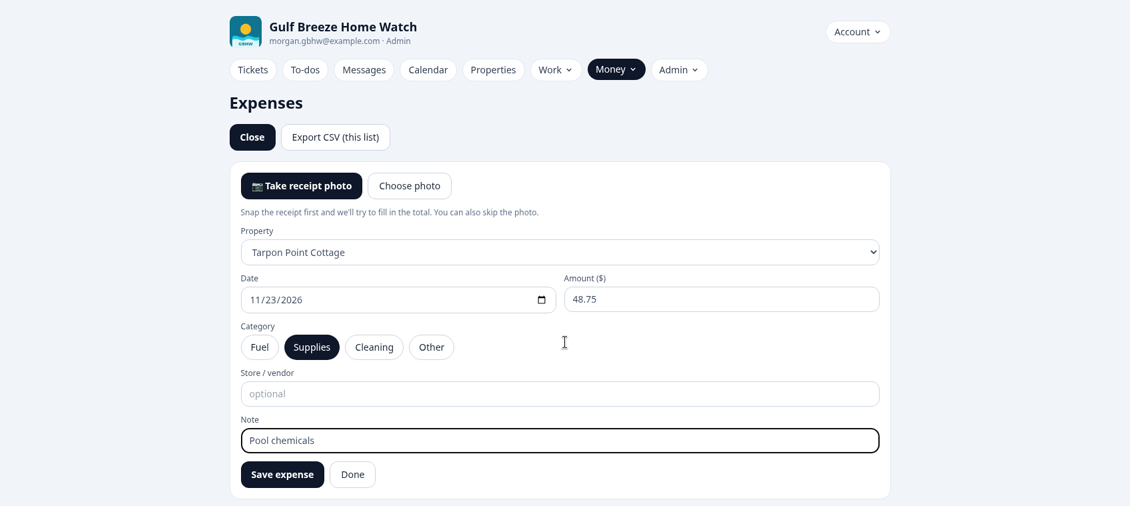
- Fill in the expense. In this example:
- Property: Tarpon Point Cottage
- Date: 11/23/2026
- Amount: 48.75
- Category: Supplies
- Note: Pool chemicals
Store / vendor is left blank. There is no separate title field; the row uses the category as the title when no store is entered.
- Choose Save expense. A green banner says Saved: $48.75 · Tarpon Point Cottage. The form stays open and clears for another entry (the property stays Tarpon Point Cottage, and Category stays Supplies, the category you just saved).
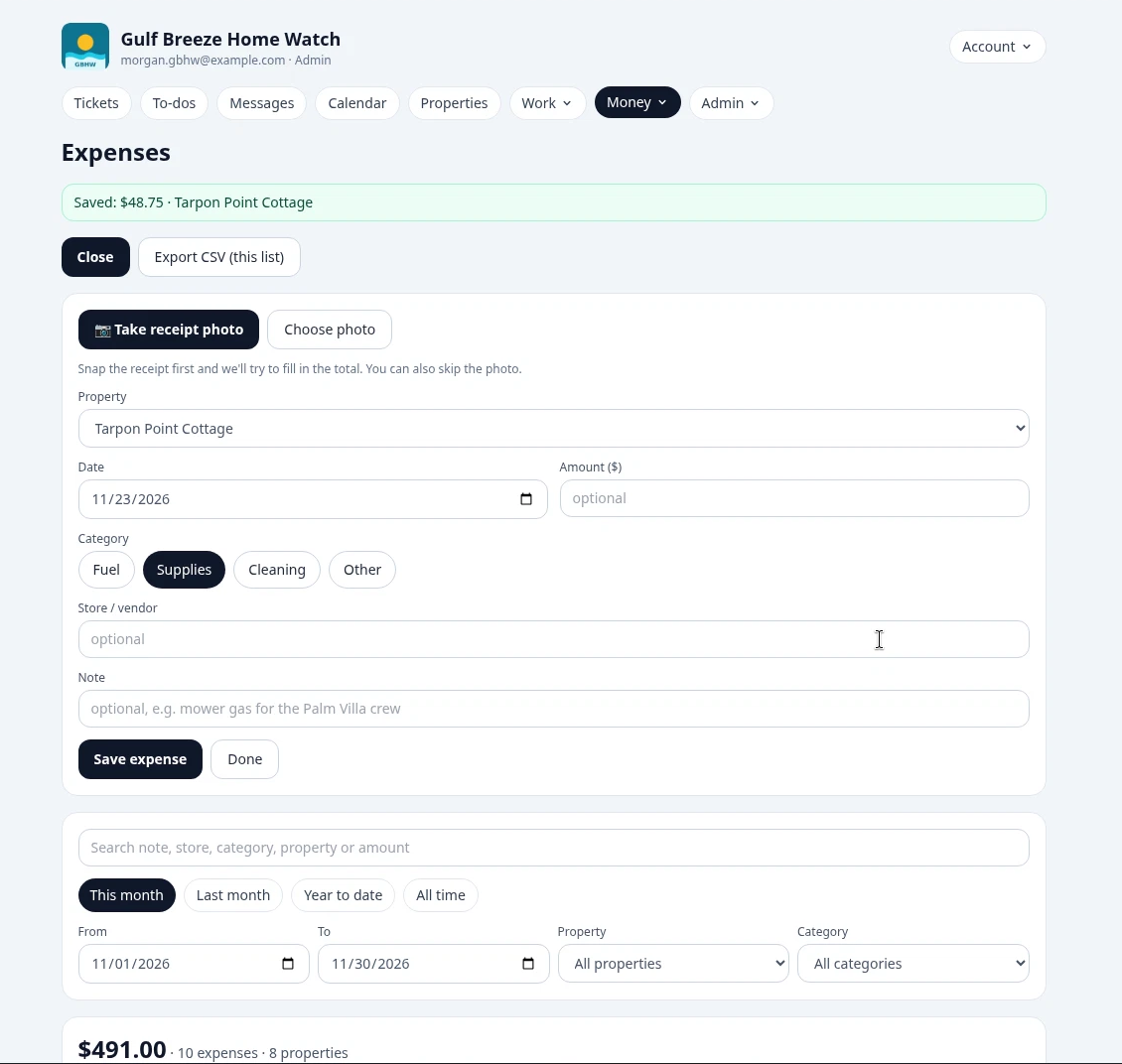
- Choose Done (or Close) when you are finished adding expenses.
Filter the list
- Choose a property in the Property dropdown, such as Tarpon Point Cottage. The summary and rows update to that property only.
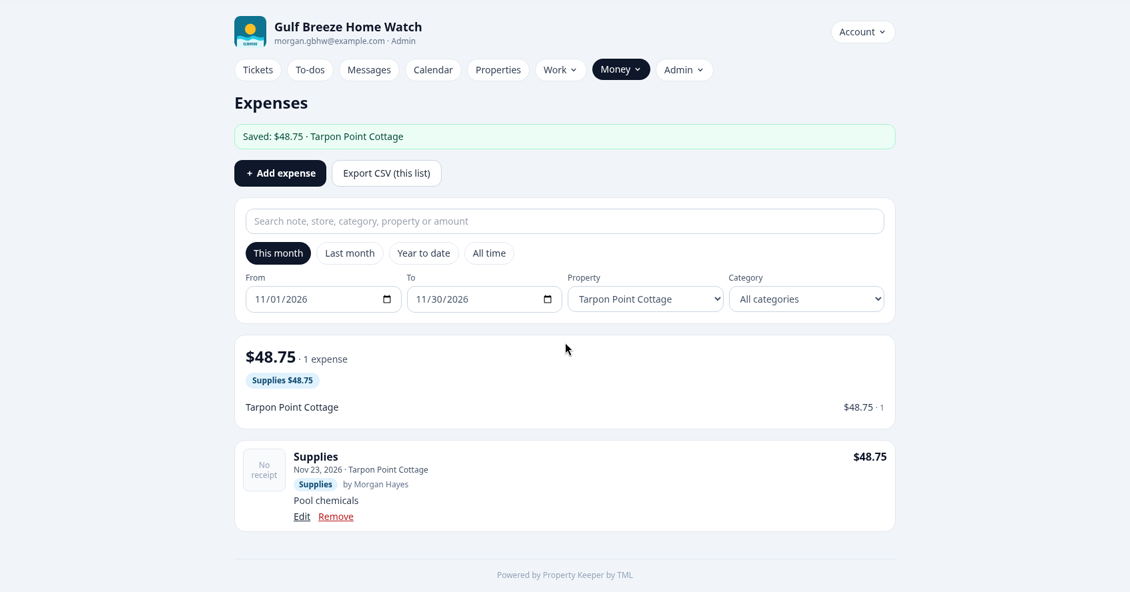
In this example the summary is $48.75 · 1 expense, with a Supplies $48.75 chip. The row is titled Supplies, $48.75, Nov 23, 2026 · Tarpon Point Cottage, Supplies, by Morgan Hayes, with the note Pool chemicals, and Edit / Remove.
Export the list
- Choose Export CSV (this list). The browser downloads a CSV of the list as it is currently filtered.
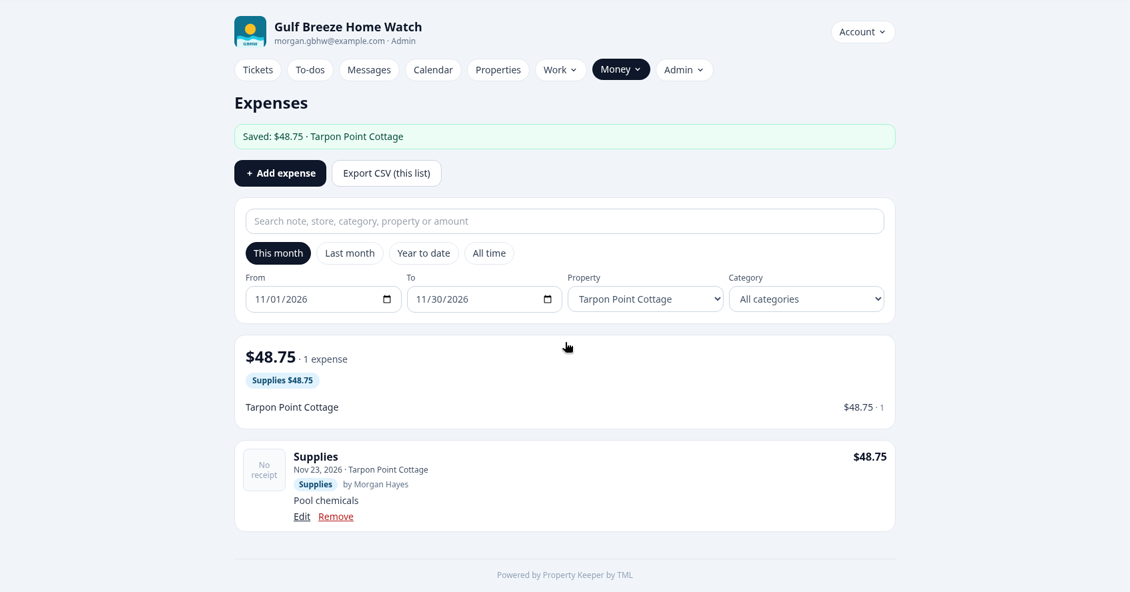
The page stays on the filtered list. In this example the export is the single Tarpon Point Cottage expense for this month.