
Company settings
Review company info and logo, ticket tags, quote approvals, GPS check, Scan & log email, your private calendar link, and text alerts.
Updated November 23, 2026
Company settings is where you set the company name and logo, ticket tags, quote approvals, GPS location check, Scan & log email, your private calendar link, and text alerts. Open it from Admin.
Open Company settings
- Choose Admin, then Settings. The heading is Company settings.
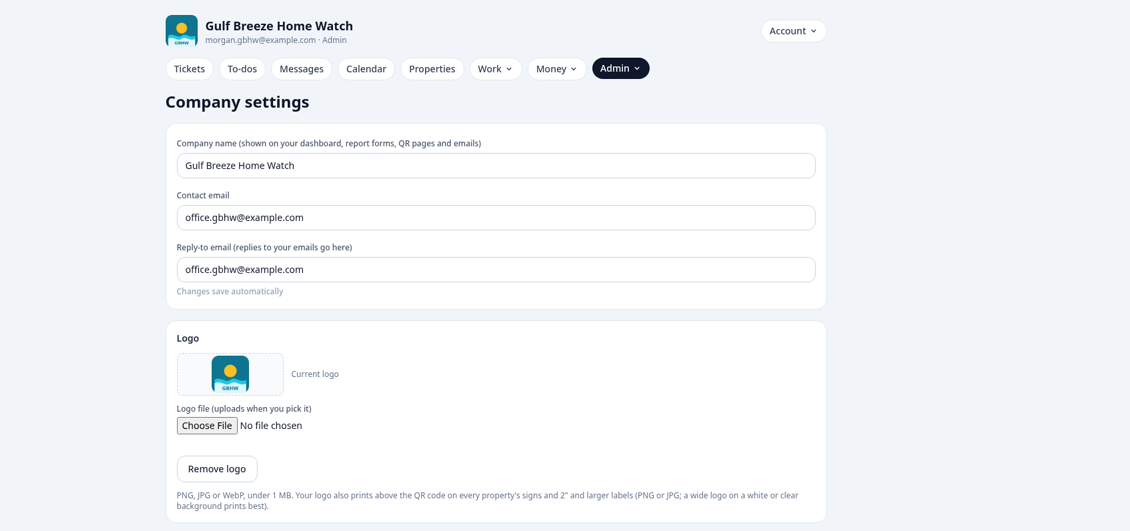
The first card has:
- Company name (shown on your dashboard, report forms, QR pages and emails), here Gulf Breeze Home Watch
- Contact email, here office.gbhw@example.com
- Reply-to email (replies to your emails go here), here office.gbhw@example.com
- The line Changes save automatically
The Logo card shows the Current logo, Logo file (uploads when you pick it) with Choose File, and Remove logo. Help text says: PNG, JPG or WebP, under 1 MB. Your logo also prints above the QR code on every property's signs and 2" and larger labels (PNG or JPG; a wide logo on a white or clear background prints best).
Ticket tags, quote approvals, GPS, and Scan & log
- Scroll to Ticket tags, Quote approvals, GPS location check, and Scan & log.
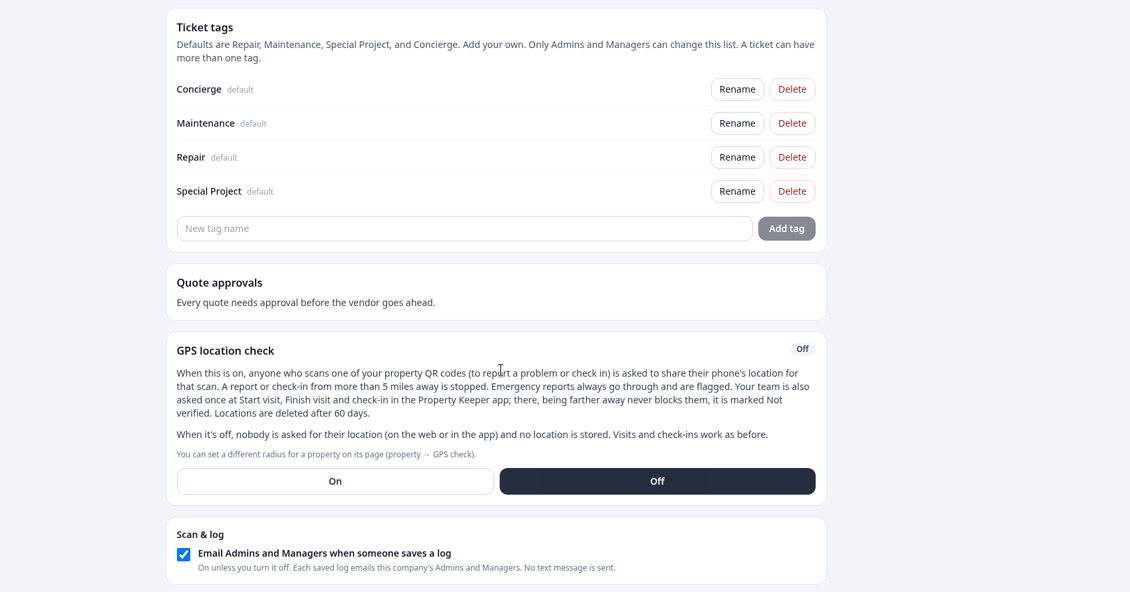
Ticket tags says: Defaults are Repair, Maintenance, Special Project, and Concierge. Add your own. Only Admins and Managers can change this list. A ticket can have more than one tag. The default tags (Concierge, Maintenance, Repair, and Special Project, each marked default) have Rename and Delete. Below them are New tag name and Add tag.
Quote approvals says: Every quote needs approval before the vendor goes ahead.
GPS location check shows an Off badge, with On and Off buttons and Off selected. The section explains that when this is on, anyone who scans one of your property QR codes (to report a problem or check in) is asked to share their phone's location for that scan. A report or check-in from more than 5 miles away is stopped. Emergency reports always go through and are flagged. Your team is also asked once at Start visit, Finish visit, and check-in in the Property Keeper app; there, being farther away never blocks them, it is marked Not verified. Locations are deleted after 60 days. When it's off, nobody is asked for their location (on the web or in the app) and no location is stored. Visits and check-ins work as before. It also says: You can set a different radius for a property on its page (property → GPS check). See Property details and settings.
Scan & log has the checkbox Email Admins and Managers when someone saves a log, which is on. Help text says: On unless you turn it off. Each saved log emails this company's Admins and Managers. No text message is sent. This is the company-wide email for a saved log, not the property's missed-service email. See Scan & log.
Your private calendar link and text alerts
- Scroll to Your private calendar link and Text message alerts (just for you).
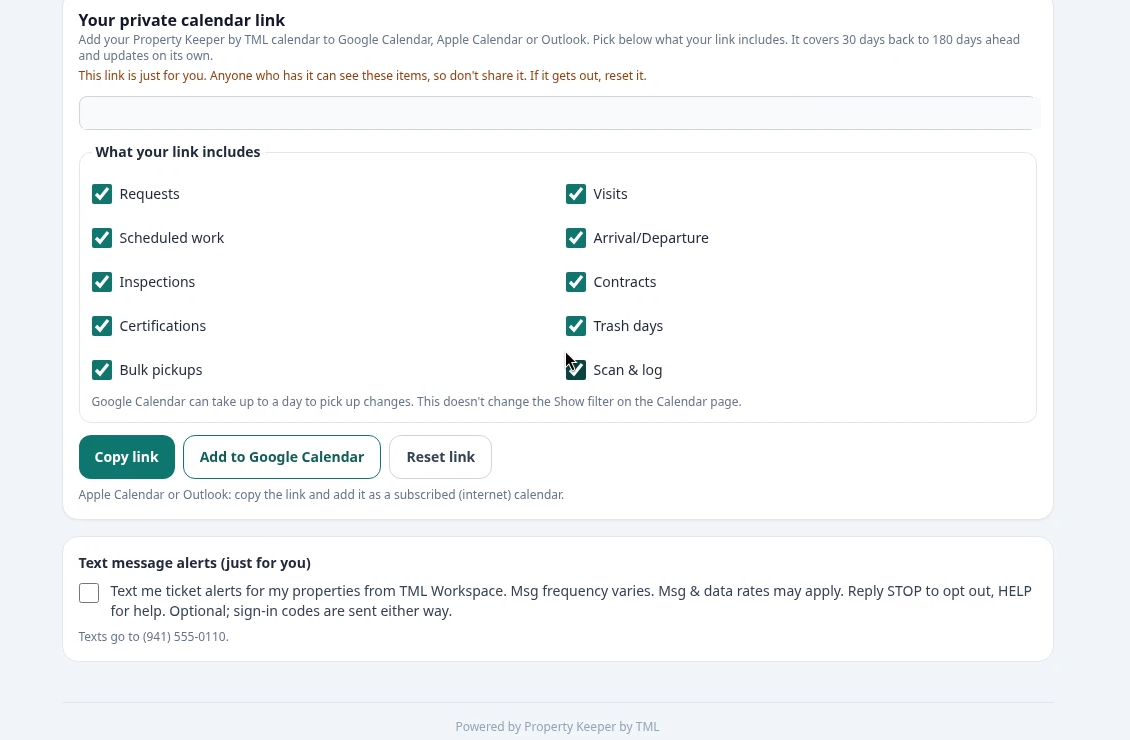
The calendar section says you can add your Property Keeper by TML calendar to Google Calendar, Apple Calendar, or Outlook, pick what the link includes, and that it covers 30 days back to 180 days ahead and updates on its own. Red text warns: This link is just for you. Anyone who has it can see these items, so don't share it. If it gets out, reset it.
What your link includes has checkboxes (all on in this example) for Requests, Visits, Scheduled work, Arrival/Departure, Inspections, Contracts, Certifications, Trash days, Bulk pickups, and Scan & log. A note says Google Calendar can take up to a day to pick up changes, and that this does not change the Show filter on the Calendar page.
Buttons are Copy link, Add to Google Calendar, and Reset link. Under them, the page says that for Apple Calendar or Outlook, you copy the link and add it as a subscribed (internet) calendar. See The calendar.
Text message alerts (just for you) has an unchecked checkbox: Text me ticket alerts for my properties from TML Workspace. Msg frequency varies. Msg & data rates may apply. Reply STOP to opt out, HELP for help. Optional; sign-in codes are sent either way. A line under it says Texts go to (941) 555-0110.