Run a checklist visit
Start a checklist visit at a property, mark items, finish the visit, download the visit report, and review notes and flags.
Updated November 23, 2026
When you are at a property, pick it on Checklists to see the lists for that home, start a visit, mark each item, and finish. Open Work, then Checklists, in Property Keeper by TML.
To build or edit a list first, see Checklists.
Pick the property and start a visit
- On Start a visit, choose the property you are at. The card lists the checklists for that property, each with Start visit. In this example the property is Tarpon Point Cottage.
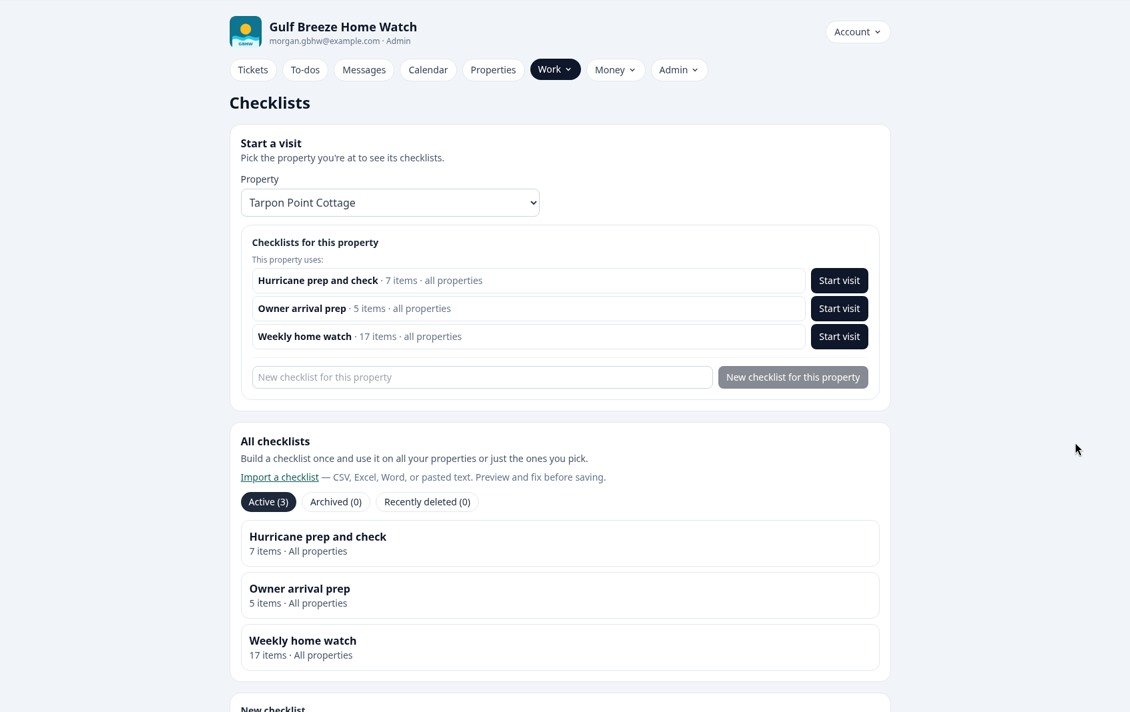
You can also type a name in New checklist for this property to add a list just for this home. See Checklists.
- Choose Start visit on the list you are using. In this example that is Weekly home watch. The visit opens with a ← This property's checklists link, the list name, and a progress line such as 0 of 17 done · started Nov 23, 2026, 11:50 AM ET.
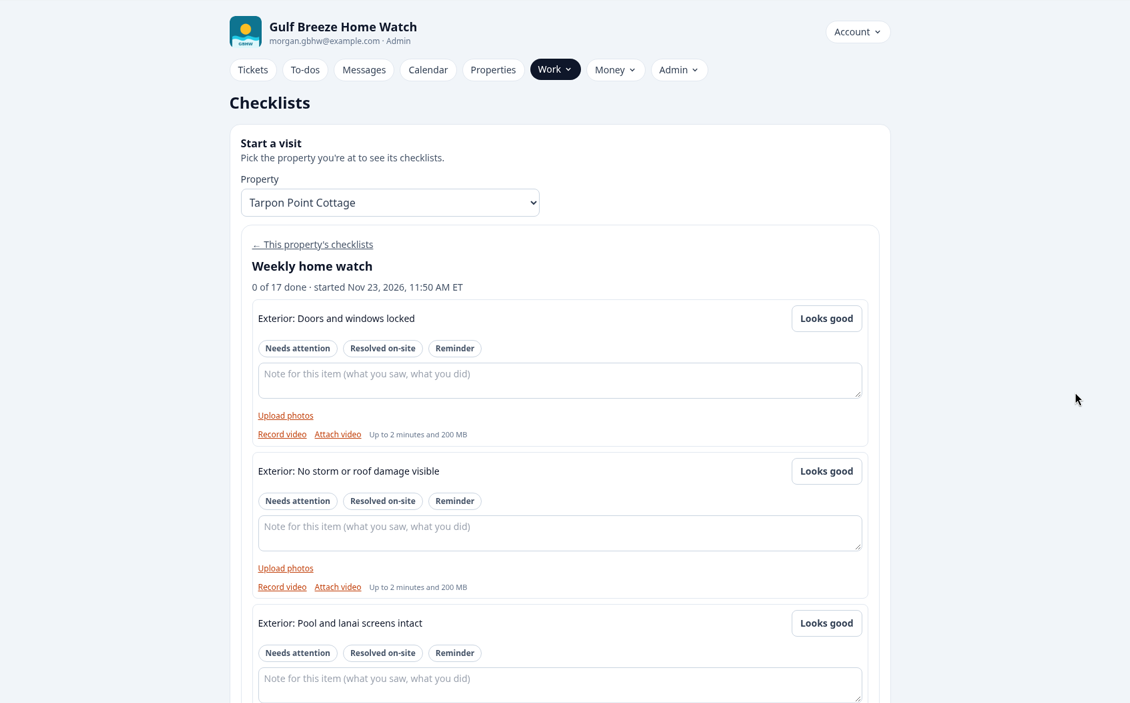
Each item has:
- Looks good
- Needs attention, Resolved on-site, and Reminder
- A Note for this item (what you saw, what you did) field
- Upload photos, Record video, and Attach video, with the note Up to 2 minutes and 200 MB
The Start a visit property picker stays on the page above the run.
If a visit is already in progress, the library shows Continue visit on that list instead of Start visit.
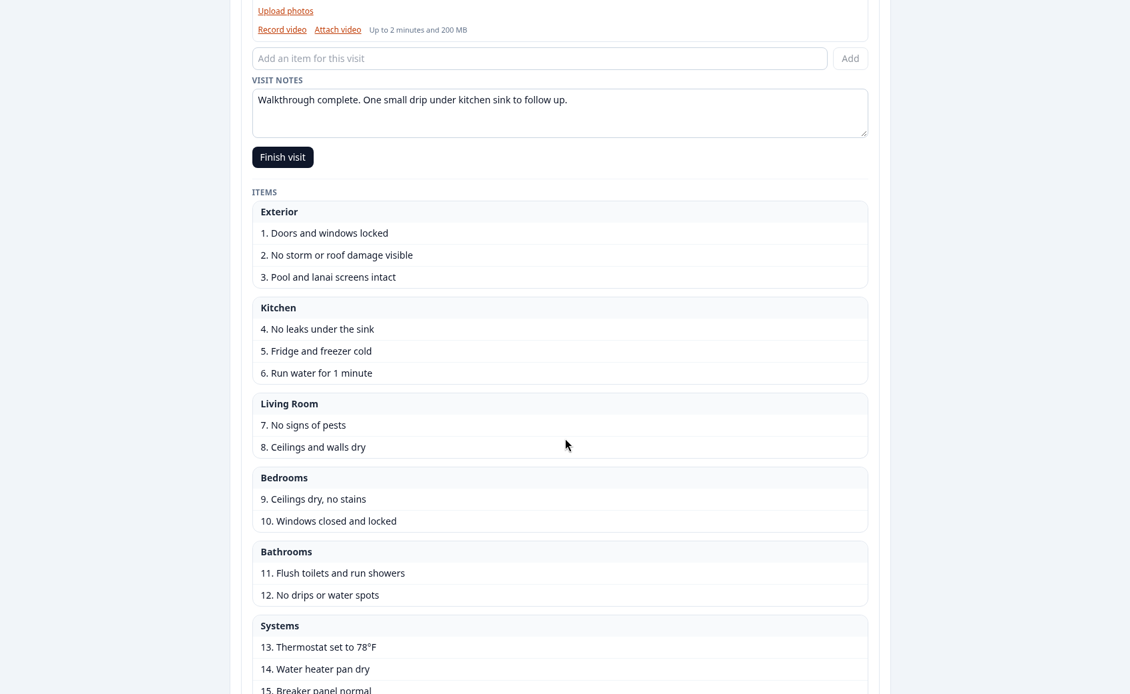
- Scroll to the bottom of the run to add an item just for this visit, enter VISIT NOTES, and finish. Finish visit is under the notes. An ITEMS list of the rooms and items sits below the button.
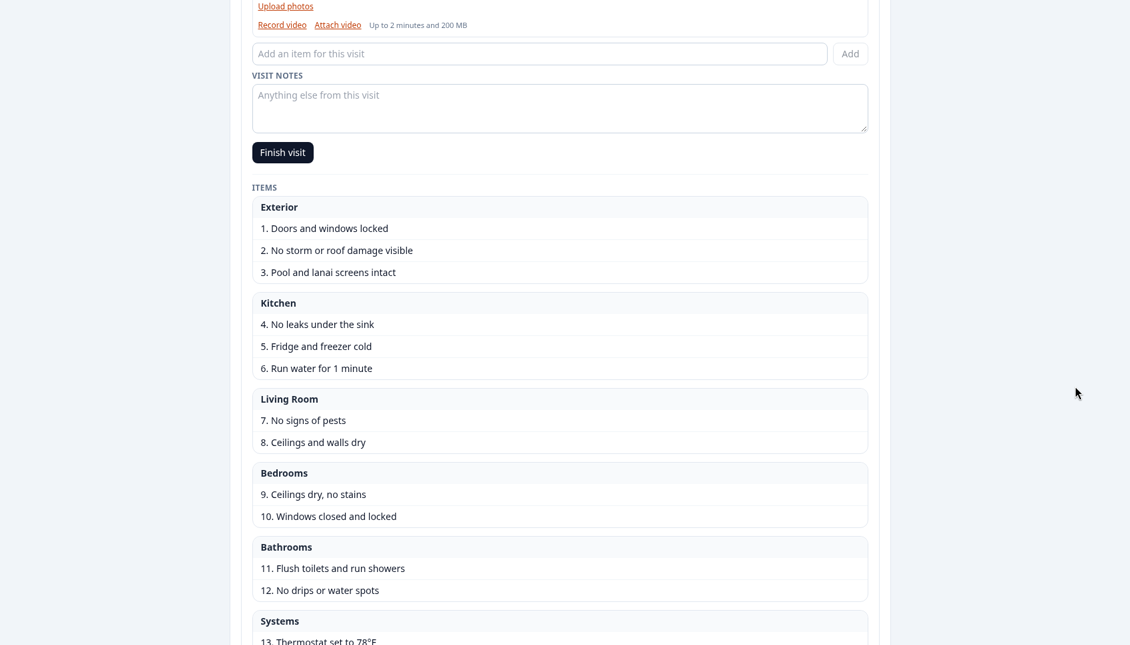
The Add an item for this visit field and Add button let you add an item only for this visit.
Mark items and add visit notes
- Mark each item as you walk through the property. Choose Looks good when the item is fine, or Needs attention, Resolved on-site, or Reminder when you need to flag it, and add a note when that helps.
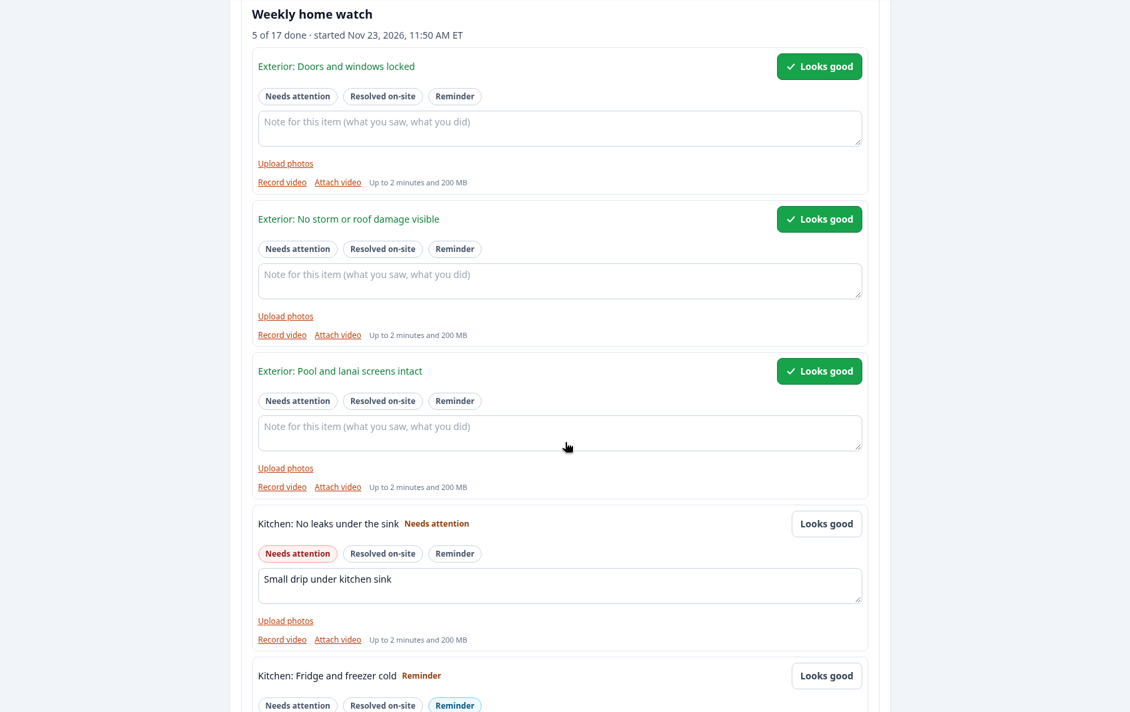
In this example the progress line shows 5 of 17 done. Items 1–3 are marked Looks good. Item 4, Kitchen: No leaks under the sink, is Needs attention, with the note Small drip under kitchen sink. Item 5, Kitchen: Fridge and freezer cold, is a Reminder.
- At the bottom of the visit, type anything else in VISIT NOTES. In this example the notes are Walkthrough complete. One small drip under kitchen sink to follow up.
Finish the visit and open past visits
- Choose Finish visit. The visit closes and you return to the checklist. A PAST VISITS section lists the finished visit, with Visit report (PDF), Notes & flags, and Email to owner.
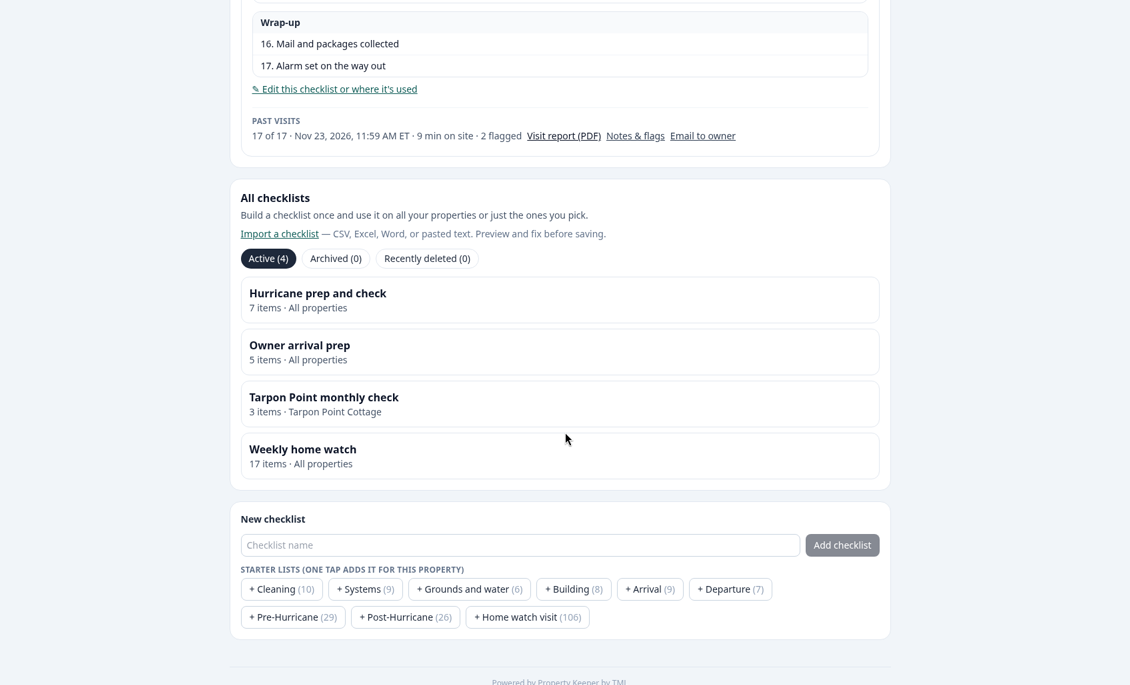
In this example the visit is 17 of 17 · Nov 23, 2026, 11:59 AM ET · 9 min on site · 2 flagged. A link Edit this checklist or where it's used sits above PAST VISITS.
Finished visits are listed under PAST VISITS on this page after you pick the property. There is not a separate visit log.
Download the visit report
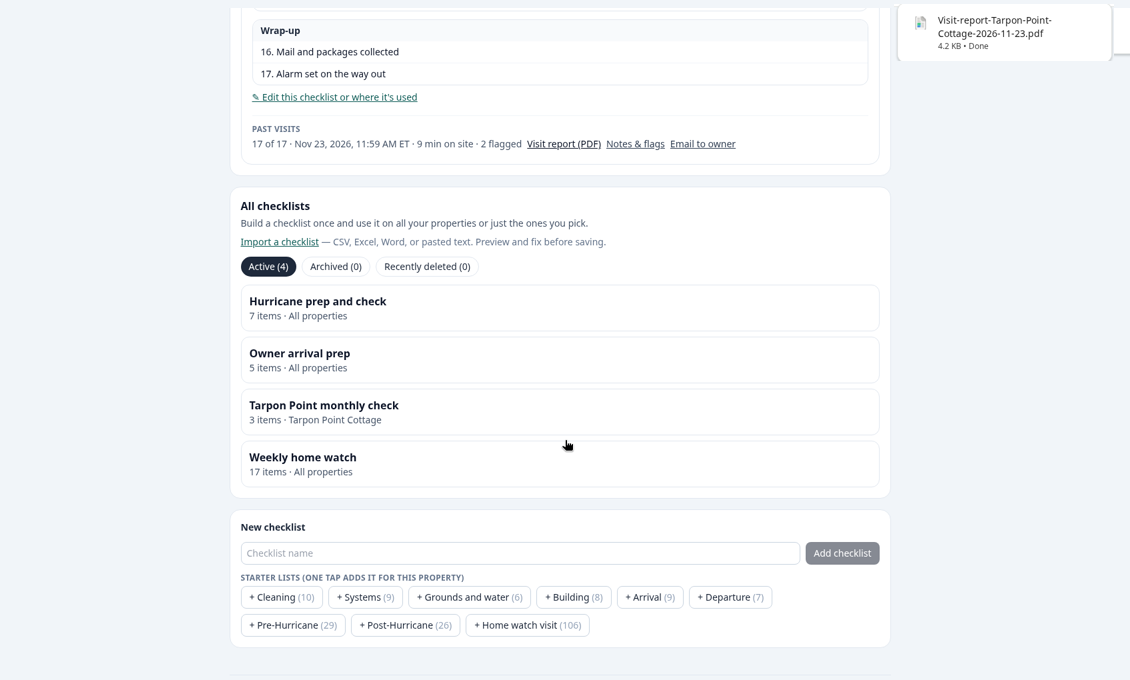
- Choose Visit report (PDF). The report downloads as a PDF (it does not open in a new tab). In this example the file is Visit-report-Tarpon-Point-Cottage-2026-11-23.pdf.
The report is headed with your company name and the checklist title, for example WEEKLY HOME WATCH VISIT REPORT. It includes the property and address, the visit date, who visited, arrived and left times, time on site, and these sections:
- Summary of Findings
- Noted & Resolved On-Site
- Reminders & Coordination
- Visit Notes
- Checklist & Findings
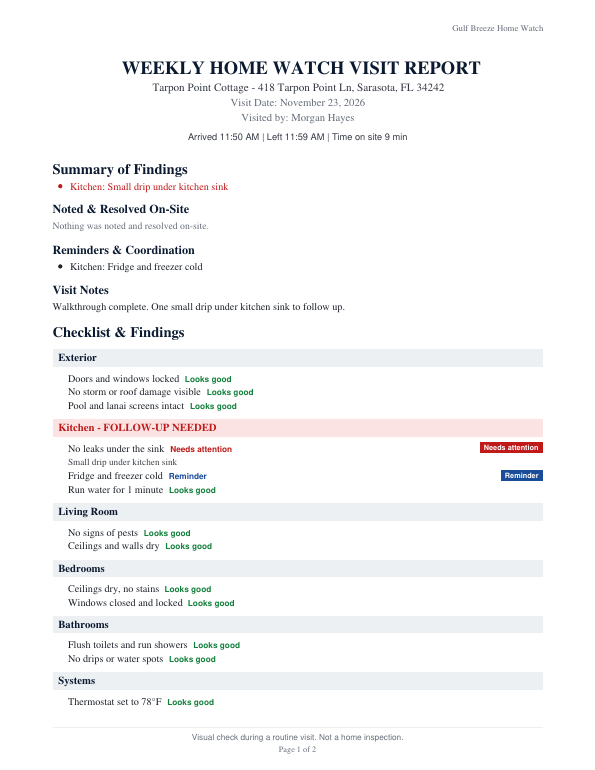
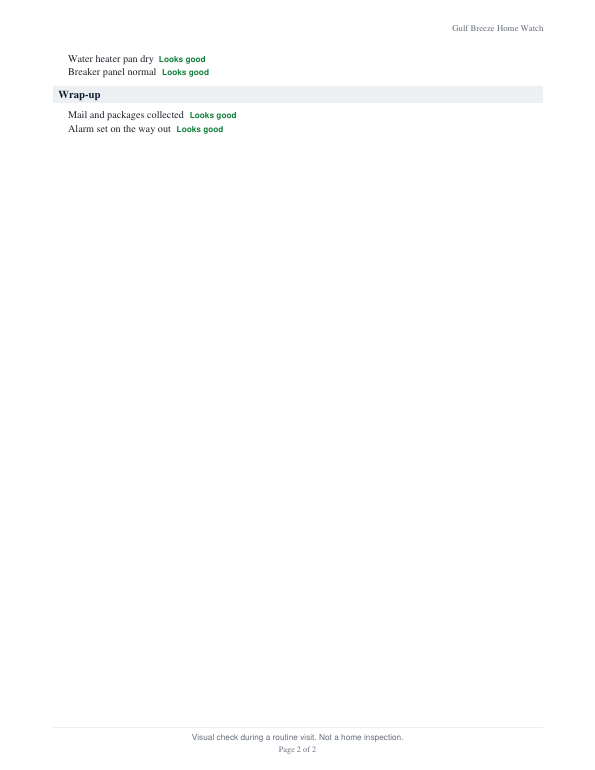
In this example the report is for Tarpon Point Cottage — 418 Tarpon Point Ln, Sarasota, FL 34242 — on November 23, 2026, visited by Morgan Hayes, arrived 11:50 AM, left 11:59 AM, 9 min on site. Summary of Findings includes the kitchen drip. Noted & Resolved On-Site says Nothing was noted and resolved on-site. Reminders & Coordination includes Kitchen: Fridge and freezer cold. A footer says Visual check during a routine visit. Not a home inspection.
Review notes and flags
- Choose Notes & flags. A panel opens titled with the visit time, for example Visit of Nov 23, 2026, 11:59 AM ET: notes & flags, with a Close link. Each item shows its status, the Needs attention, Resolved on-site, and Reminder chips, and the note field.
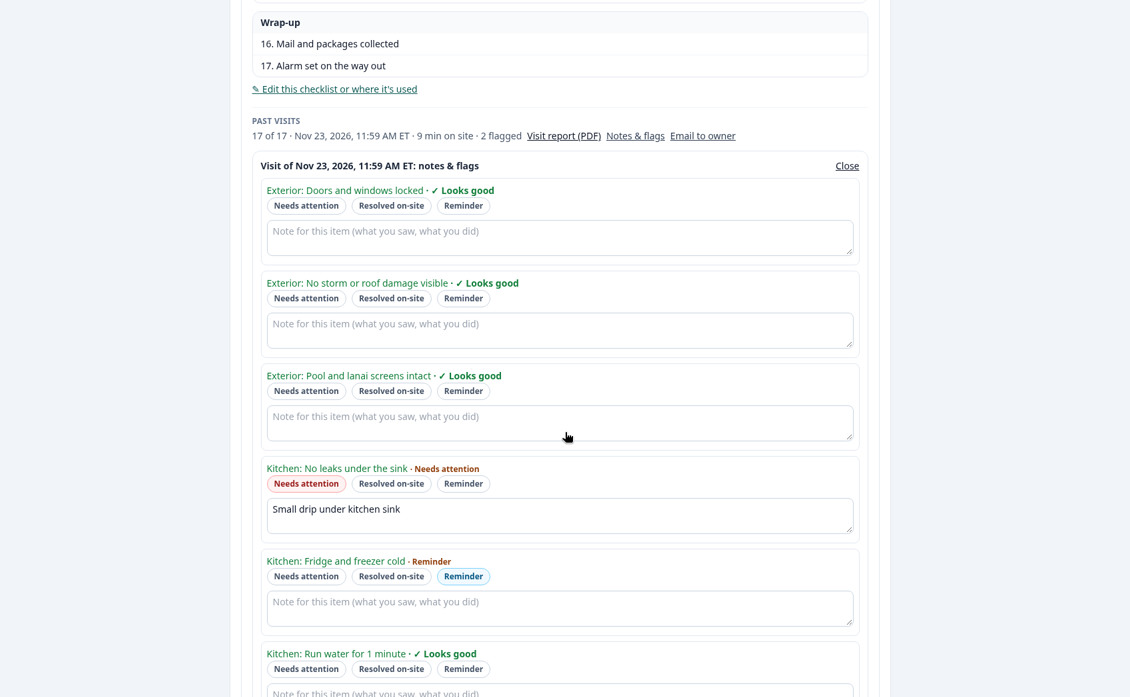
The status chips and note field are still on each item after the visit is finished.
Email the report to the owner
- Choose Email to owner. An Email wording form opens.
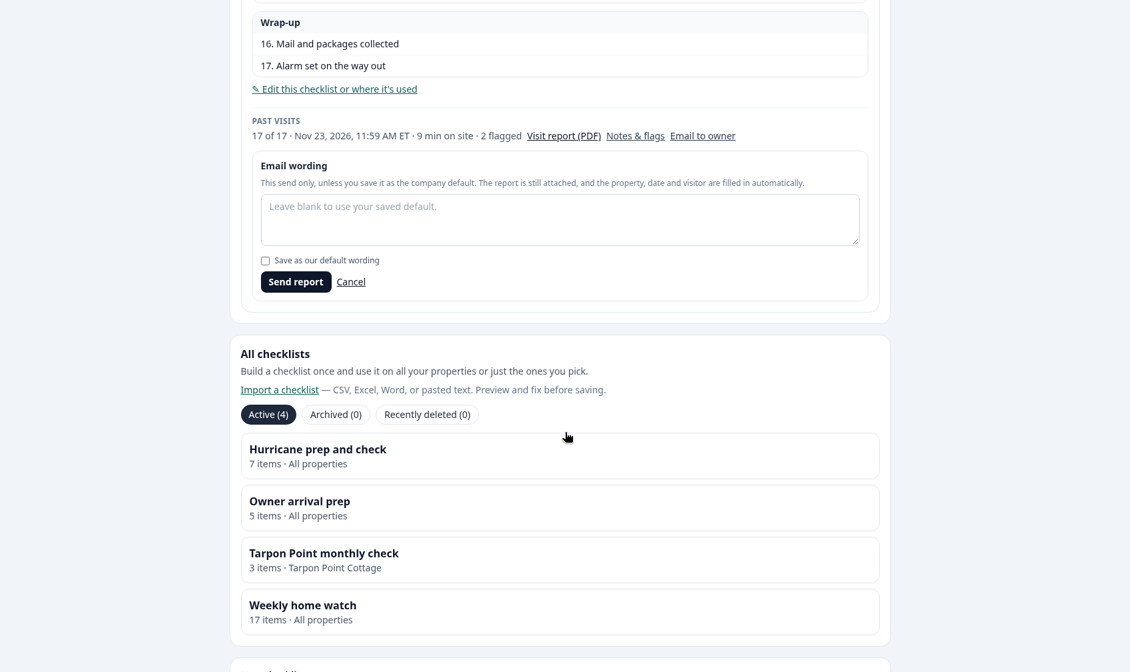
The help text says this send only, unless you save it as the company default. The report is still attached, and the property, date and visitor are filled in automatically. The text box placeholder is Leave blank to use your saved default. A checkbox Save as our default wording sits under the box. Choose Send report to send it, or Cancel to close the form without sending.