
The properties list
Find properties, switch between list views, filter to homes with open tickets, and open a property from the list.
Updated November 23, 2026
The properties list is where you find the homes you service, switch how they appear, and open one to work on it. Choose Properties in the top navigation to get there.
Open the list
- Choose Properties. The heading is Properties, with a count of how many are on the list (for example, 8 properties). The default view is Table.
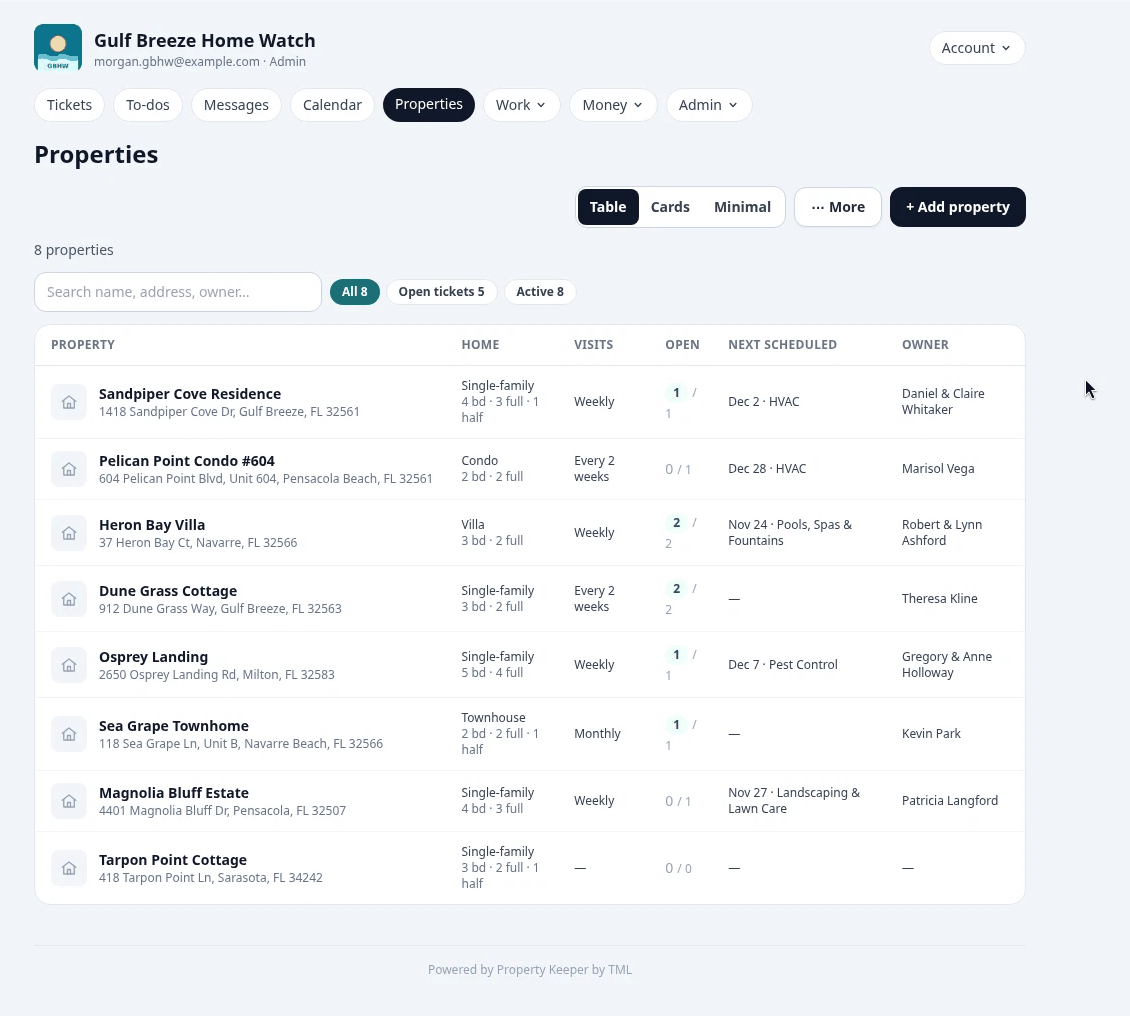
The table columns are PROPERTY, HOME, VISITS, OPEN, NEXT SCHEDULED, and OWNER. Each row shows the property name and address, the home type and beds and baths when those are on file, how often you visit, open ticket counts, the next scheduled service, and the owner.
A search box at the top of the list is labeled Search name, address, owner…. Filter chips sit next to it: All, Open tickets, and Active, each with a count.
View buttons Table, Cards, and Minimal sit to the right, with … More and + Add property.
To add a property, see Add a property.
Open the More menu
- Choose … More. The menu lists Import properties (CSV or Excel) and Print QR codes (signs and label sheets).
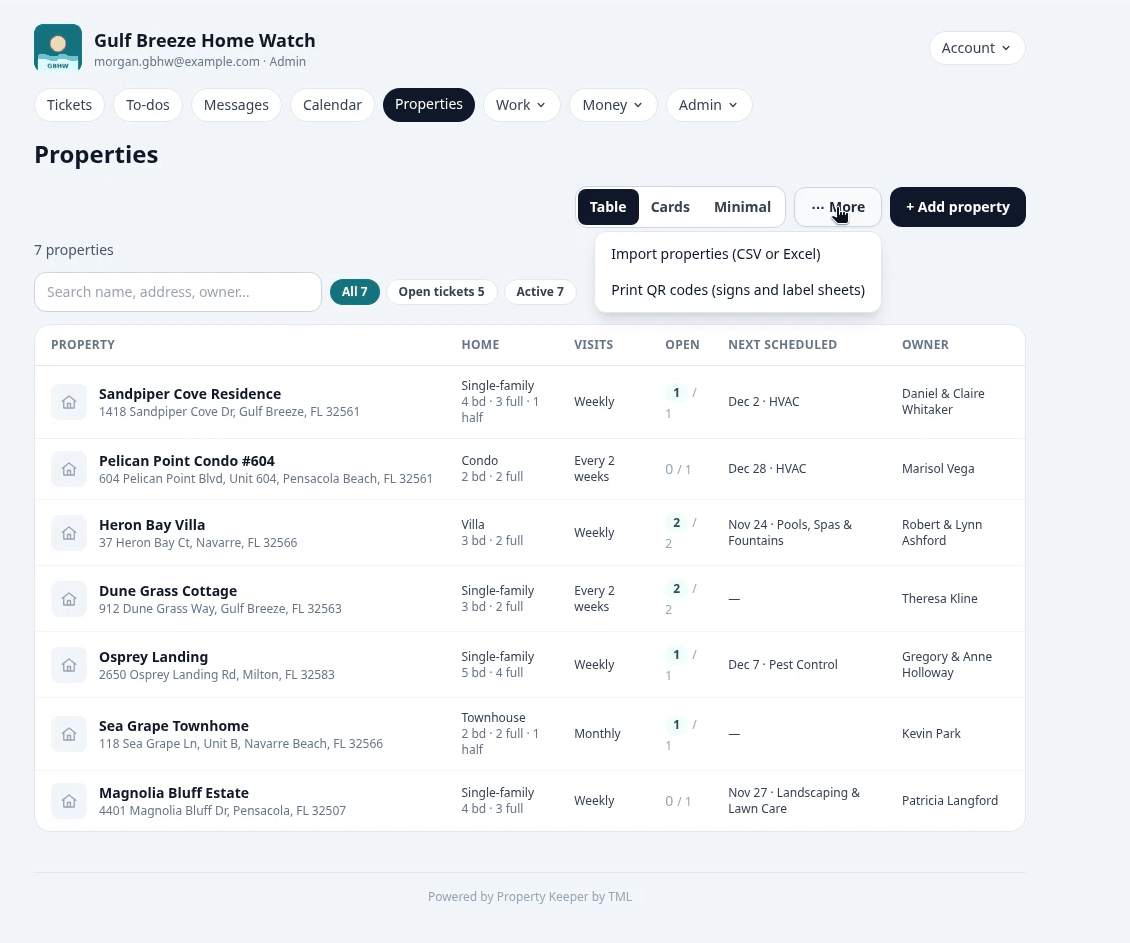
To print signs or label sheets for several properties at once, see Print QR signs and codes.
Switch to Cards
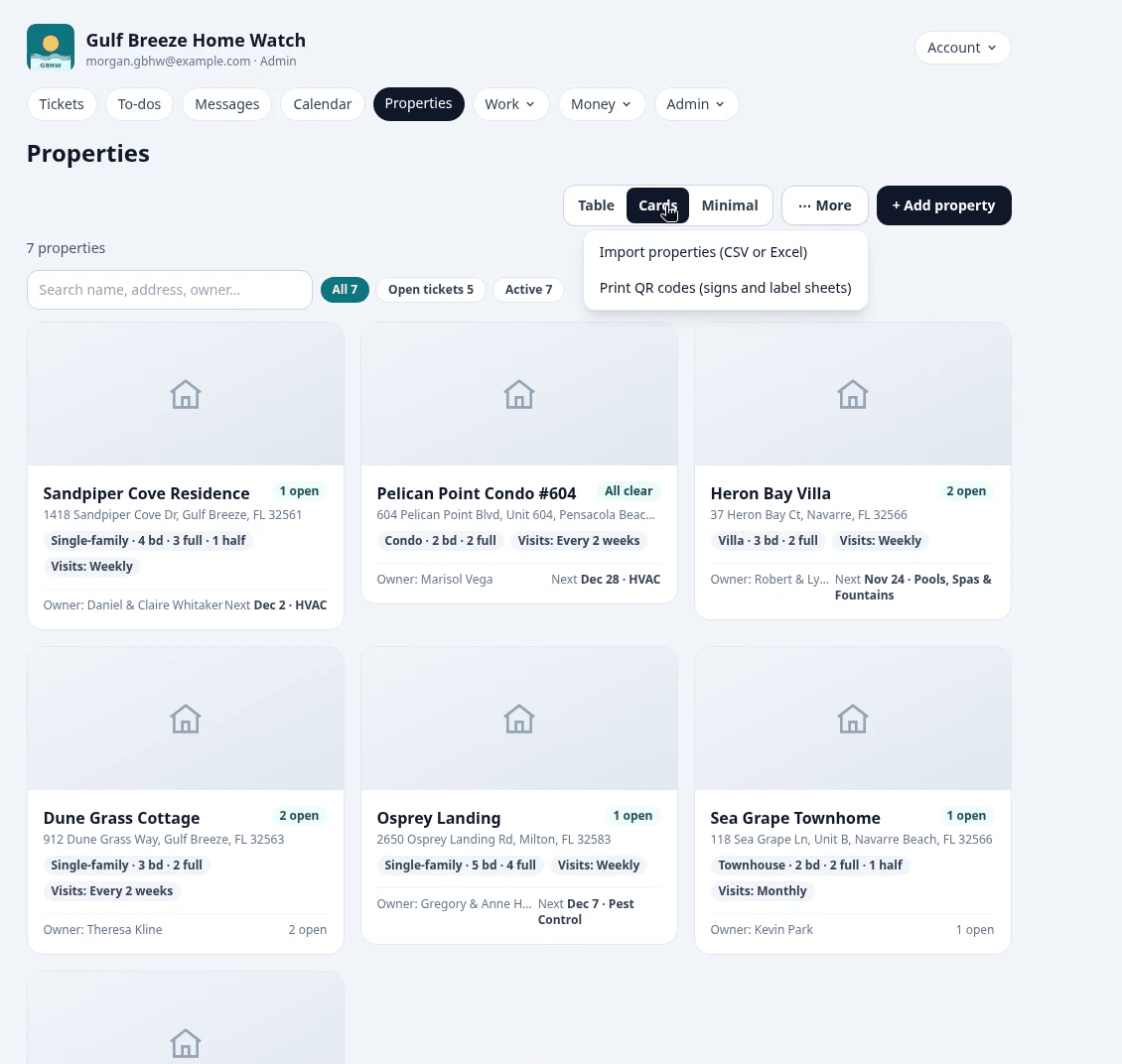
- Choose Cards. Each property becomes a card with the name, address, a status such as 1 open or All clear, the home type and beds and baths, visit frequency, owner, and next scheduled service when one is on file.
Filter to properties with open tickets
- Choose Open tickets. The chip fills in, and the list shows only properties that have at least one open ticket. In this example the count is Open tickets 5, and properties with no open tickets (such as Pelican Point Condo #604 and Magnolia Bluff Estate) drop off the list.
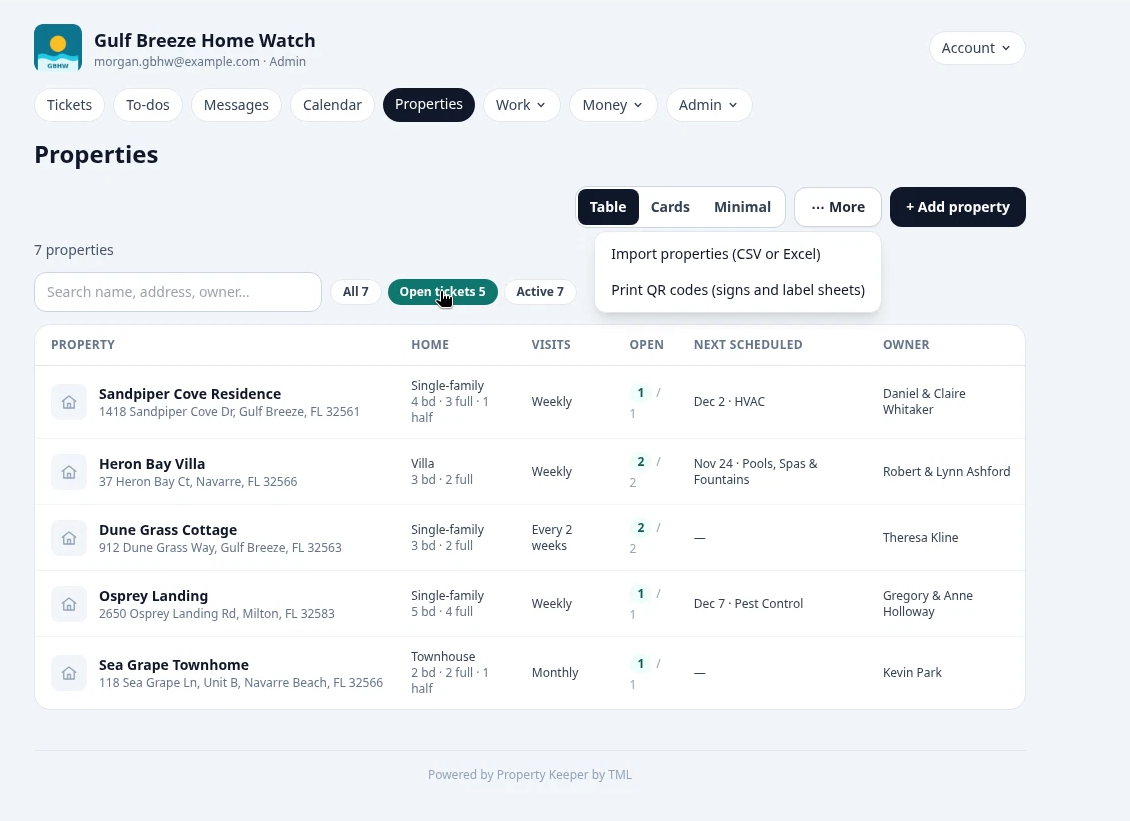
To see every property again, choose All.
Open a property
- Choose a property row. A drawer opens on the right. It is labeled Property and shows the name, address, and an Active badge, with Open full page and a close button. Tabs across the drawer are Overview, Schedule, Home & records, and Settings.
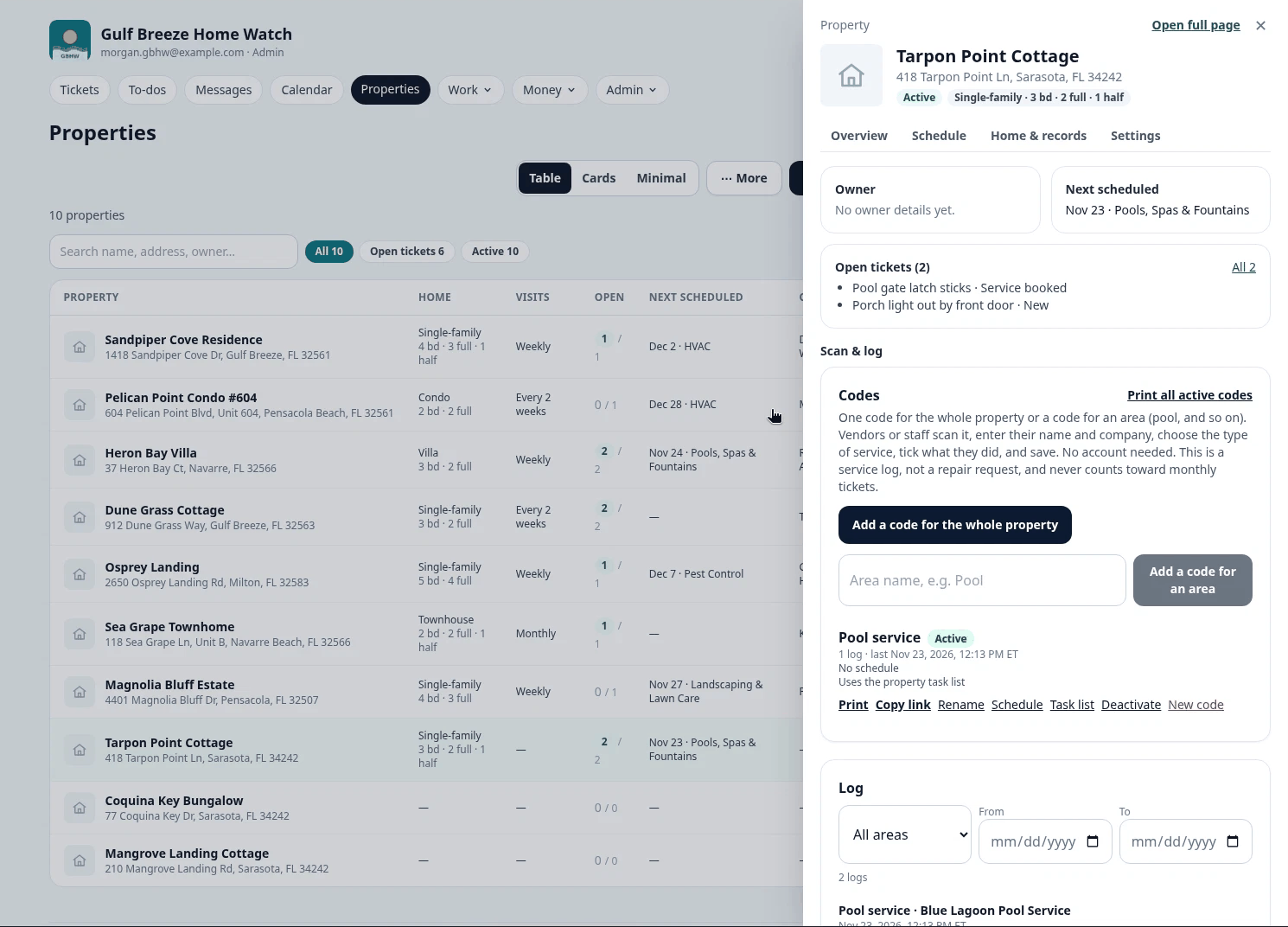
On Overview, the drawer shows Owner, Next scheduled, and Open tickets. In this example, Tarpon Point Cottage shows No owner details yet., Next scheduled as Nov 23 · Pools, Spas & Fountains, and Open tickets (2): Pool gate latch sticks · Service booked and Porch light out by front door · New. Below those cards is a Scan & log section, with the same codes, add-code buttons, and log as the property page. In this example it includes an Active Pool service code, with Print, Copy link, Rename, Schedule, Task list, Deactivate, and New code. The properties list behind the drawer shows 10 properties, including Mangrove Landing Cottage.
Choose Open full page to work on the property. See Property details and settings and Scan & log.