
To-dos
Create a to-do list, assign it to a teammate, check items off, add notes, and mark the list complete.
Updated November 23, 2026
To-do lists in Property Keeper by TML are separate from tickets. You can assign a list to someone on your team so it shows in their app, or email it to someone without a login so they can check items off from a private link. Checking an item does not create a ticket.
Open To-dos
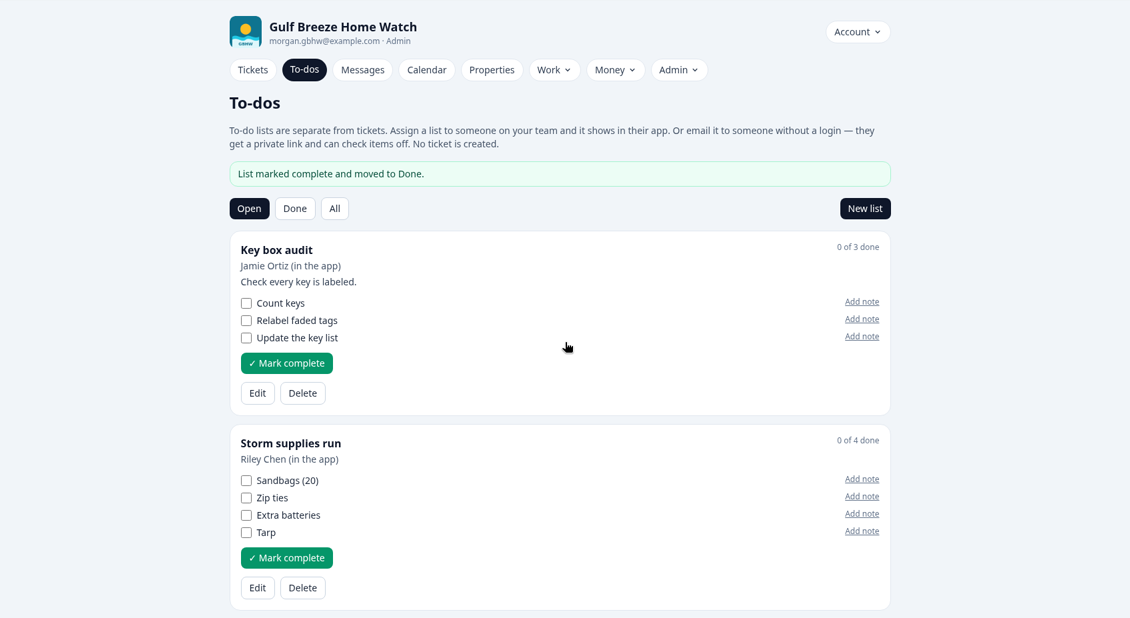
- Choose To-dos in the top navigation. The heading is To-dos. Under it, the page explains that to-do lists are separate from tickets, that a list assigned to someone on your team shows in their app, and that you can email a list to someone without a login.
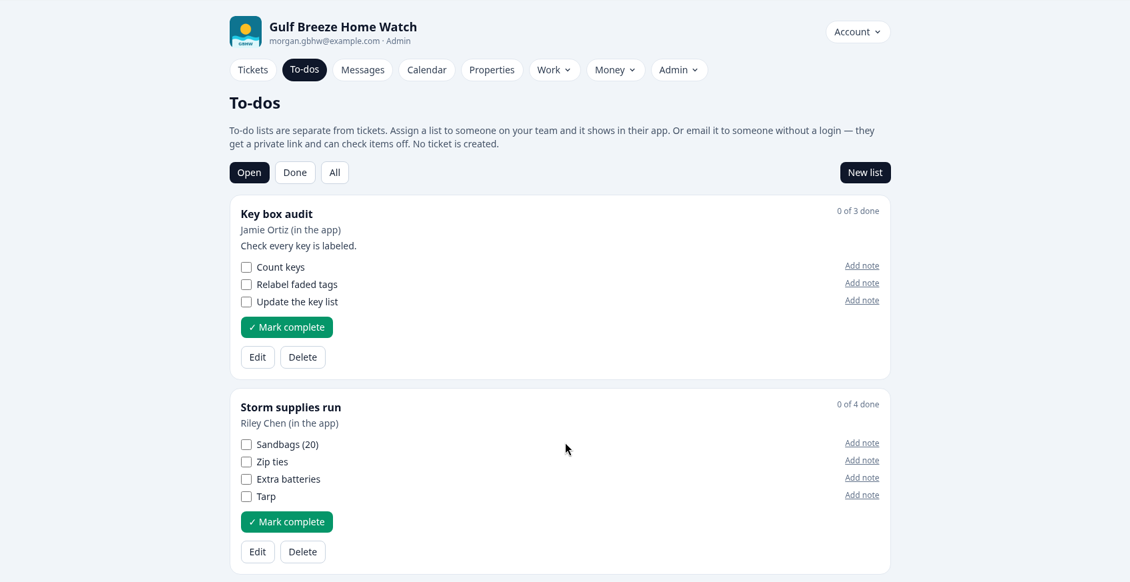
Filter buttons at the top are Open (selected), Done, and All, with a New list button on the right.
Each list is a card with the title, who it is assigned to, the property when one is set, a progress count such as 0 of 3 done, the items with checkboxes, Add note next to each item, and Mark complete, Edit, and Delete.
In this example the open lists include Key box audit (Jamie Ortiz (in the app), with the note Check every key is labeled., 0 of 3 done) and Storm supplies run (Riley Chen, 0 of 4 done).
Create a list
- Choose New list. The button becomes Close, and a form opens above the existing lists.
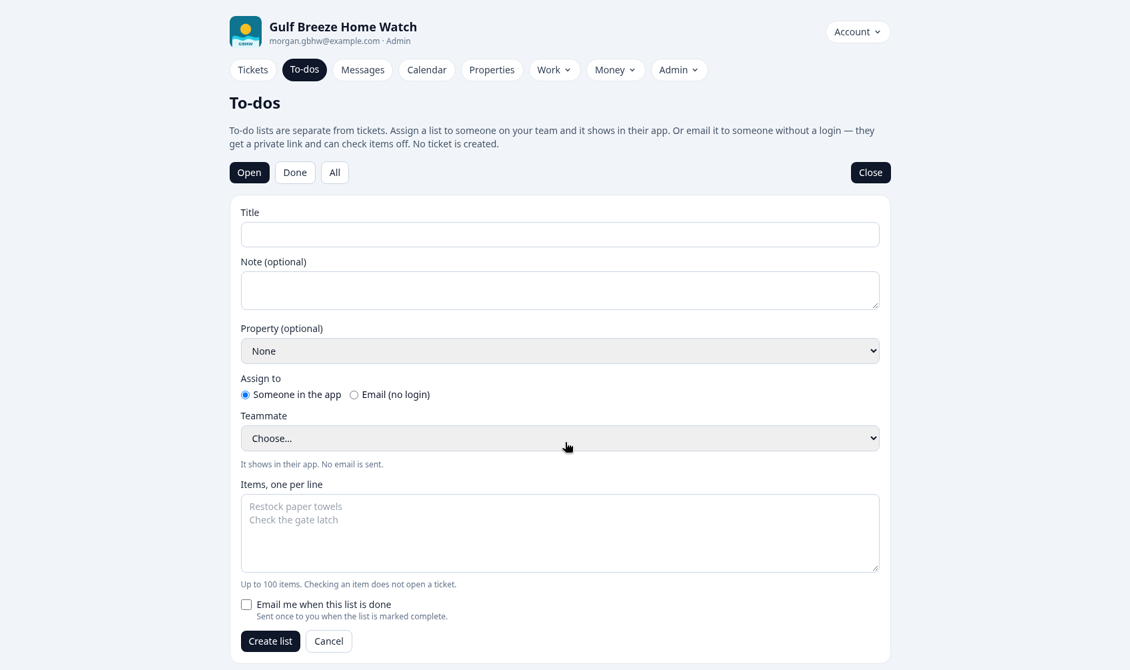
The form includes:
- Title
- Note (optional)
- Property (optional), a dropdown that defaults to None
- Assign to, with Someone in the app (selected) and Email (no login)
- Teammate, a dropdown that starts at Choose…, with the help text It shows in their app. No email is sent.
- Items, one per line, with the help text Up to 100 items. Checking an item does not open a ticket.
- Email me when this list is done, with the help text Sent once to you when the list is marked complete.
- Create list and Cancel
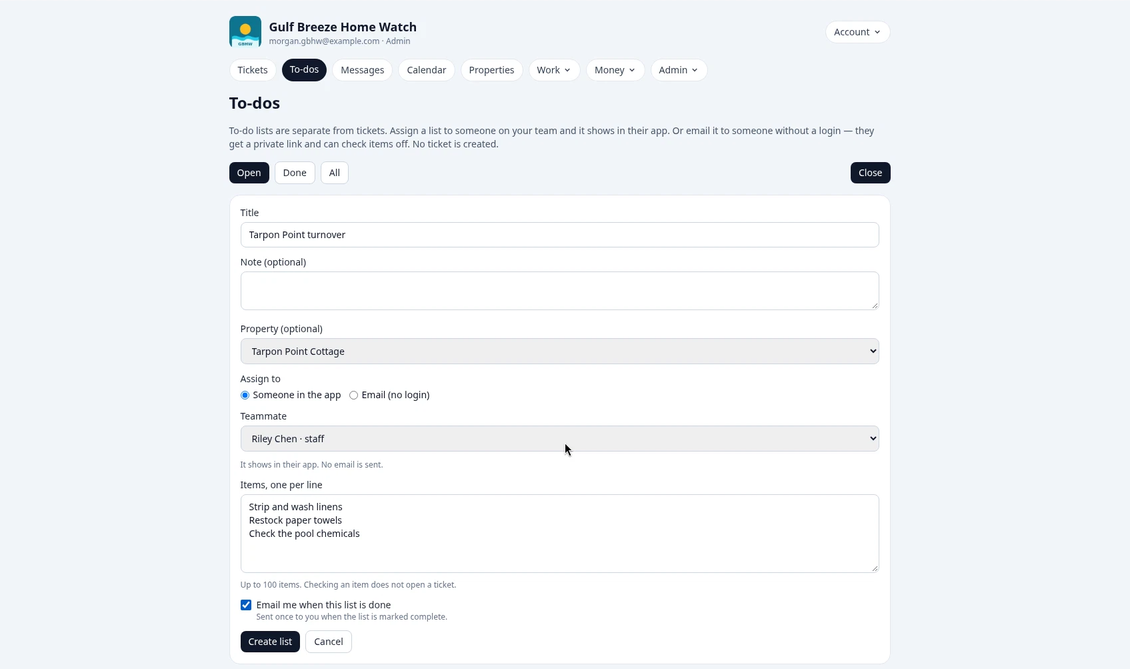
- Fill in the list. In this example:
- Title: Tarpon Point turnover
- Property: Tarpon Point Cottage
- Assign to: Someone in the app
- Teammate: Riley Chen · staff
- Items: Strip and wash linens, Restock paper towels, and Check the pool chemicals
- Email me when this list is done: checked
- Choose Create list. A green banner says List created. It shows in their app. The new card appears at the top of the Open list.
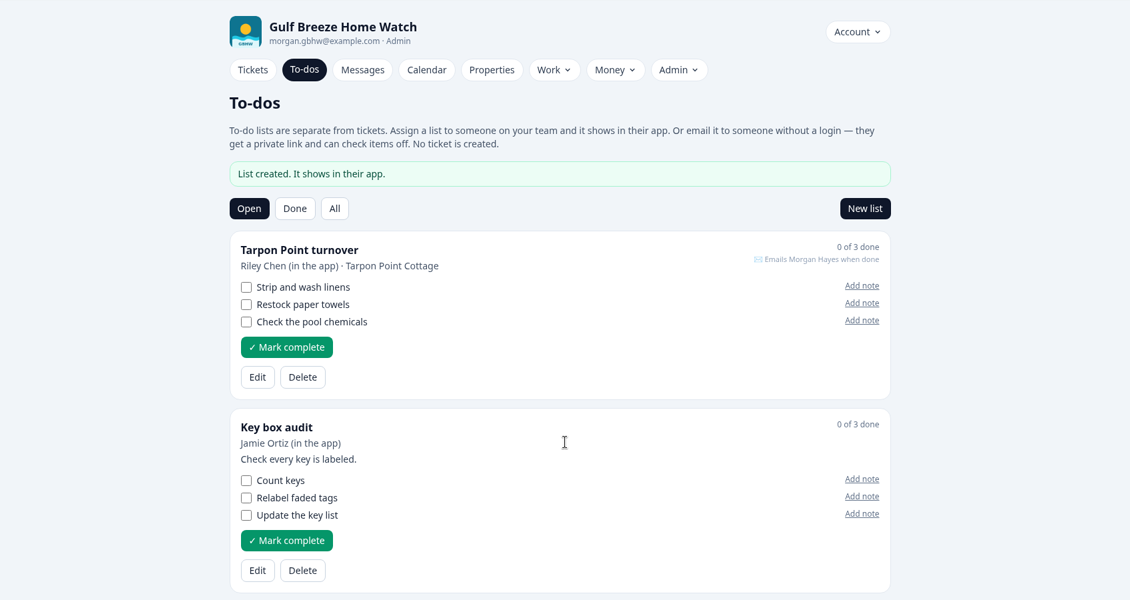
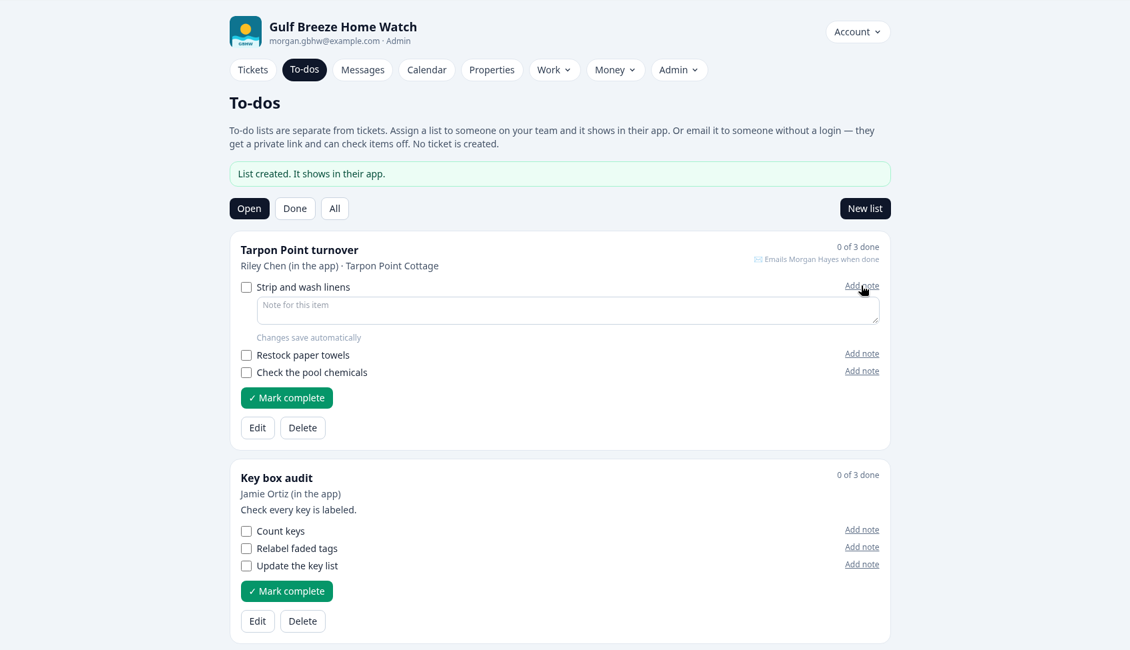
In this example the card shows Riley Chen (in the app) · Tarpon Point Cottage, 0 of 3 done, and Emails Morgan Hayes when done.
Add a note to an item
- Choose Add note next to an item, such as Strip and wash linens. A text area opens with the placeholder Note for this item and the text Changes save automatically.
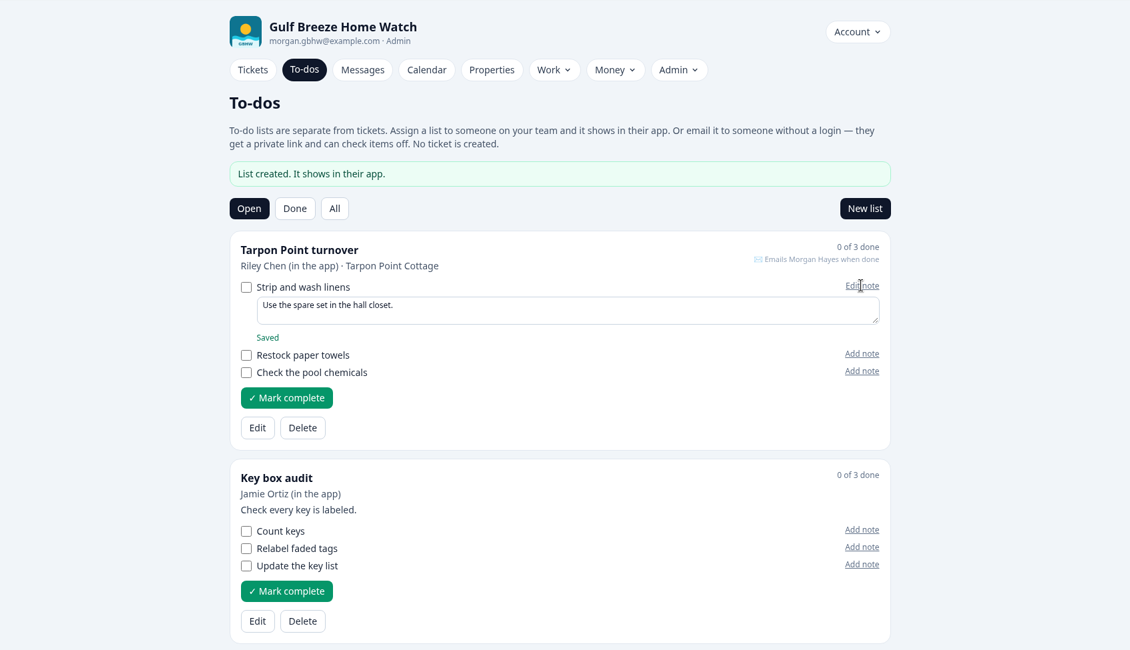
- Type the note. In this example: Use the spare set in the hall closet. Green text Saved appears, and Add note becomes Edit note.
Check items off
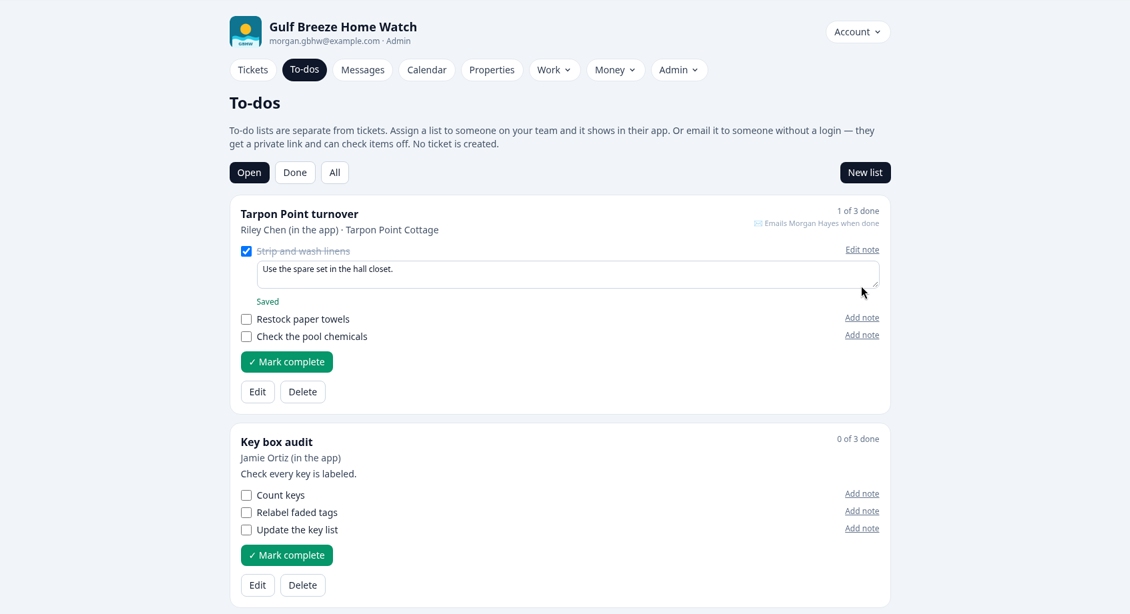
- Check an item, such as Strip and wash linens. The item is struck through, and the progress count updates (here 1 of 3 done).
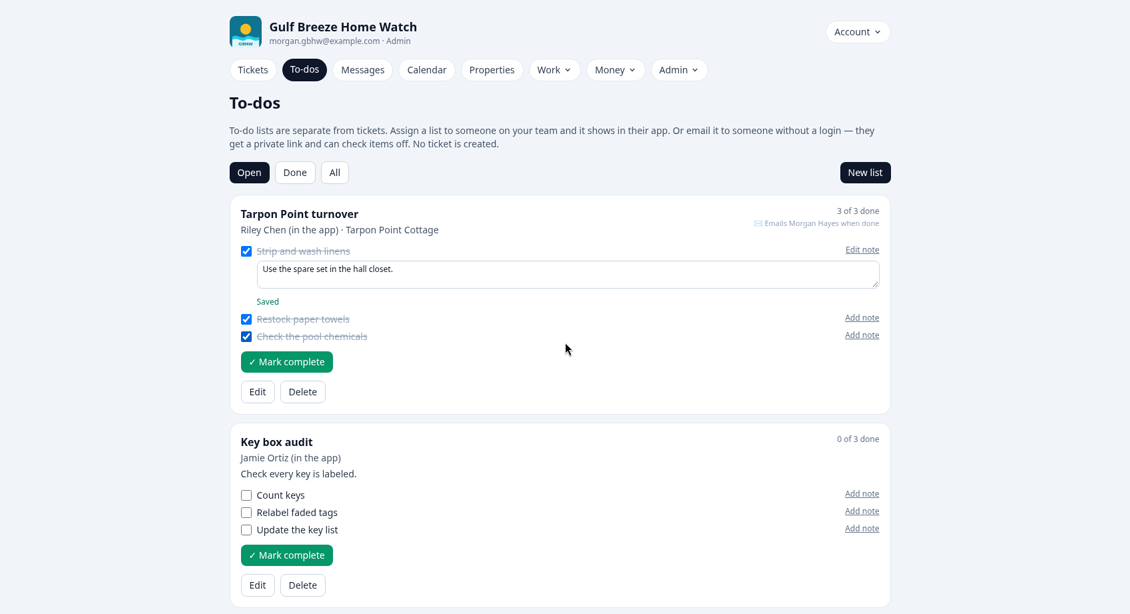
- Check the remaining items. When every item is checked, the count shows 3 of 3 done.
Mark a list complete
- On the list card, choose Mark complete. A green banner says List marked complete and moved to Done. The list leaves the Open view.
See completed lists
- Choose Done. Completed lists appear here.
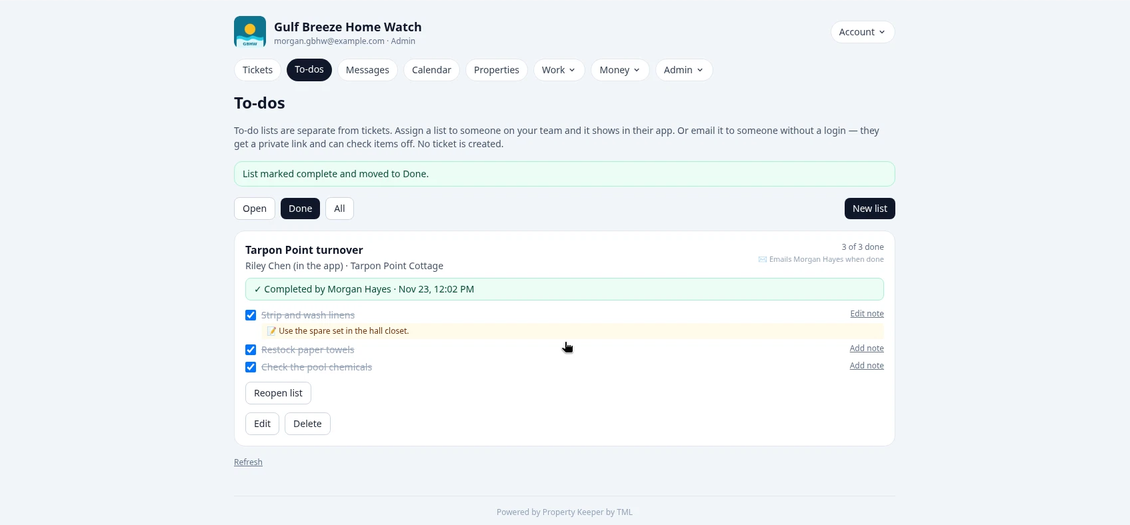
In this example the card has a green bar Completed by Morgan Hayes · Nov 23, 12:02 PM, the note Use the spare set in the hall closet., and Reopen list, Edit, and Delete.