Scan & log
Set up Scan & log on a property, print a code, and review the log after someone scans it.
Updated November 23, 2026
Scan & log is a service log for a property. Vendors or staff scan a code, enter their name and company, choose the type of service, tick what they did, and save. No account is needed. This is not a repair request, and it never counts toward monthly tickets. For the property's repair-report sign, see QR codes for repair requests.
Open Scan & log
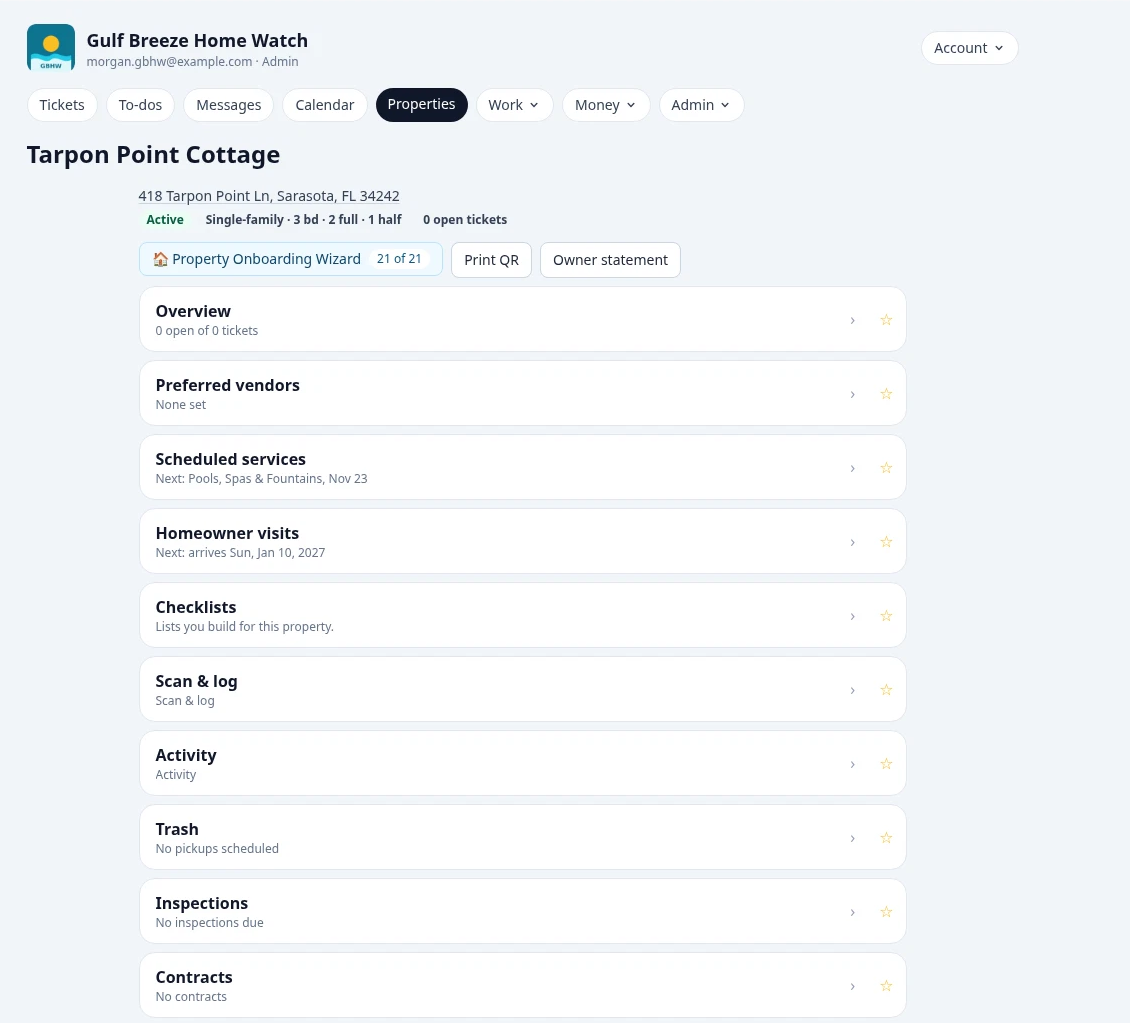
- Open the property's full page. Scan & log is one of the sections on that page, along with Overview, Preferred vendors, Scheduled services, Homeowner visits, Checklists, Activity, Trash, Inspections, Contracts, and Home & records.
- Choose Scan & log to expand it. Under Codes, a note explains: One code for the whole property or a code for an area (pool, and so on). Vendors or staff scan it, enter their name and company, choose the type of service, tick what they did, and save. No account needed. This is a service log, not a repair request, and never counts toward monthly tickets.
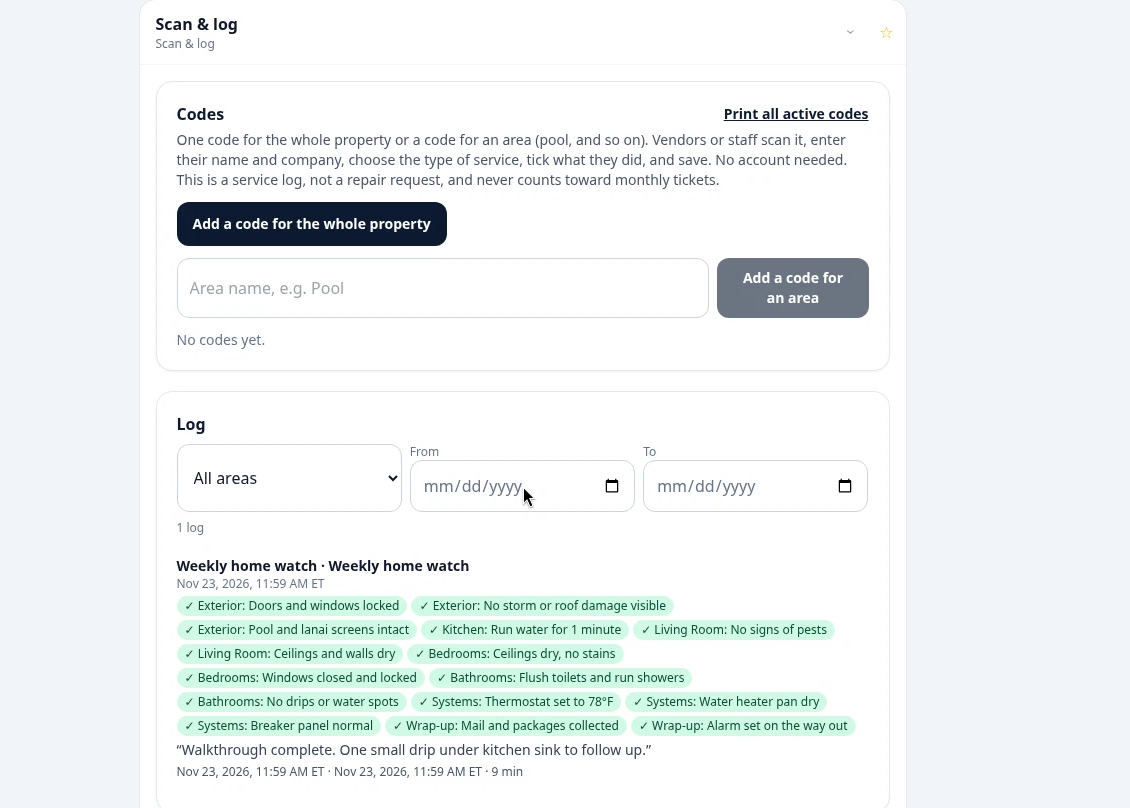
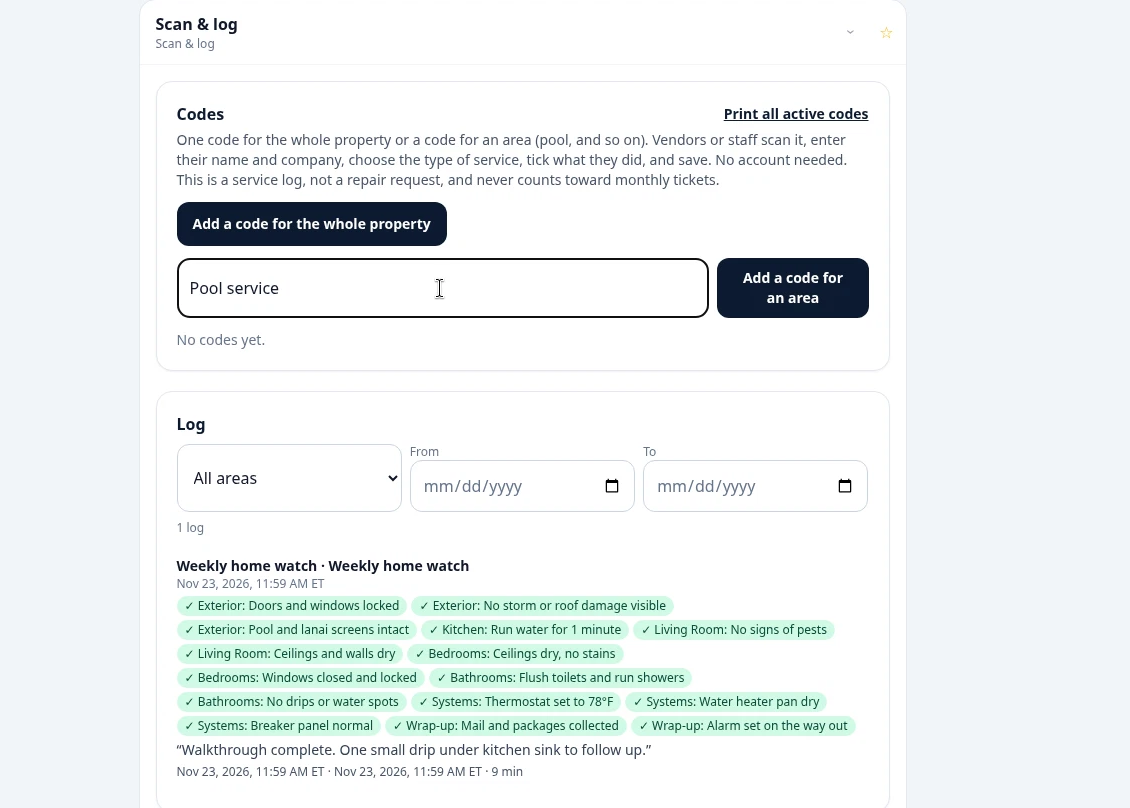
You can Print all active codes, choose Add a code for the whole property, or enter an Area name, e.g. Pool and choose Add a code for an area. If none exist, the section says No codes yet.
Log has filters for All areas, From, and To. In this example it already shows 1 log: a Weekly home watch visit from earlier the same day. Checklist visits appear in this log, not only Scan & log entries. See Run a checklist visit.
Review Scan & log settings
- Scroll to Scan & log settings at the bottom of the section.
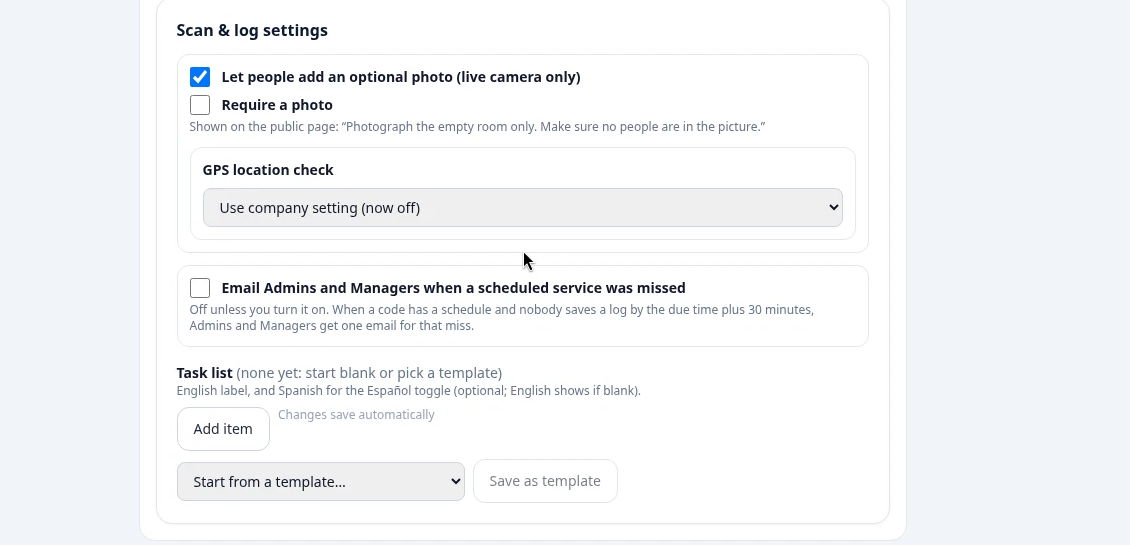
The settings include:
- Let people add an optional photo (live camera only), which is on in this example
- Require a photo, which is off
- A line that says Shown on the public page: "Photograph the empty room only. Make sure no people are in the picture."
- GPS location check, set to Use company setting (now off)
- Email Admins and Managers when a scheduled service was missed, which is off. The help text says Off unless you turn it on. When a code has a schedule and nobody saves a log by the due time plus 30 minutes, Admins and Managers get one email for that miss.
- Task list (none yet: start blank or pick a template), with the note English label, and Spanish for the Español toggle (optional). English shows if blank. You can Add item, Start from a template..., or Save as template. A line next to Add item says Changes save automatically.
Add a code for an area
- In the Area name, e.g. Pool field, enter a name. In this example: Pool service.
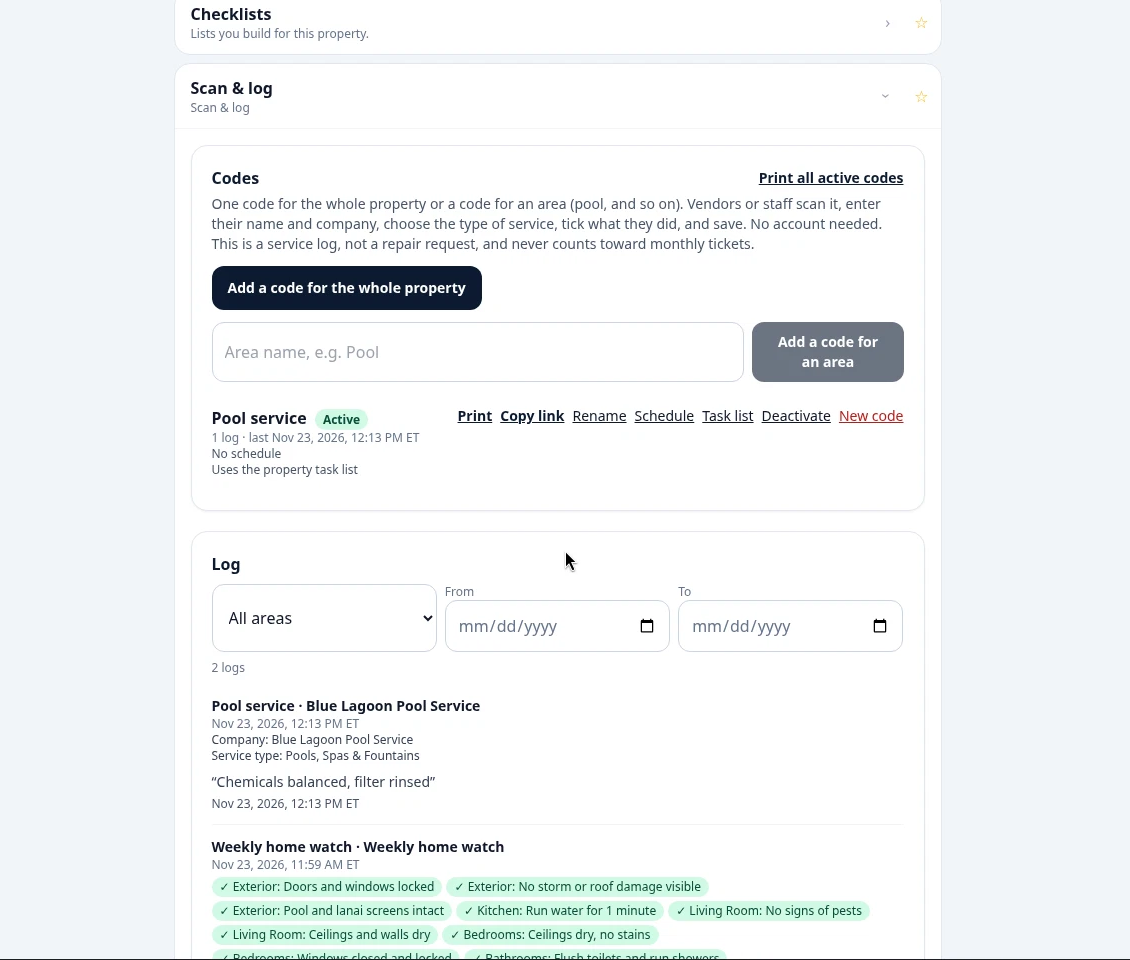
- Choose Add a code for an area. The code appears in the list as Pool service, with an Active badge. In this example the row shows 1 log · last Nov 23, 2026, 12:13 PM ET, No schedule, and Uses the property task list. Links on the row are Print, Copy link, Rename, Schedule, Task list, Deactivate, and New code. Copy link copies the public Scan & log link for that code and shows Copied for about 2 seconds.
Set a schedule or a task list
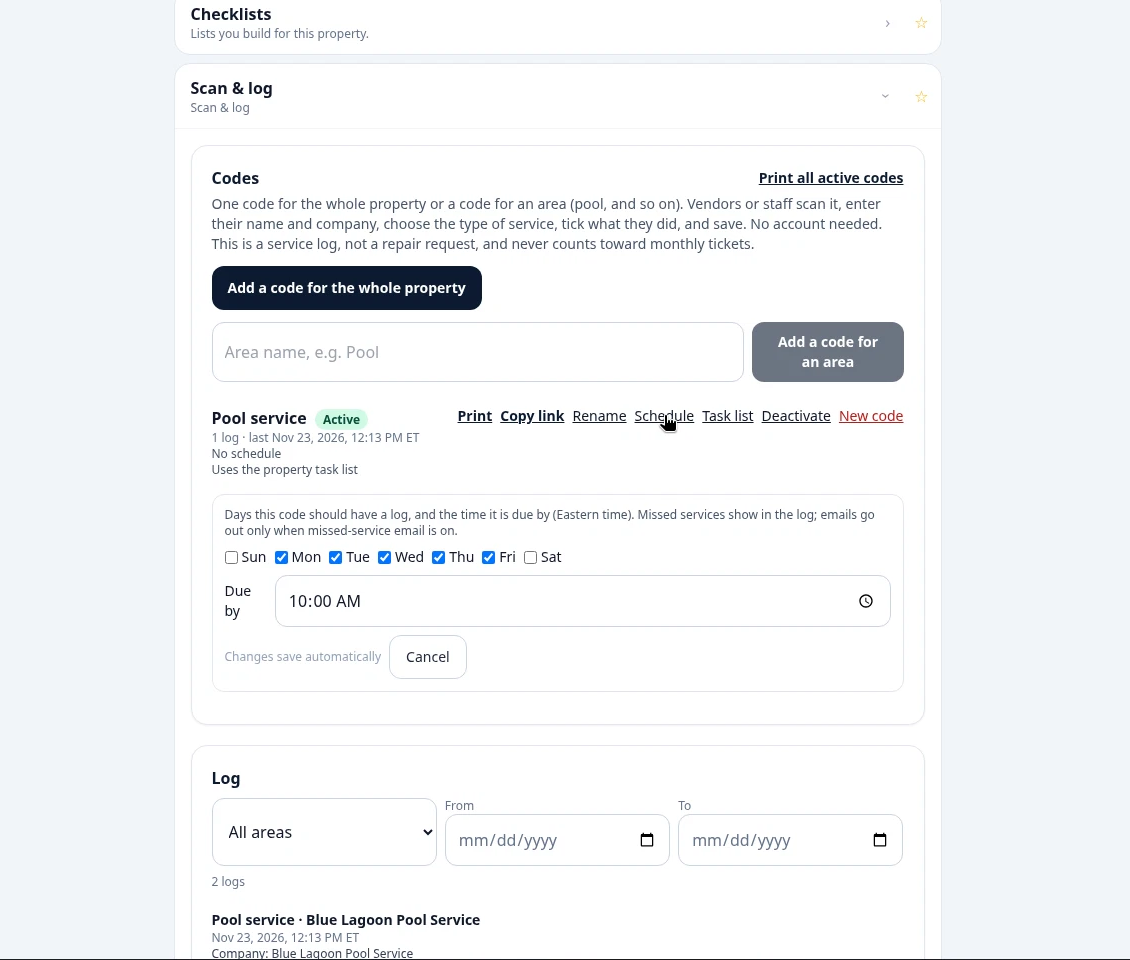
- Choose Schedule. A panel explains: Days this code should have a log, and the time it is due by (Eastern time). Missed services show in the log; emails go out only when missed-service email is on. Days of the week have checkboxes, and there is a Due by time. In this example, Monday through Friday are ticked, and Due by is 10:00 AM. Changes save automatically. After you save, the row updates to show the new schedule right away, without reloading the page. There is also a Cancel button.
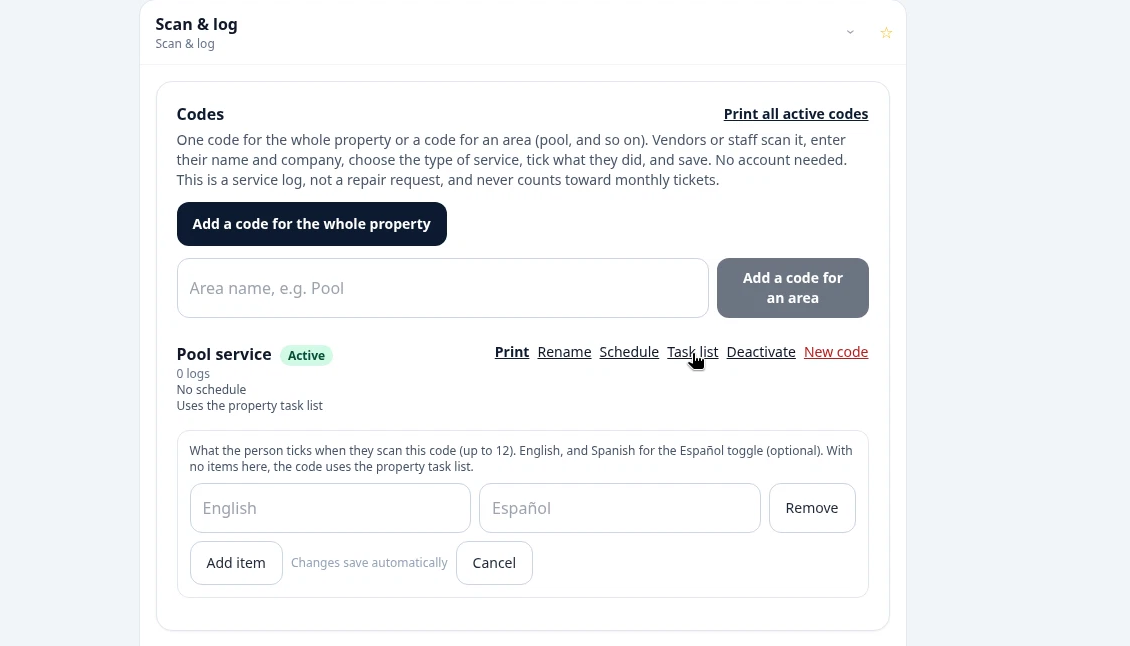
- Choose Task list. The panel explains: What the person ticks when they scan this code (up to 12). English, and Spanish for the Español toggle (optional). With no items here, the code uses the property task list. Each row has English and Español fields and Remove. You can Add item. Changes save automatically, and there is a Cancel button. In this example, no items were added, so the code still says Uses the property task list.
Print the code
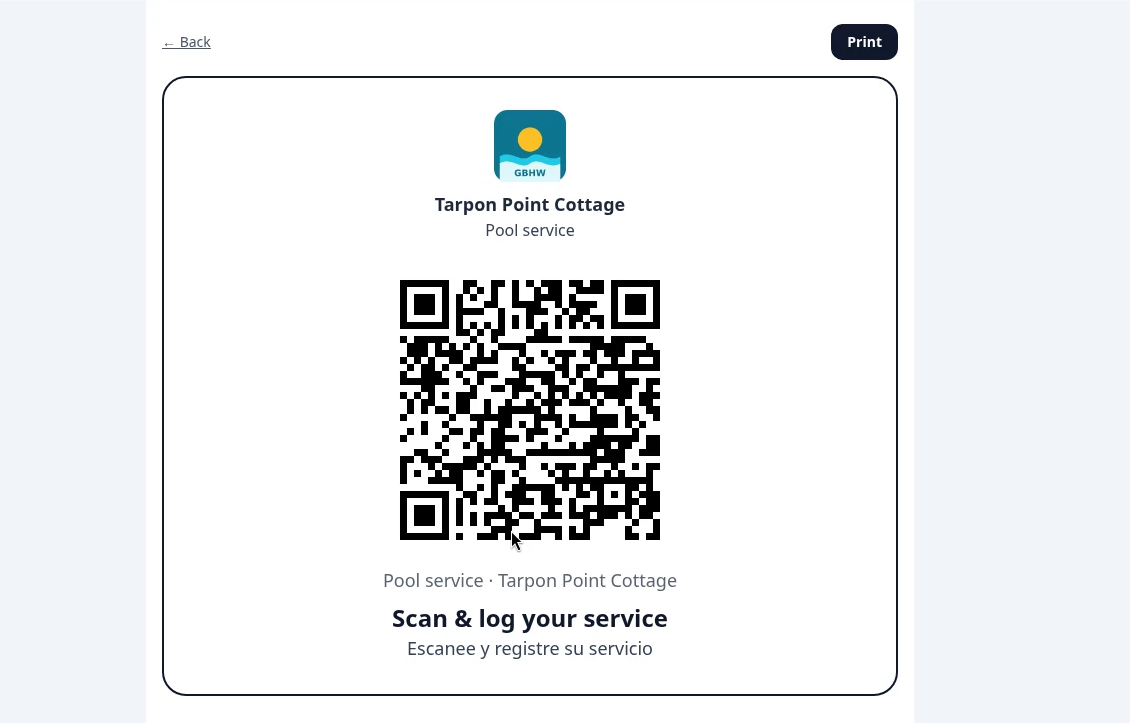
- Choose Print on the code. A print sheet opens with Back and Print. It shows the company logo, the property name, the area name (Pool service in this example), the QR code, the line Pool service · Tarpon Point Cottage, the heading Scan & log your service, and the Spanish line Escanee y registre su servicio.
What someone sees when they scan
- When someone scans the code, the page that opens is labeled SCAN & LOG and shows the area name, the property, and an English / Español language toggle.
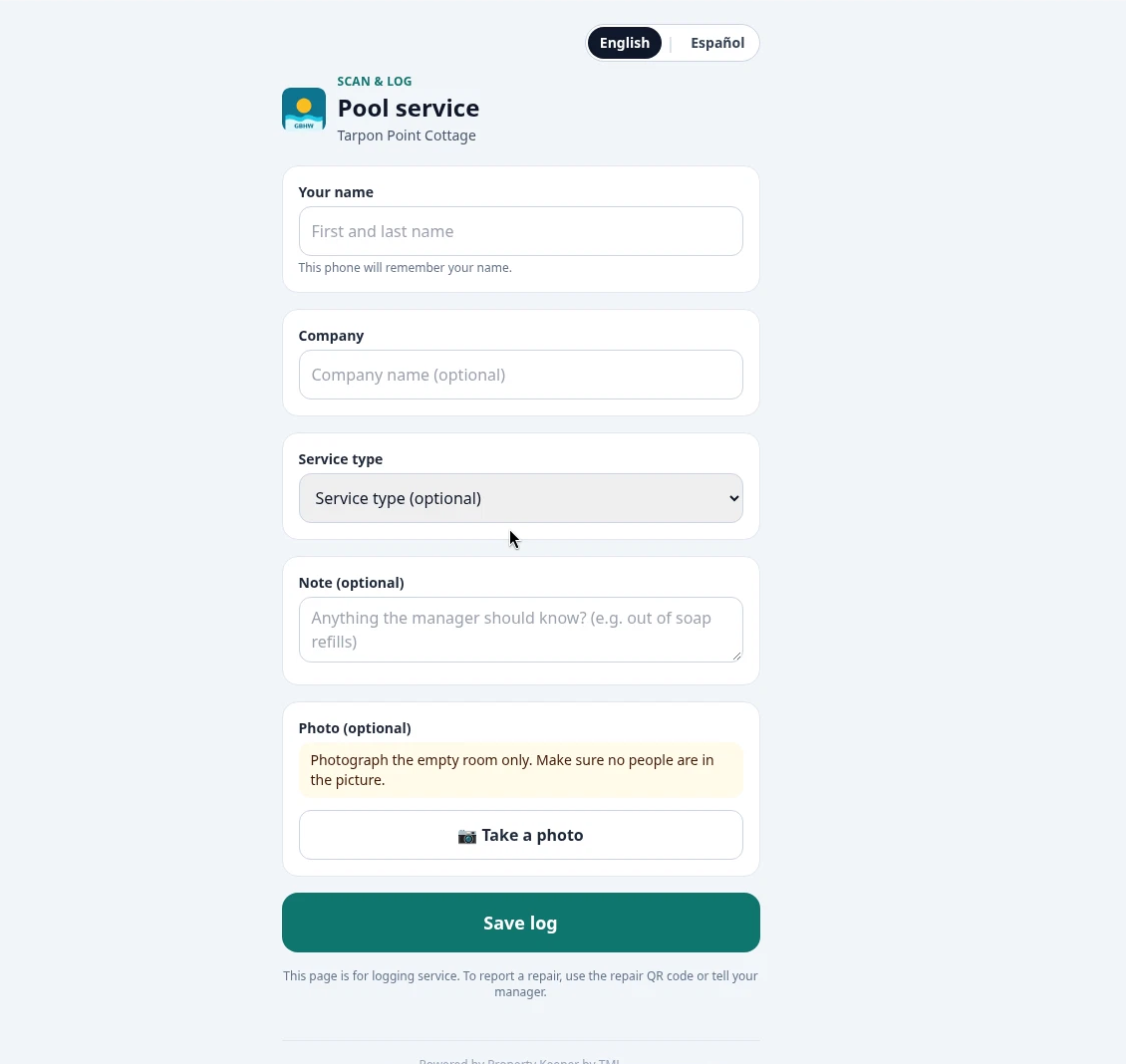
The form includes:
- Your name, with the placeholder First and last name and the note This phone will remember your name.
- Company, with the placeholder Company name (optional)
- Service type, with the placeholder Service type (optional)
- Note (optional), with the placeholder Anything the manager should know? (e.g. out of soap refills)
- Photo (optional), with the note Photograph the empty room only. Make sure no people are in the picture. and a Take a photo button
- Save log
A line under the button says This page is for logging service. To report a repair, use the repair QR code or tell your manager.
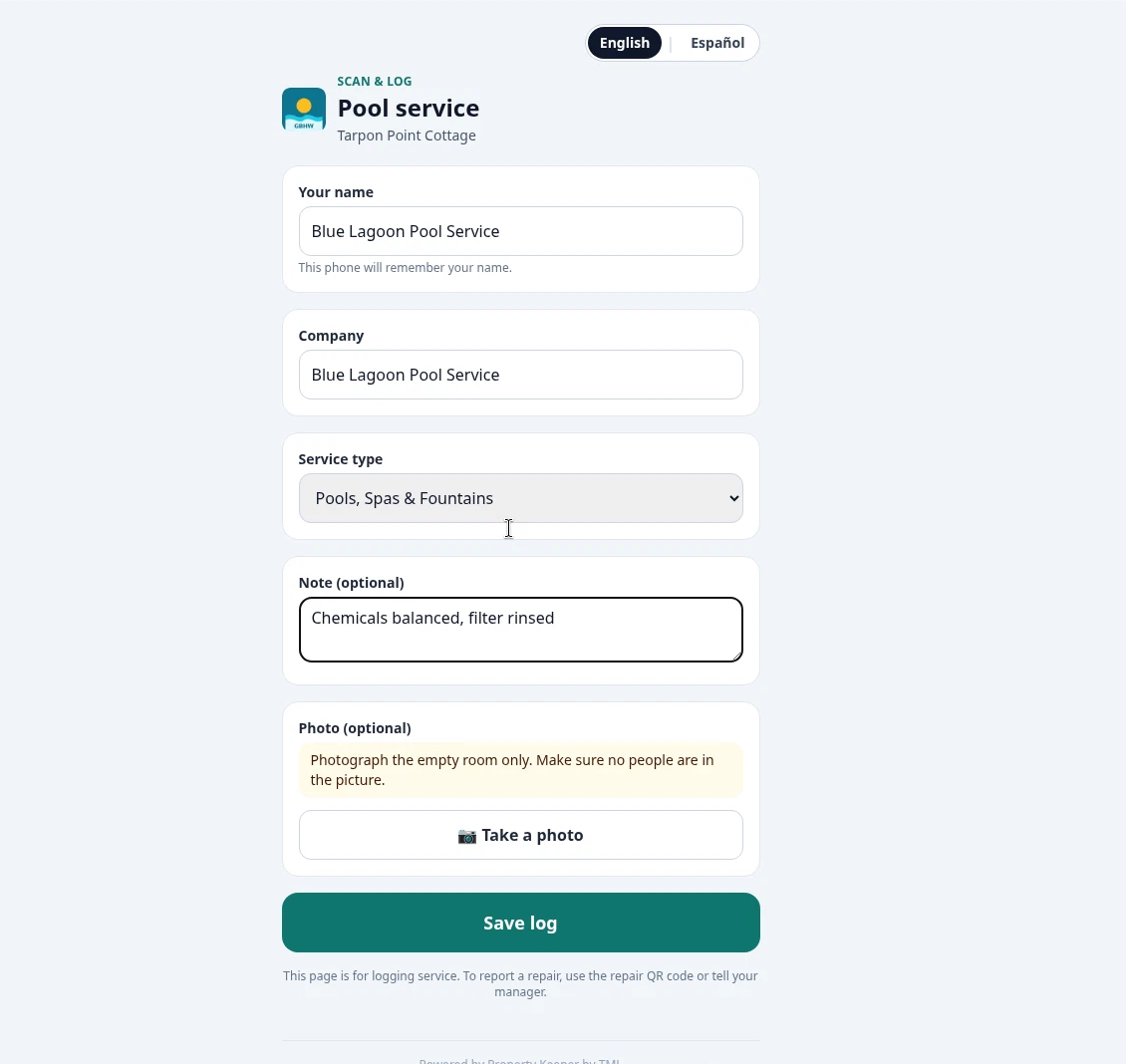
- Fill in the form and choose Save log. In this example, Your name and Company are both Blue Lagoon Pool Service, Service type is Pools, Spas & Fountains, and the note is Chemicals balanced, filter rinsed. No photo was added.
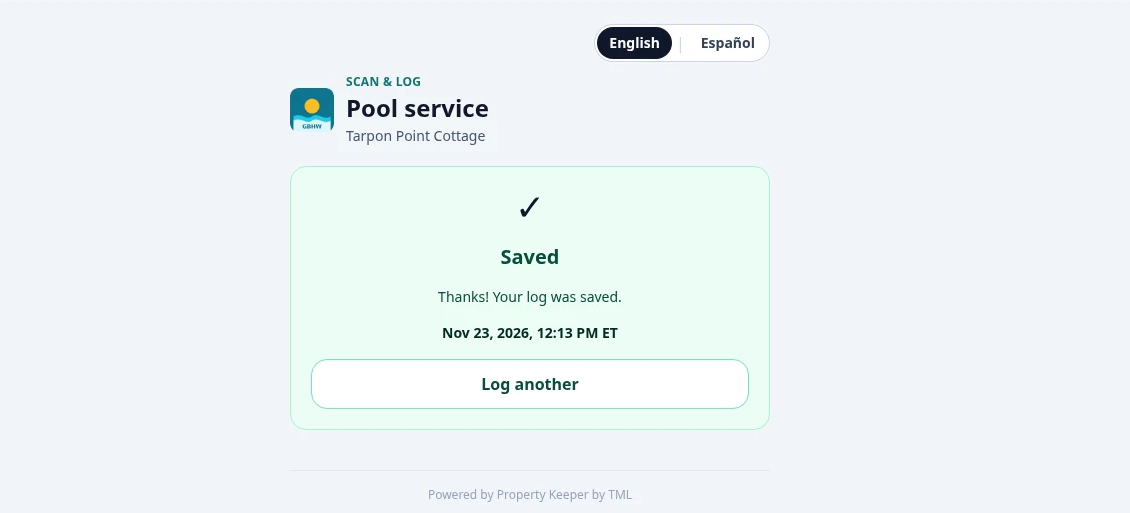
- After you save, the page shows Saved, Thanks! Your log was saved., the time (in this example, Nov 23, 2026, 12:13 PM ET), and a Log another button.
Where the entry shows up
- Back on the property's Scan & log section, the code updates to 1 log · last Nov 23, 2026, 12:13 PM ET. The Log now shows 2 logs. The new entry appears at the top as Pool service · Blue Lagoon Pool Service, with the company, service type, the note "Chemicals balanced, filter rinsed", and the time. The earlier weekly home watch visit stays below it.
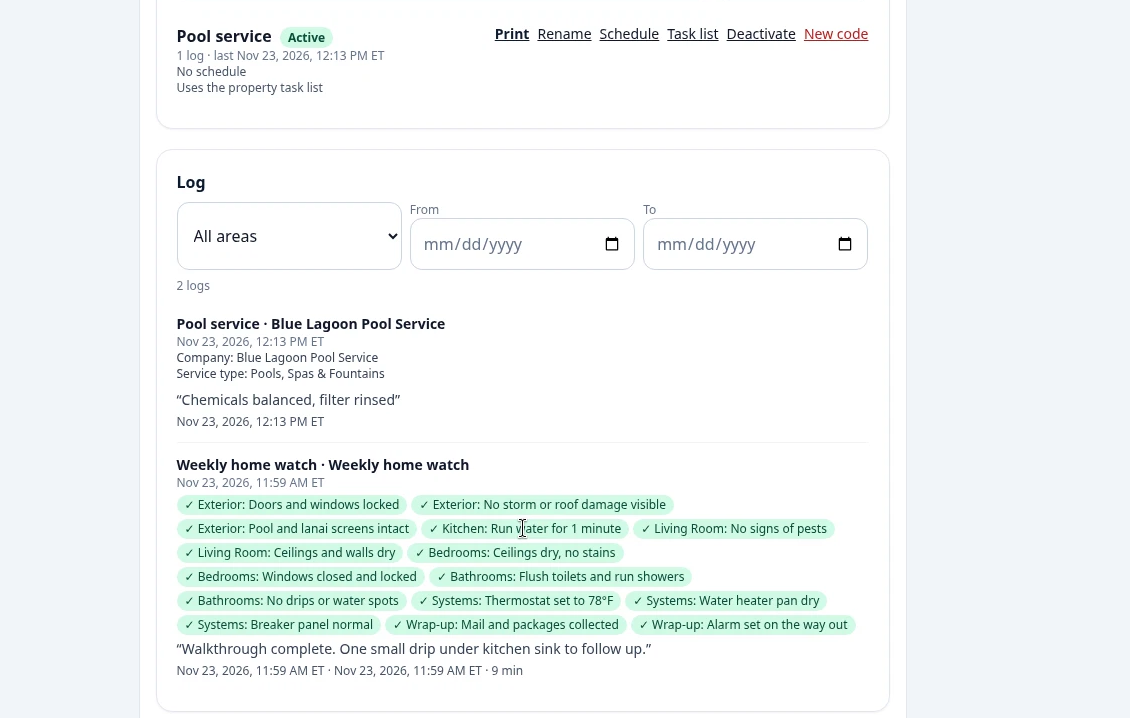
The All areas, From, and To filters are on the log. They were not used in these screenshots.