
QR codes for repair requests
Print the property's Scan for Issues/Repairs sign, see the page that opens when someone scans it, and review the ticket it creates.
Updated November 23, 2026
Each property has a QR sign that people can scan to report a repair. This is not a Scan & log service code. For how to print signs for several properties at once, or to choose a label size, see Print QR signs and codes. For labels that point at a single piece of equipment, see Print and scan equipment QR labels.
Print the property QR sign
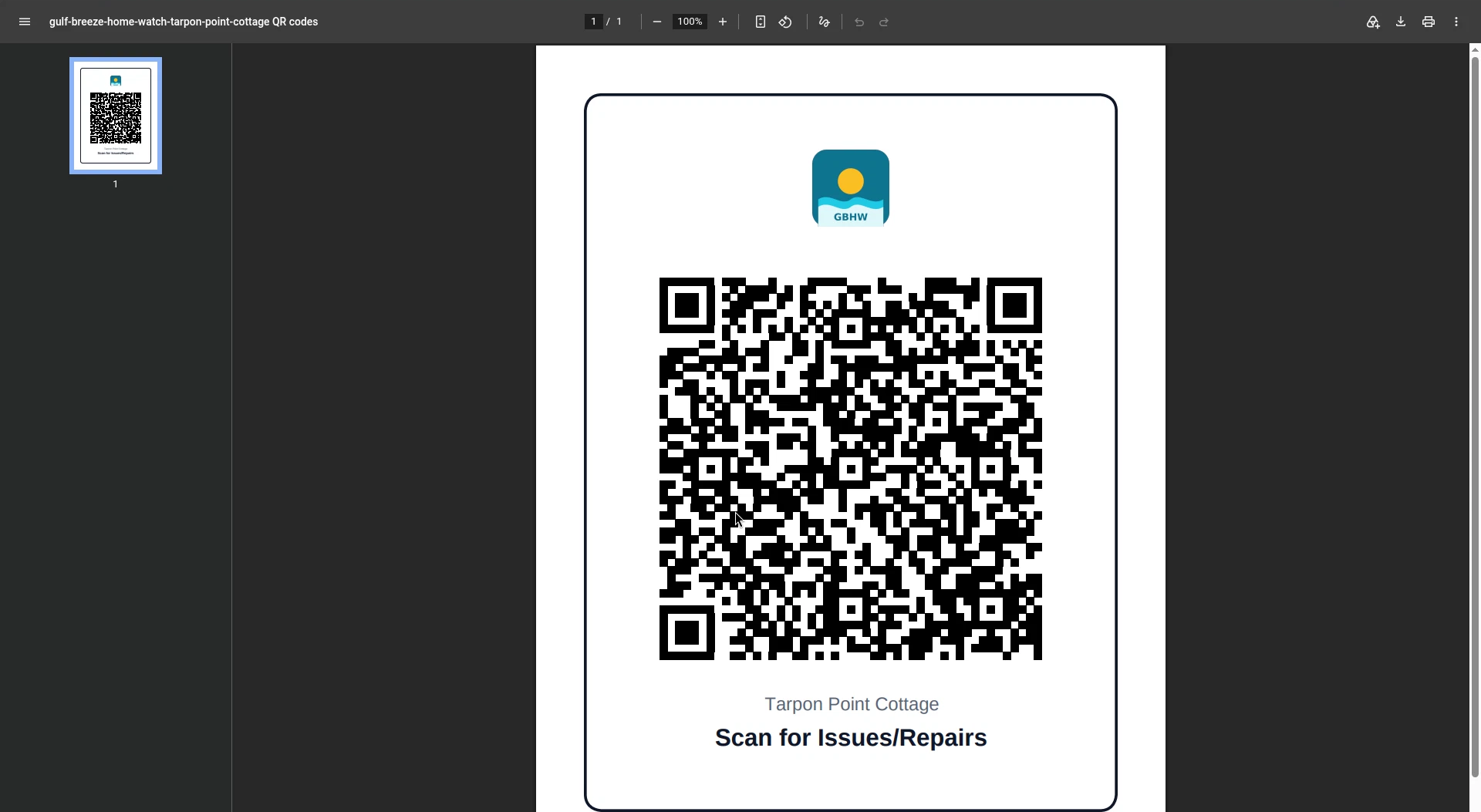
- Open the property and choose Print QR. The sign opens as a PDF in a new tab. It shows your company logo, the QR code, the property name, and the heading Scan for Issues/Repairs.
The page that opens when someone scans the code
- When someone scans the sign, the page that opens is labeled Repair request, with the company name, the property, a line that says usually under a minute., and an English / Español language toggle.
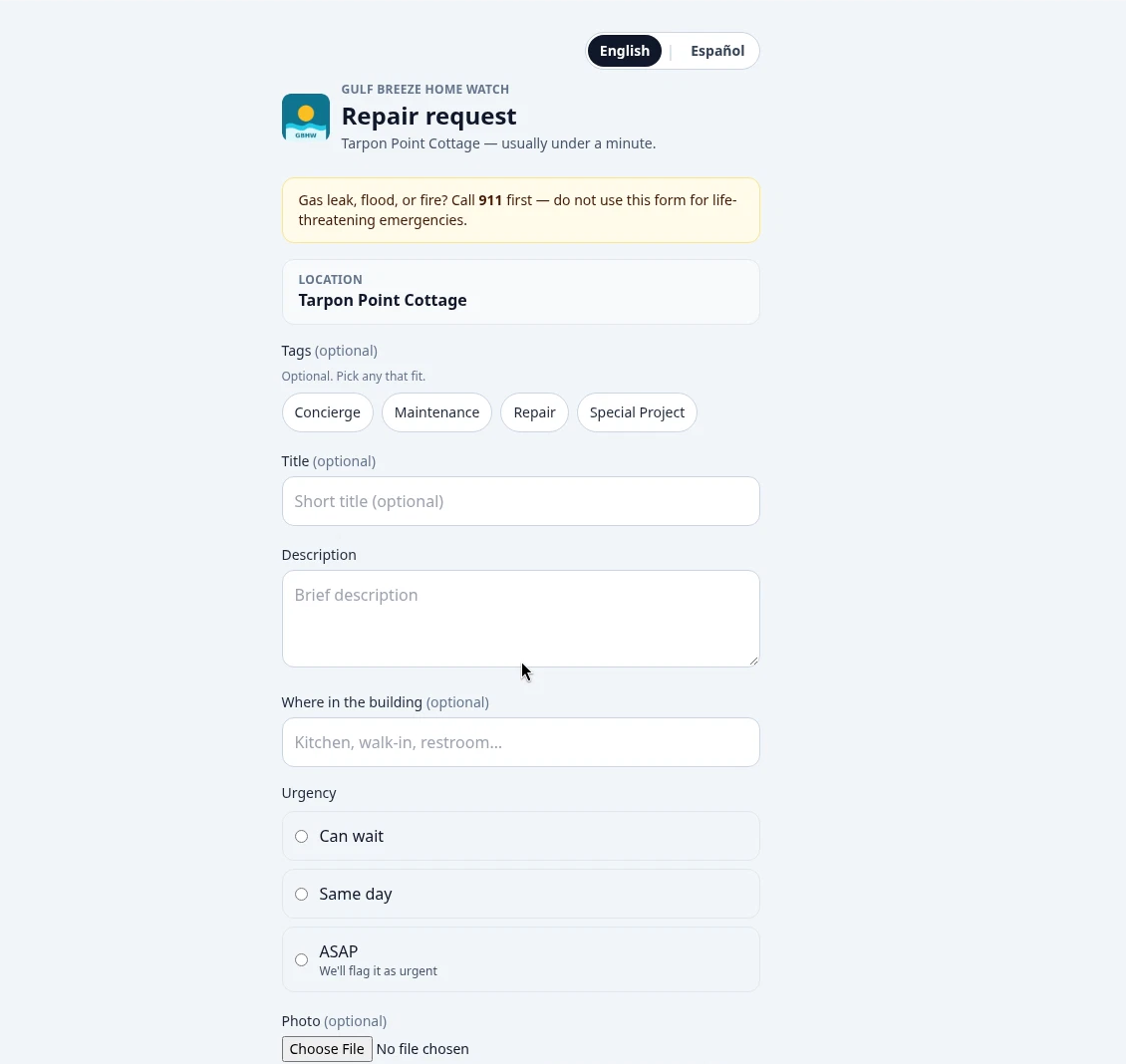
A yellow notice says Gas leak, flood, or fire? Call 911 first — do not use this form for life-threatening emergencies.
The form includes:
- LOCATION, which already shows the property name (in this example, Tarpon Point Cottage)
- Tags (optional), with the note Optional. Pick any that fit. and chips for Concierge, Maintenance, Repair, and Special Project
- Title (optional), with the placeholder Short title (optional)
- Description, with the placeholder Brief description
- Where in the building (optional), with the placeholder Kitchen, walk-in, restroom...
- Urgency, with Can wait, Same day, and ASAP (We'll flag it as urgent)
- Photo (optional), with Choose File
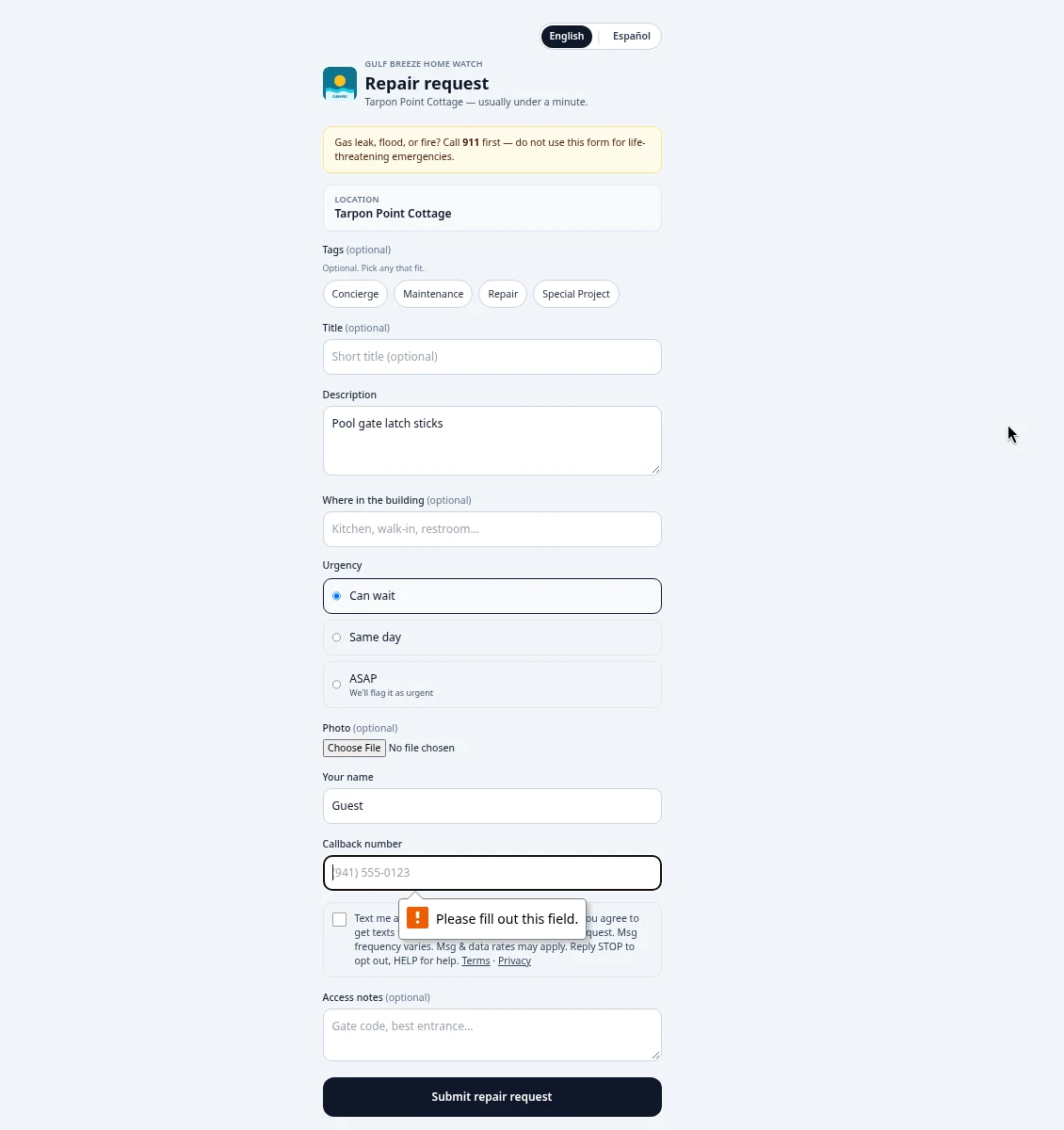
- Your name
- Callback number, with a phone-number placeholder
- A checkbox: Text me about this request. By checking this box you agree to get texts from The Maintenance Line about this request. Msg frequency varies. Msg & data rates may apply. Reply STOP to opt out, HELP for help. with Terms and Privacy links
- Access notes (optional), with the placeholder Gate code, best entrance...
- Submit repair request
The empty-form screenshot is scrolled so Photo (optional) is at the bottom of the window. Your name, Callback number, and the rest of the form are below that, and they are visible when the page is zoomed out, as in the next screenshots.
Fill in the request and submit
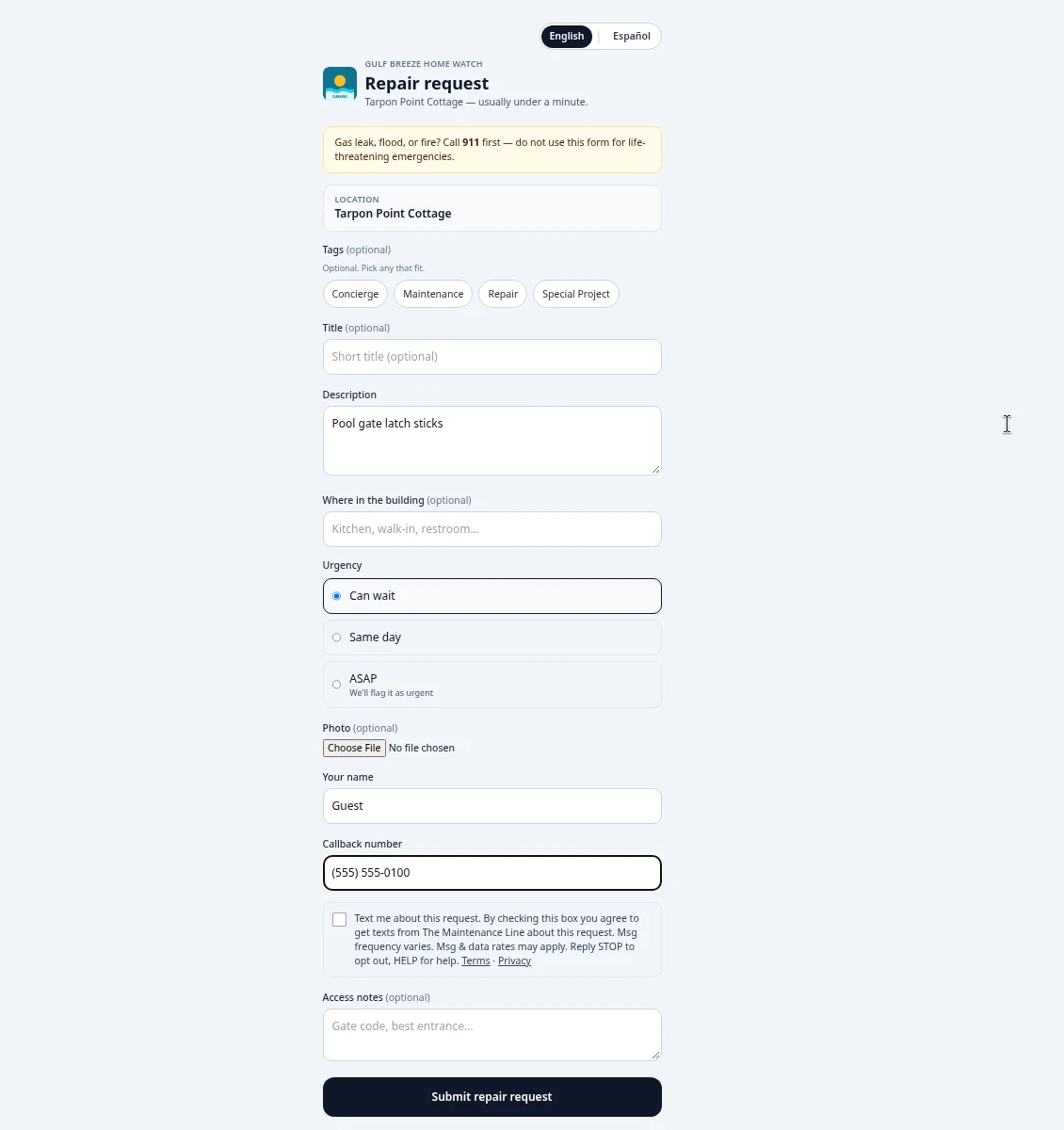
- Fill in the form and choose Submit repair request. In this example, Description is Pool gate latch sticks, Urgency is Can wait, Your name is Guest, and Callback number is (555) 555-0100. Title, location in the building, tags, photo, access notes, and the text-me checkbox are left empty.
- After you submit, the page shows Sent. We're on it., the ticket number (in this example, Ticket #8959452C), and a Submit another link. A line at the bottom says Powered by Property Keeper by TML.

The ticket it creates
- On Tickets, the new ticket appears at the top of the list. In this example the New filter is selected, and the top card is #8959452C, Pool gate latch sticks, Tarpon Point Cottage, Can wait · Nov 23, 12:53 PM, with a red New badge and a Move to... dropdown.
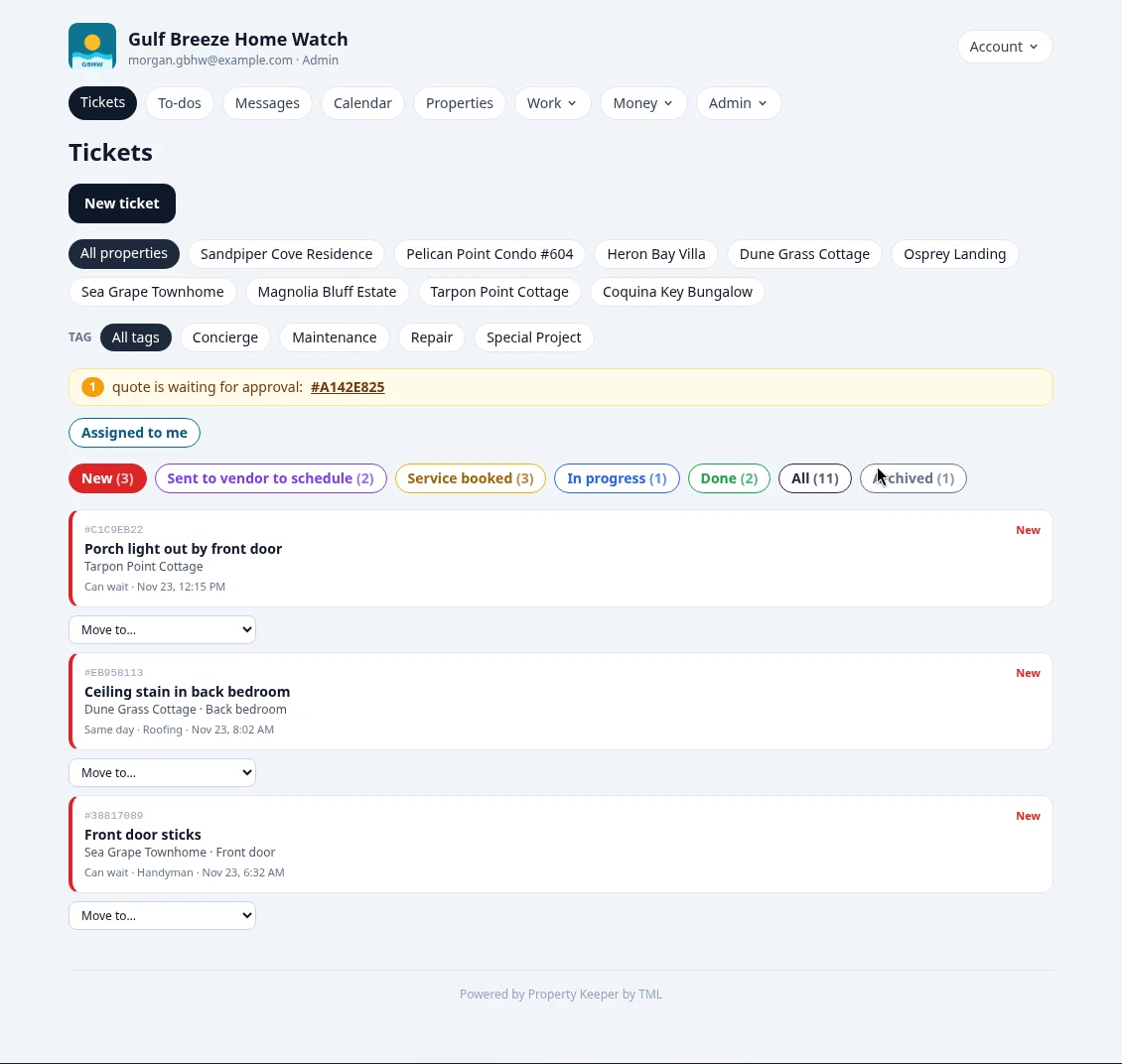
The list also has the usual property chips, TAG chips, Assigned to me, and status chips such as New (4). A yellow banner can appear when a quote is waiting for approval.
- Choose the new ticket. The ticket page heading is Ticket #8959452C, with ← Back to tickets. The stage bar shows New and Get quotes or send to a vendor, with step 1 New current.
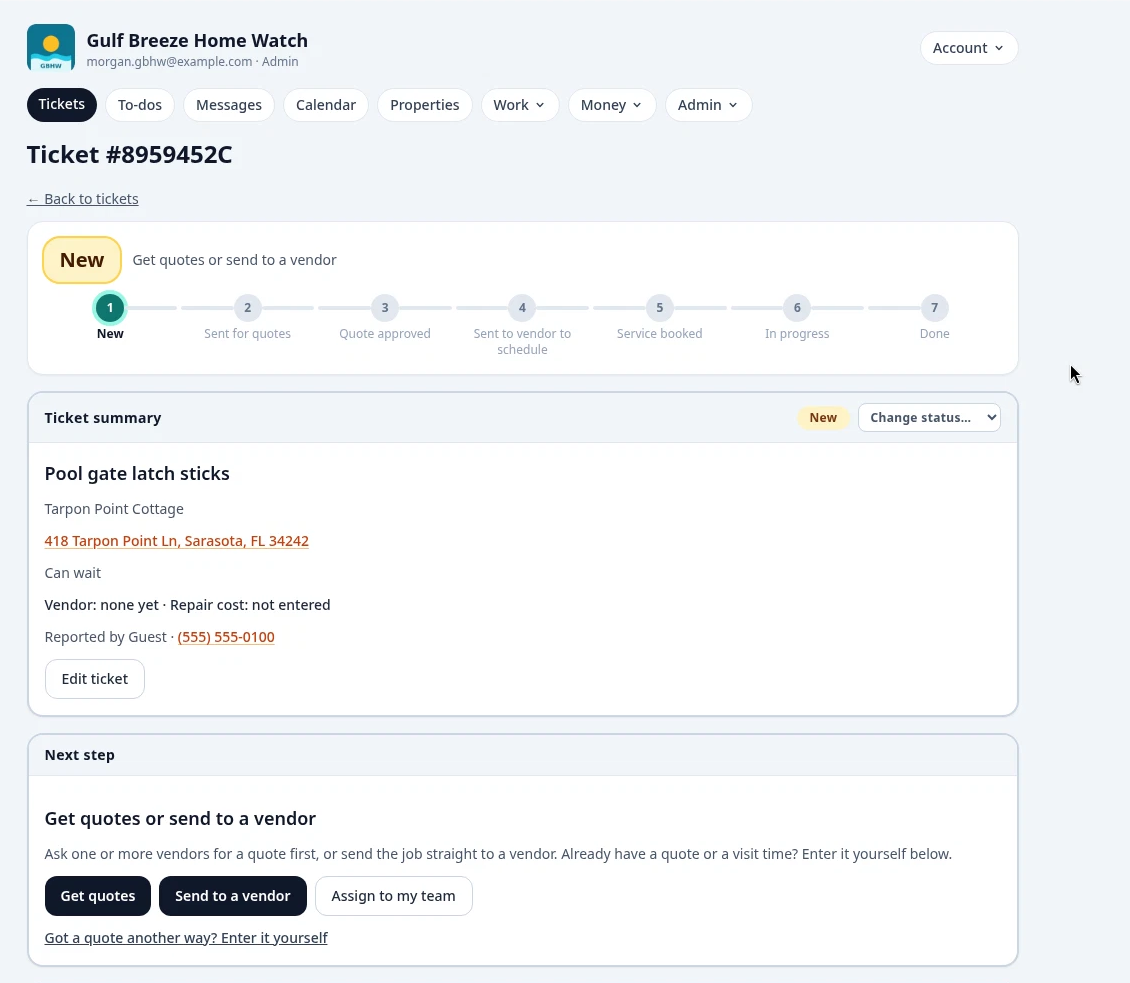
Ticket summary shows a New badge, Change status..., the title Pool gate latch sticks, the property, the address, Can wait, Vendor: none yet · Repair cost: not entered, Reported by Guest · (555) 555-0100, and Edit ticket.
Next step is Get quotes or send to a vendor, with the help text Ask one or more vendors for a quote first, or send the job straight to a vendor. Already have a quote or a visit time? Enter it yourself below. Buttons are Get quotes, Send to a vendor, and Assign to my team, plus the link Got a quote another way? Enter it yourself.
To change status or send the job on, see Ticket details and status.